 Skip to content
IPTV on Roku: 3 Methods That Actually Work (2026)
Here is the honest answer first: IPTV on Roku is more limited than on almost any other streaming device. Roku runs a closed operating system, so you cannot sideload the popular players the way you can on a Firestick or an Android box. TiviMate, IPTV Smarters Pro and XCIPTV are simply not there. That surprises a lot of people, because a Roku is one of the easiest streaming sticks to own.
The good news: you are not stuck. There are three methods that genuinely work, and the first one takes about five minutes. This guide walks through all three in clear, jargon-free steps, and tells you honestly when a Roku is fine for IPTV and when another device would serve you better.
Why IPTV is limited on Roku
Roku is a closed streaming platform. Every app has to come from the official Roku Channel Store — there is no “unknown sources” toggle, no Downloader app, and no APK sideloading. On a Firestick you can install almost any IPTV player in a couple of minutes. On a Roku, you can only run what Roku has approved.
That is why the big-name players are missing. TiviMate is Android-only. IPTV Smarters Pro and XCIPTV are not published for Roku either. What you do get is a small group of Channel Store apps that read a standard playlist — and, as a fallback, the ability to mirror your phone or computer to the TV. Once you know those two paths exist, setting up IPTV on Roku is straightforward.
How to watch IPTV on Roku: the 3 methods
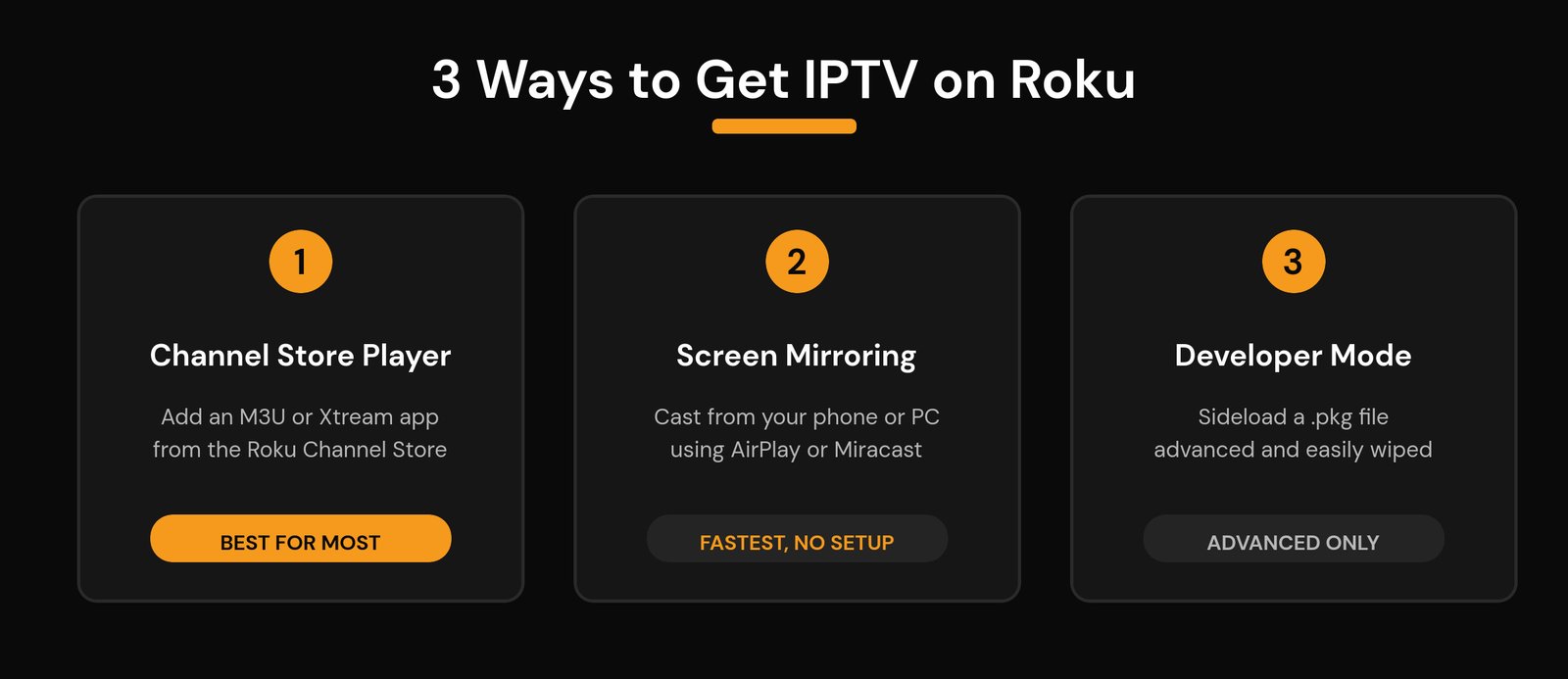
There are three realistic ways to get your channels playing on a Roku. Most people should start with Method 1. Method 2 is the fastest way to test your subscription tonight, and Method 3 exists mainly so you know why it is not worth chasing.
Method 1: Use a Roku Channel Store IPTV player (best for most people)
A handful of IPTV player apps live right in the Roku Channel Store and accept your provider’s playlist. In 2026 the ones people use most include IPTV Player, Xtream IPTV Player, Smart IPTV Pro, PurPlex IPTV Player and IBO Player. Most of them read an M3U playlist, and several also accept an Xtream Codes login. Many charge a small one-time activation fee or offer a short free trial, so you can test before you commit.
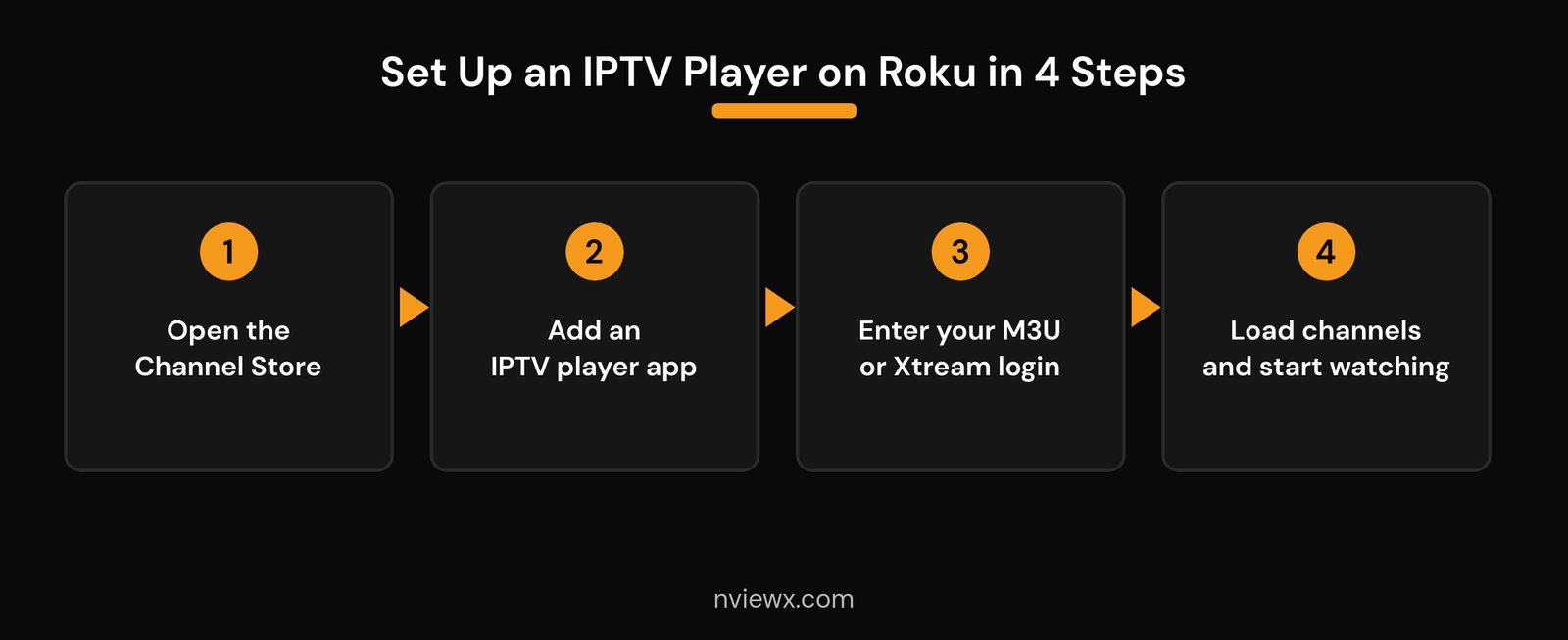
Here is the setup, start to finish:
- Open the Channel Store. From the Roku home screen, go to Streaming Channels (or use Search).
- Add an IPTV player app. Search for a term like “IPTV Player”, “M3U” or “Xtream”, pick a player, and choose Add Channel.
- Enter your login. Open the app and add a playlist: paste your M3U URL, or type your Xtream Codes server URL, username and password if the app supports it.
- Load your channels. Give it a few seconds to pull the list. Your live channels, movies and series appear, and many apps load the EPG (TV guide) automatically.
One catch worth knowing: some Channel Store apps only accept an M3U link, not an Xtream login. If your app refuses your Xtream credentials, ask your provider for the M3U version of your subscription — it carries the same channels, just in a different format. If you are brand new to this, our step-by-step IPTV setup guide covers the basics for any device.
Method 2: Screen mirror IPTV from your phone or PC
If you would rather use a full-featured player — with a proper guide, recording, and multiple playlists — run it on your phone, tablet or computer and mirror the screen to your Roku. The Roku just becomes the display; the phone does the work.
From an iPhone, iPad or Mac (AirPlay): most Roku devices made from 2019 onward support AirPlay 2 on Roku OS 9.4 or later. On the Roku, open Settings → Apple AirPlay and HomeKit and turn AirPlay on. Then start your IPTV app on the iPhone, open Control Center, tap Screen Mirroring, and pick your Roku.
From an Android phone or Windows PC (Miracast): most Android 10+ devices and Windows laptops support Miracast screen mirroring. On the Roku, go to Settings → System → Screen mirroring and set the mode to Prompt or Always allow. Then cast from your device’s Smart View / Cast menu. Note that Google’s own Pixel phones dropped Miracast, so those need one of the other methods.
Mirroring is the quickest way to test a service tonight, but it has trade-offs: your phone has to stay awake and unlocked, its battery drains, an incoming call can interrupt the stream, and there is a little lag. For daily viewing, a Channel Store player is smoother.
Method 3: Developer Mode sideloading (advanced, not recommended)
Roku has a hidden Developer Mode that lets a developer upload a packaged channel (a .pkg file) from a computer. You will see it mentioned in some guides as a way to load IPTV Smarters onto a Roku. In practice, skip it: the popular players are not distributed as Roku packages, the sideloaded channel can be wiped by a routine Roku update, the process resets easily, and it was never meant for everyday users. Unless you genuinely enjoy tinkering, Methods 1 and 2 will serve you far better with none of the headaches.
Which method should you use?
| Method | Best for | Ease | Works with |
|---|---|---|---|
| Channel Store player | A permanent, everyday setup | Easy | M3U link (some accept Xtream) |
| Screen mirroring | Testing fast, using a full player | Medium | Any app on your phone or PC |
| Developer Mode | Advanced tinkerers only | Hard | A packaged .pkg channel |
Is a Roku good enough for IPTV, or should you switch devices?
Be realistic about what you want. If you already own a Roku and simply want to watch your channels with a straightforward M3U player, Method 1 is genuinely fine — keep the Roku and save your money. But if you want the polished stuff — a fast, scrollable guide, recording and catch-up, several playlists, and the best-in-class players — a device that allows sideloading will give you far more control.
That usually means a Firestick or an Android TV box. Our guide on choosing between a MAG box, Firestick and Android TV box breaks down the trade-offs, and if you are leaning toward Amazon’s stick, see how to install IPTV on a Firestick. Prefer to use the TV you already have? Here is how to set up IPTV on a Samsung or LG Smart TV, and Apple households can check the best IPTV players for Apple TV. It also helps to understand how IPTV player apps work and what a dedicated IPTV box actually does.
Fixing common Roku IPTV problems
The app won’t load your playlist. Re-check the M3U URL for typos or stray spaces, confirm your subscription is active, and make sure you have not hit your plan’s connection limit by leaving the stream running on another device.
Your Xtream login is rejected. The app is probably M3U-only. Ask your provider for the M3U link that matches your Xtream Codes account — same channels, format the app can read.
Buffering or freezing. This is almost always the network, not the Roku. Use a wired connection or 5GHz Wi-Fi, check the internet speed you actually need, dial in the best Wi-Fi settings, or try changing your DNS. Our full guide to fixing IPTV buffering covers the rest.
Mirroring looks laggy. Move the phone closer to the router, close background apps, and keep the screen awake — or switch to a Channel Store player for a steadier picture.
Frequently asked questions
Can you get TiviMate on Roku?
No. TiviMate is an Android app and is not in the Roku Channel Store, and Roku does not allow the sideloading that Firestick and Android boxes do. Use a Channel Store IPTV player instead, or run TiviMate on your phone and screen mirror it to the Roku.
Does IPTV Smarters work on Roku?
Not as a native Roku app — IPTV Smarters Pro is not published in the Channel Store. You can run it on a phone, tablet or PC and mirror the screen to your Roku, or choose one of the Roku Channel Store players and enter the same playlist.
Do Roku IPTV apps support Xtream Codes?
Some do, such as Xtream IPTV Player and Smart IPTV Pro, but several accept only an M3U URL. If your app will not take an Xtream login, ask your provider for the M3U link — it delivers the same channels.
Is a Roku good for IPTV?
For a simple M3U player or quick screen mirroring, yes. For advanced players, recording and the smoothest guide experience, a Firestick or Android TV box is a better fit because it lets you install more capable apps.
Is it safe and legal to use IPTV on Roku?
The methods themselves are safe. Legality depends on the service, not the device: a properly licensed provider is legal, an unlicensed one is not. Stick with a reputable service — here is how to get a legal IPTV service, how to choose a reliable provider, and how to avoid the common risks.
Related guides
- How to set up IPTV on any device
- How to install IPTV on a Firestick
- How to set up IPTV on a Samsung or LG Smart TV
- MAG box vs Firestick vs Android TV box
- How to fix IPTV buffering
Bottom line: a Roku can absolutely play IPTV — you just have to work with its closed design instead of against it. Add a Channel Store player for the everyday setup, keep screen mirroring in your back pocket for quick tests, and reach for a Firestick or Android box only if you want the advanced features Roku holds back.






