Skip to content
Best DNS for IPTV: Does Changing It Stop Buffering?
Short answer: changing your DNS can stop IPTV buffering, but only for one kind of buffering. If channels are slow to load, slow to switch, or your provider’s address simply won’t resolve, a faster DNS like Cloudflare’s 1.1.1.1 or Google’s 8.8.8.8 often makes a real, noticeable difference. If your stream stutters because the Wi-Fi is weak or the connection is genuinely too slow, a new DNS won’t fix a thing. The whole game is knowing which problem you actually have.
So before you copy a random IP address off a forum, here is what DNS really does, when swapping it helps, when it’s a waste of two minutes, the best DNS for IPTV right now, and exactly how to change it on a Firestick, phone, smart TV, or router.

What DNS actually does (in simple terms)
DNS — the Domain Name System — is the internet’s phone book. You type a name; DNS hands back the numeric address the network actually uses. Every time you open a channel, your IPTV player has to turn your provider’s hostname into an IP address before a single frame can load. That lookup normally takes a few milliseconds. On a slow or overloaded DNS server it can take far longer, and you feel it as a pause every time a channel starts or you flick to the next one.
Here is the part most guides skip: DNS only affects that lookup step, not the video itself. Once the stream is flowing, DNS has already done its job and stepped aside. So a better DNS can shave the delay before a channel appears — it cannot widen a pipe that’s too narrow or calm down a busy Wi-Fi network. Keep that distinction in mind and you’ll never waste time on the wrong fix again.
When changing your DNS will help

Reach for a DNS swap first when you see any of these:
- Channels are slow to start. You pick a channel, stare at a black screen for two or three seconds, then it plays fine. That delay is the lookup, and a snappier resolver usually cuts it.
- Zapping feels sluggish. Every channel change has the same little hang. Once playback begins it’s smooth — the pause is up front, which points straight at DNS.
- Some channels won’t load while others do. If a handful of streams refuse to open but the rest are fine, your current resolver may be failing to reach certain hosts. A clean public DNS often brings them back.
- Your ISP blocks at the DNS level. Plenty of providers do the laziest kind of blocking — they simply refuse to resolve certain domains. Switching to a public resolver, or turning on DNS over HTTPS, walks right around that block.
In testing on a Firestick that paused for a beat on every channel change, moving from the ISP’s default DNS to 1.1.1.1 took the start-up hang from roughly three seconds to under one. Nothing else changed. That’s the sweet spot for a DNS fix.
When a new DNS won’t fix buffering
This is where most “just change your DNS” advice oversells. If your buffering comes from any of the following, a new resolver does nothing — and chasing it just delays the real fix:
- Not enough speed. 4K needs real headroom. If your connection is borderline, the stream will choke no matter how fast the lookup was. Check the numbers in our guide to the internet speed you need for IPTV.
- Weak or congested Wi-Fi. A far-away router or a packed 2.4GHz band causes mid-stream freezing that DNS can’t touch. Dial in your Wi-Fi settings for IPTV first, and if it streams fine on mobile data but not at home, read why IPTV works on a hotspot but not Wi-Fi.
- An overloaded provider. Stutter that only hits during peak evening hours or big live sports — when everyone piles on at once — is the provider’s server straining, not your DNS. That’s a sign to choose a more reliable IPTV provider.
- Throttling. If your ISP is actively slowing IPTV traffic, a different DNS won’t hide the stream from them — a VPN that bypasses IPTV restrictions is the tool for that job.
For deeper error messages and authentication hiccups (rather than plain slowness), our breakdown of IPTV error codes and DNS issues is the better starting point.
Best DNS for IPTV in 2026
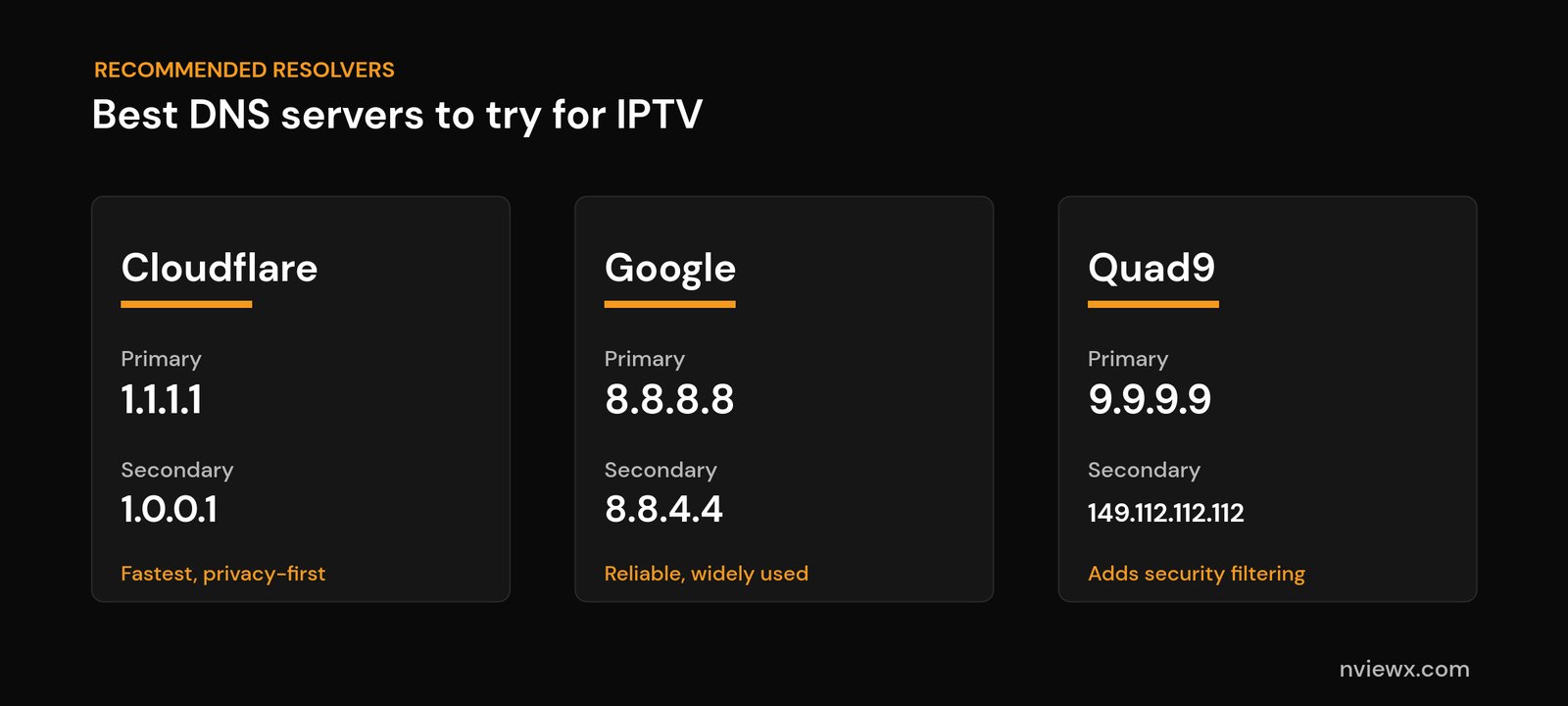
These three public resolvers are free, fast, and well run. Any of them beats a sluggish ISP default.
| Provider | Primary | Secondary | Best for |
|---|---|---|---|
| Cloudflare | 1.1.1.1 | 1.0.0.1 | Fastest start-up, privacy-first |
| 8.8.8.8 | 8.8.4.4 | Rock-solid reliability everywhere | |
| Quad9 | 9.9.9.9 | 149.112.112.112 | Built-in security filtering |
My order of attack: try Cloudflare’s 1.1.1.1 first — it’s consistently among the quickest and doesn’t log what you watch. If it’s flaky on your line, fall back to Google Public DNS (8.8.8.8). One caveat with Quad9: its security filter occasionally blocks a host you actually want, so if a channel that used to load suddenly stops after switching to 9.9.9.9, move to Cloudflare or Google instead.
How to change your DNS, device by device
On a Firestick or Fire TV
Fire OS won’t let you type a DNS on its own — you have to set a static IP at the same time. Go to Settings > My Fire TV > About > Network and note your current IP and gateway. Then open Settings > Network, highlight your Wi-Fi, and choose to forget it. Reconnect, and when it offers Advanced options enter the same IP and gateway you wrote down, then set the DNS to 1.1.1.1 (or 8.8.8.8). Restart the stick. Honestly, the router method below is less fiddly if you have access.
On an Android phone or Android TV box
The clean way is Private DNS: Settings > Network & internet > Private DNS > Private DNS provider hostname, then enter a hostname like one.one.one.one for Cloudflare or dns.google for Google. That uses an encrypted lookup and applies on both Wi-Fi and mobile data. For numeric DNS only, edit the saved Wi-Fi network, switch IP settings to Static, and fill in the DNS fields.
On a smart TV
In the TV’s network settings, open the connection, choose manual IP configuration, and replace the DNS entry with 1.1.1.1 or 8.8.8.8. Steps vary by brand — our walkthrough for setting up IPTV on a Samsung or LG smart TV shows where those menus live.
On your router (the option I’d pick)
Change DNS once on the router and every device on the network inherits it — TVs, sticks, phones, boxes, the lot. Log in to the router admin page, find the DNS fields (usually under Internet, WAN, or DHCP settings), enter a primary and secondary from the table above, save, and reboot. This is the least repetitive fix and the one I reach for first.
On Windows or macOS
On Windows: Settings > Network & internet > your adapter > Edit DNS > Manual. On macOS: System Settings > Network > Details > DNS. Add 1.1.1.1 and 1.0.0.1, save, and you’re done. Handy if you run a player on a computer plugged into the TV.
Quick test: is DNS really your problem?
Two minutes, no apps needed. Open a few channels and watch how they fail. If channels are slow to appear but smooth once they’re playing, the bottleneck is the lookup — DNS is worth changing. If they start fine and then freeze or pixelate mid-stream, the problem is bandwidth, Wi-Fi, or the provider, and DNS won’t help. You can also try the same playlist on your phone’s mobile data: if it’s perfect there but stalls on home Wi-Fi, you’re looking at a network or ISP issue, not a resolver.
The bottom line
Changing your DNS is free, takes about two minutes, and genuinely helps when slow lookups or DNS-level blocking are the cause — so it’s always worth a quick try. Just don’t expect it to fix a problem it was never going to touch. If the buffering survives a clean DNS swap, work through the full IPTV buffering checklist, and if you’re still setting things up, start with our step-by-step IPTV setup guide.
Frequently asked questions
What is the best DNS for IPTV?
Cloudflare (1.1.1.1 and 1.0.0.1) is the best all-round choice for speed and privacy. Google (8.8.8.8 and 8.8.4.4) is the most reliable fallback, and Quad9 (9.9.9.9) adds security filtering if you want it. Try Cloudflare first and keep whichever feels snappiest on your line.
Does changing DNS really stop buffering?
Sometimes. It fixes buffering caused by slow channel loading and by ISPs that block IPTV domains at the DNS level. It does nothing for buffering caused by low bandwidth, weak Wi-Fi, an overloaded provider, or active throttling — those need different fixes.
Is Cloudflare or Google DNS better for IPTV?
Cloudflare is usually a touch faster and doesn’t log your browsing, which makes it my default. Google’s DNS is extremely reliable and rarely has an off day. Test both for a few minutes each and keep the one with the quicker channel start-up.
Will changing DNS bypass my ISP blocking IPTV?
Only if the block is at the DNS level — meaning your ISP just refuses to resolve certain domains. A public resolver or DNS over HTTPS gets around that. If the ISP blocks by IP address or throttles the traffic itself, you’ll need a VPN, not a new DNS.
How do I know if DNS is causing my buffering?
Watch how channels fail. A delay before a channel starts (but smooth playback after) points to DNS. Freezing or pixelation in the middle of a stream points to bandwidth, Wi-Fi, or the provider. If it’s the second kind, changing DNS won’t help.
Related guides
- How to fix IPTV buffering and cloud errors
- Internet speed for IPTV: how much do you need?
- Best Wi-Fi settings for IPTV
- Understand IPTV error codes and DNS issues
- How to bypass IPTV restrictions
By the Nviewx team — we run a premium IPTV service and test setup and troubleshooting daily across Firestick, Android TV, Apple TV, smart TVs, and mobile.