Skip to content
How to Fix IPTV Buffering and Streaming Errors
IPTV buffering is almost always a bandwidth problem somewhere in the chain between the provider’s server and your screen — usually slow or unstable internet, Wi-Fi instead of a wired connection, ISP throttling, an overloaded server at peak hours, or a tired device with a bloated app cache. The fastest fix most people find: restart everything, plug in an Ethernet cable, and lower the stream quality. If that doesn’t do it, the cause is narrower, and this guide walks you through finding it in order.
I’ve chased buffering on more setups than I can count, and the pattern repeats. The spinning wheel feels random, but it isn’t. Work through the checks below from quickest to most involved and you’ll land on the culprit without guesswork.
Why IPTV buffers in the first place
Streaming live TV over the internet is a continuous, real-time download. Your player keeps a small reserve of video (the buffer) and plays from it while the next chunk arrives. When data stops arriving fast enough to refill that reserve, playback pauses — that’s buffering. Anything that throttles or interrupts the data flow can trigger it: not enough bandwidth, a flaky connection, a congested router, a slammed provider server, or a device that can’t decode the stream quickly enough.
The trick is that a single symptom (the wheel) has many possible causes. A 4K stream needs roughly 25 Mbps of stable throughput; HD wants around 8–12 Mbps. “Stable” is the key word — a connection that peaks at 100 Mbps but drops to 3 Mbps every few seconds will buffer worse than a rock-steady 20 Mbps line. New to the technology? Our explainer on what an IPTV service is covers how the stream reaches your device.
Quick fixes to try first
Before changing any settings, run the basics. These clear the majority of buffering complaints in a few minutes.
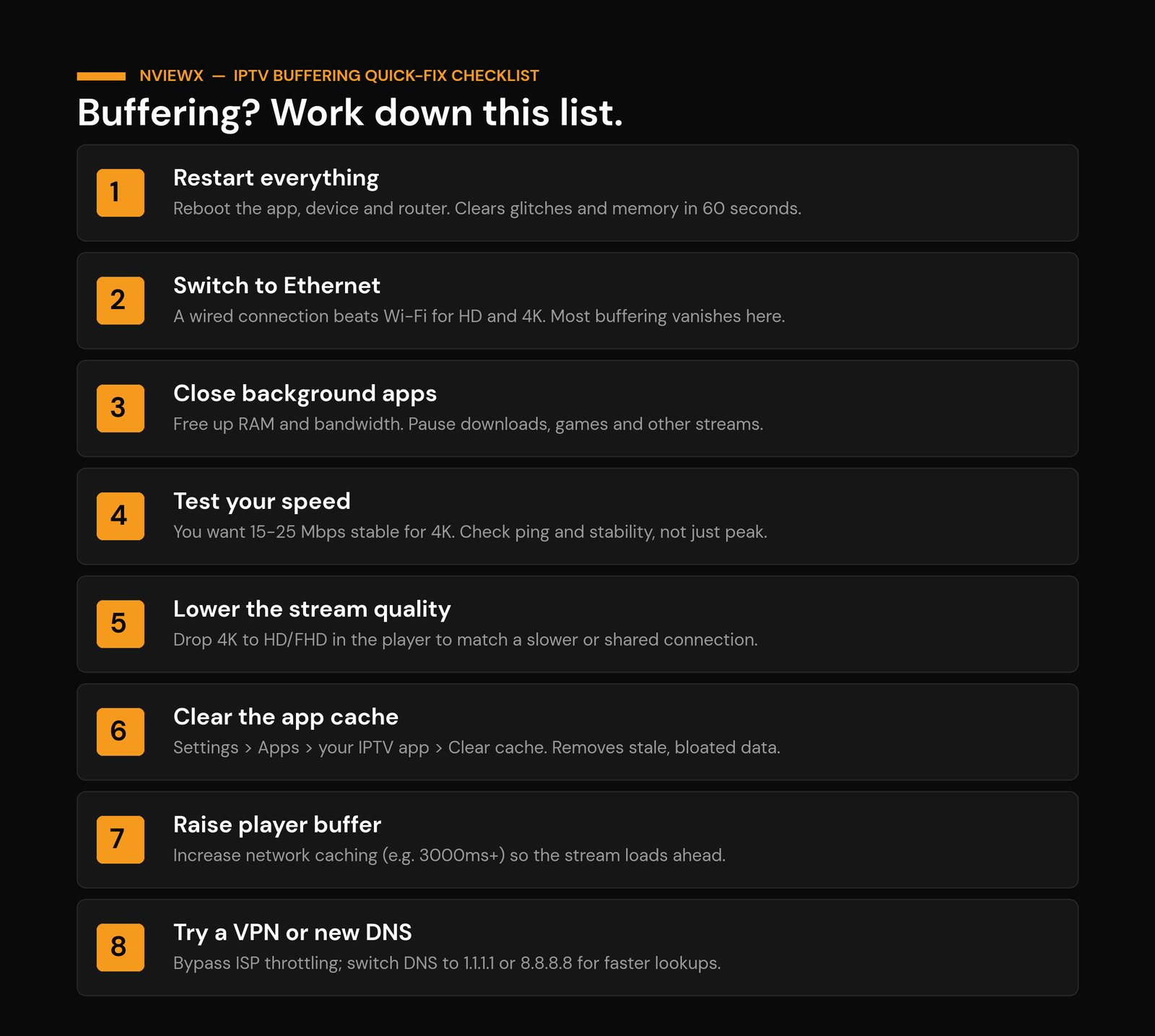
- Restart everything. Reboot the app, then the streaming device, then the router (leave it off 30 seconds). This clears memory leaks and forces a fresh connection — the single most effective fix.
- Switch to a wired connection. Plug the device into the router with an Ethernet cable. Wired beats Wi-Fi for HD and 4K every time, and for a lot of people the buffering simply stops here.
- Close background apps and downloads. Pause big downloads, game updates, cloud backups, and other streams. They steal the bandwidth your stream needs.
- Lower the stream quality. Drop 4K to FHD or HD in the player. A lower bitrate is far easier for a slow or shared connection to keep up with.
Check your internet speed and stability
Run a speed test on the device you stream with, not your phone — results differ by room and connection type. You want at least 15–25 Mbps of steady download for 4K, with low, consistent ping. If the number looks fine but you still buffer, test a few times across the evening: a line that’s healthy at noon and gasping at 9pm points to congestion, not raw speed.
Watch the stability, too. Run a longer test and see whether the speed holds or sawtooths up and down. Packet loss and jitter cause stutters that a single “download speed” number hides. If your connection is genuinely too slow for live TV, no app setting will rescue it — that’s a conversation with your ISP or a plan upgrade.
Router and Wi-Fi tweaks that matter
If you can’t run Ethernet, get the most out of Wi-Fi. Move the router into the open — off the floor, away from walls, metal, and microwaves. Every wall between the router and your device costs signal. Use the 5GHz band for the streaming device; it’s faster and less crowded than 2.4GHz at short range.
Two router settings punch above their weight. First, Quality of Service (QoS): most modern routers let you prioritise a device by its MAC address, so your streaming box gets bandwidth headroom even when the house is busy. Second, channel selection — a free Wi-Fi analyzer app shows which channels your neighbours are crowding; switch to a clear one in the router admin page. When a house has lots of simultaneous traffic, bufferbloat can spike latency and cause stutters even on a fast line, and QoS is the cleanest fix. If you’re still wiring things up, our IPTV setup guide walks through connecting the device and player.
ISP throttling and when a VPN helps
Some internet providers detect IPTV and other video traffic and deliberately slow it down to manage congestion — or to nudge you toward their own TV products. The tell-tale sign: everything else (web, downloads) is fast, but streaming specifically crawls or buffers, often worse in the evening.
If that matches your situation, a reputable VPN can help by encrypting your traffic so the ISP can’t single out and throttle the stream. Pick a paid, fast provider and connect to a nearby server to keep latency low — a distant or overloaded VPN server will trade one buffering problem for another. A VPN won’t fix a slow line or an overloaded provider; it only addresses throttling. For the full picture on access and geo-limits, see our notes on working around IPTV restrictions.
When it’s the provider’s server, not you
Sometimes you’ve done everything right and it still buffers — because the bottleneck is on the provider’s end. If freezing clusters at peak evening hours when everyone’s watching, the provider’s servers are likely overloaded. The quick test: try a different stream or a video-on-demand title. If everything from that source stutters at the same time while your internet tests fine, it’s their server, not your network.
There’s no setting on your side that fixes an overloaded server. Watch off-peak if you can, contact the provider, and judge them by how consistent they are at the busy hours. A service that buffers every night at prime time is a service to reconsider.
Device and app fixes
Older or budget hardware is a quiet cause of buffering. First-generation streaming sticks and cheap Android boxes can struggle to decode modern HD and 4K streams no matter how good your internet is. A few targeted fixes:
- Clear the app cache. On most devices: Settings > Apps (or Applications) > your IPTV app > Clear cache. Stale cached data bloats over time and causes stutter.
- Raise the player’s buffer. In players like IPTV Smarters or TiviMate, increase network caching (try 3000ms or higher) so the app loads further ahead before playing.
- Toggle hardware decoding. Switching between hardware and software decoding in player settings can smooth playback — hardware offloads the work to the device’s media chip.
- Change your DNS. Set the device or router DNS to a fast public resolver like 1.1.1.1 or 8.8.8.8; sometimes the ISP’s default DNS is the slow link.
- Upgrade the device. If a tired box can’t keep up, a current 4K streaming device removes the ceiling. Our guides to the IPTV box and installing IPTV on a Firestick cover good options and setup.
Symptom, cause and fix at a glance
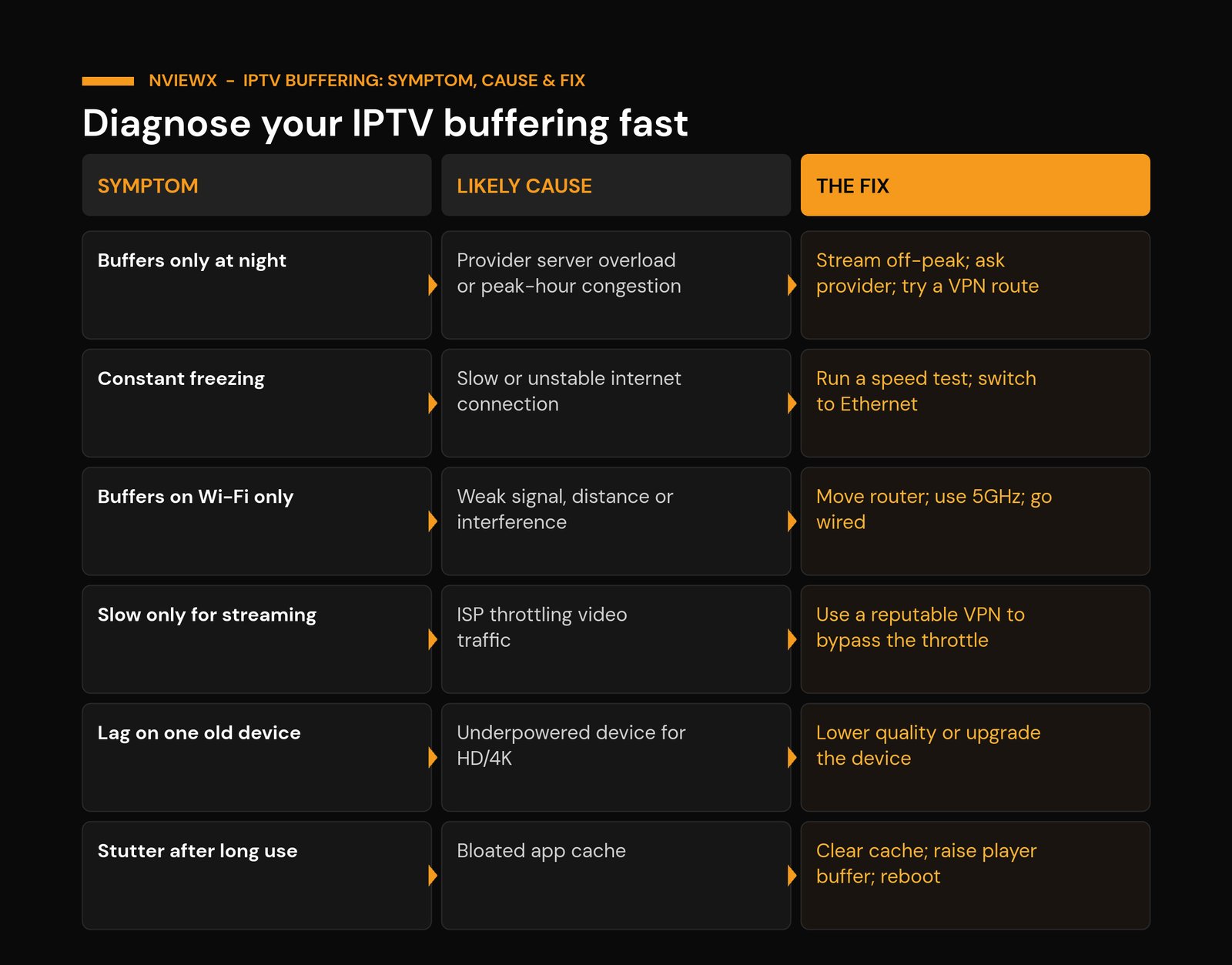
Match what you’re seeing to the most likely cause and the fix to try first.
| Symptom | Likely cause | Fix to try first |
|---|---|---|
| Buffers only at night | Provider server overload or peak-hour congestion | Watch off-peak, contact provider, test a VPN route |
| Constant freezing all day | Slow or unstable internet | Speed test, then switch to Ethernet |
| Buffers on Wi-Fi only | Weak signal, distance or interference | Move router, use 5GHz, or go wired |
| Only streaming is slow | ISP throttling video traffic | Use a reputable VPN to bypass the throttle |
| Lag on one old device | Underpowered hardware for HD/4K | Lower quality or upgrade the device |
| Stutter after long use | Bloated app cache | Clear cache, raise player buffer, reboot |
Frequently asked questions
How much internet speed do I need to stop IPTV buffering?
Aim for steady throughput, not a high peak: around 8–12 Mbps for HD and roughly 25 Mbps for 4K, with low, consistent ping. A stable 20 Mbps line beats one that spikes to 100 Mbps and drops to 3 Mbps every few seconds.
Why does my IPTV only buffer at night?
Evening buffering usually means congestion — either your neighbourhood saturating the ISP network at peak hours or the provider’s servers overloaded when most people are watching. Test your speed at night and try a different stream; if everything from that source stutters at once, it’s the server.
Will a VPN fix IPTV buffering?
Only if the cause is ISP throttling. If your provider deliberately slows video traffic, a VPN hides it and can restore speed. If your line is genuinely slow or the provider’s server is overloaded, a VPN won’t help and a distant VPN server can even make buffering worse.
Is Ethernet really better than Wi-Fi for IPTV?
Yes. A wired connection is more stable, faster, and lower-latency than Wi-Fi, which suffers from walls, distance, and interference. Switching to Ethernet is the most reliable single fix for HD and 4K buffering.
How do I clear the cache on my IPTV app?
On most devices go to Settings > Apps (or Applications) > your IPTV app > Clear cache. This removes bloated stored data without deleting your playlist or login, and often smooths out stutter that built up over time.
What buffer or caching setting should I use in the player?
Increase network caching so the app loads further ahead — around 3000ms or higher is a good starting point in players that expose the setting. Raise it if buffering continues; lower it slightly if live channels feel laggy to start.
My internet is fast but IPTV still buffers — why?
Fast internet only fixes the part of the chain you control. The remaining suspects are an overloaded provider server, ISP throttling of video specifically, a weak Wi-Fi link to that one device, a bloated app cache, or hardware too old to decode the stream. Work through those in that order.
Should I switch providers if buffering won’t stop?
If your internet tests fine, your connection is wired, and buffering still clusters at peak hours across multiple streams, the provider’s infrastructure is the limit — and that’s a fair reason to look elsewhere. Consistency at busy times is the real test of a service.
Get a smoother stream with Nviewx
Most buffering comes down to a weak link you can find and fix in minutes — restart, go wired, lower the quality, and check for throttling or an overloaded server. If you want streaming that holds up at peak hours without the constant troubleshooting, explore what Nviewx offers and start with a setup built to stay stable when it matters.