Skip to content
What Is an IPTV App? How IPTV Players Work (2026)
An IPTV app is the player software that takes your subscription details — either an M3U playlist link or an Xtream Codes login — and turns them into watchable live TV, on-demand titles and catch-up on your screen. It is not the subscription itself and it is not the content. Think of it as the remote and the TV guide rolled into one: it reads your channel list, shows the program guide, and plays a stream when you tap a channel.
If you have ever paid for an IPTV service and then wondered “okay, but what do I actually open to watch it?” — the answer is an IPTV app. This guide explains exactly what an IPTV player app does, how it loads your playlist or login, where you can run one, the difference between free and paid options, and what separates a good app from a frustrating one.
IPTV app or IPTV player – are they the same thing? Yes. “IPTV app” and “IPTV player” are two names for the same software: the program you install to load your playlist and watch. Some are branded a “player,” but they do the identical job – read your channel list, show the guide, and play the stream when you pick a channel.
What an IPTV app actually is
IPTV stands for Internet Protocol Television — television delivered over your internet connection instead of a satellite dish or an aerial. An IPTV app (often called an IPTV player) is simply the program that decodes those internet streams and presents them like normal channels. You can read the technical background on Internet Protocol television if you want the full definition.
Here is the part that trips people up: the app and the service are two separate things. Your provider gives you access — a list of channels and the streams behind them. The app is the lens you look through. The same playlist works in a dozen different apps, and one app can hold several different playlists. That separation is the whole point of the standard formats (M3U and Xtream Codes): they let any compliant player talk to any compliant service.
In software terms an IPTV app is a specialised media player. A general video player like a mobile app on your phone can open a single video file; an IPTV app is built for hundreds or thousands of live streams at once, organised into categories, with a guide layered on top and a remote-friendly layout for the big screen.
How an IPTV app works
The flow is the same in almost every app, whether you are on a phone or a TV box. You give the app your source, it builds your channel list, and then it plays whatever you select.
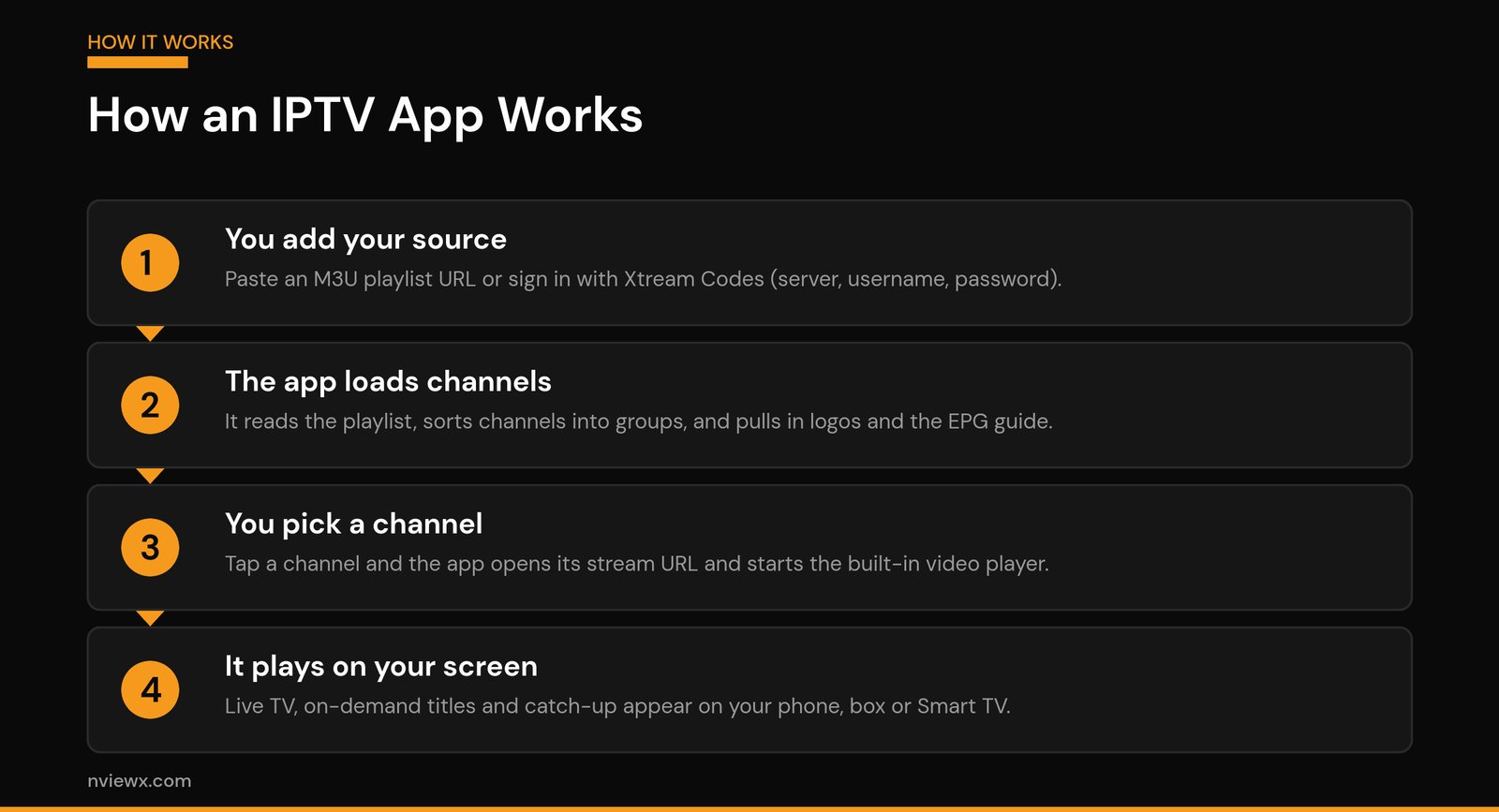
1. You add your source (M3U or Xtream Codes)
There are two common ways to feed an app. The first is an M3U playlist URL — a single web link your provider gives you, like http://line.example.com:8080/get.php?username=.... An M3U file is just a plain-text list of channels and the stream address behind each one. Paste the link, and the app downloads that list. (We break this format down in our guide to what an M3U playlist is.)
The second is an Xtream Codes login: instead of one long URL, you enter three fields — a server address, a username, and a password. The app then authenticates with your provider’s server and pulls everything down in one call. Most people find this neater than juggling raw URLs, and it usually gives a richer layout with separate sections for live TV, movies and series. See our explainer on Xtream Codes for the details.
One practical gotcha: a plain M3U link can expire or rotate every day or two with some providers, while Xtream Codes credentials usually stay valid for the length of your subscription. If your channels suddenly vanish, an expired M3U link is a common culprit.
2. The app loads channels and the EPG
Once it has your source, the app parses the list, sorts channels into groups (news, sports, kids, and so on), and pulls in channel logos. Most apps also load an EPG — the Electronic Program Guide — usually supplied as a separate XMLTV link. The EPG is what fills in “what’s on now and next” with show titles, descriptions and times. If your guide looks blank, the EPG source either wasn’t added or hasn’t synced yet; our piece on the IPTV EPG covers how to fix that.
3. You pick a channel and it plays
Tap a channel and the app opens the stream URL tied to it and hands it to a built-in video engine, which decodes the feed and shows it full-screen. Good apps switch channels (“zapping”) quickly and remember your last channel, favourites and resume points. That decoding step is also where playback problems show up — if a stream stutters, toggling hardware decoding in the app’s settings is the first thing worth trying.
Where you can run an IPTV app
One of the best things about IPTV apps is reach: the same kind of player exists for nearly every screen you own. Where it differs is how you install it.
- Phones and tablets (Android, iOS): the easiest starting point. Install from the app store, paste your playlist or login, and you’re watching in a minute.
- Smart TVs (Samsung Tizen, LG webOS, Android TV / Google TV): some sets have IPTV players right in their own app store; Android TV models can install most of the popular ones directly.
- Streaming sticks and boxes (Firestick / Fire TV, NVIDIA Shield, Chromecast with Google TV): the most popular living-room option. On a Firestick you often “sideload” the app (install it from outside the default store) — we walk through that in how to install IPTV on a Firestick.
- Computers (Windows, macOS): handy for testing a playlist quickly; general media players can open an M3U link too.
Built-in vs sideloaded apps
This is the one distinction worth understanding. A built-in (store) app is one you install straight from the device’s official store — quick, automatically updated, and low-risk. A sideloaded app is one you install manually from an installer file because it isn’t in that particular store. Sideloading is normal on a Firestick and on many TV boxes; just stick to the app’s official source so you don’t pick up a tampered copy. Only install software from a publisher you trust.
Free vs paid IPTV apps
Plenty of capable IPTV apps are free, and a free player is genuinely fine for getting started. The catch is usually small: ads, a cap on how many playlists you can save, or missing extras like a polished guide and catch-up. Paid (or “pro”) apps typically remove ads and add quality-of-life features — better EPG handling, multiple playlists, catch-up and recording, and a cleaner TV interface.
A useful rule of thumb: the cost of the app has nothing to do with the legality or quality of the service you point it at. A paid app does not make a dodgy provider legitimate, and a free app does not make a legitimate provider worse. Choose the app for the experience; choose the service on its own merits.
What makes a good IPTV app
After setting up a fair few of these, the same handful of features separate a player you’ll keep from one you’ll uninstall by the weekend.
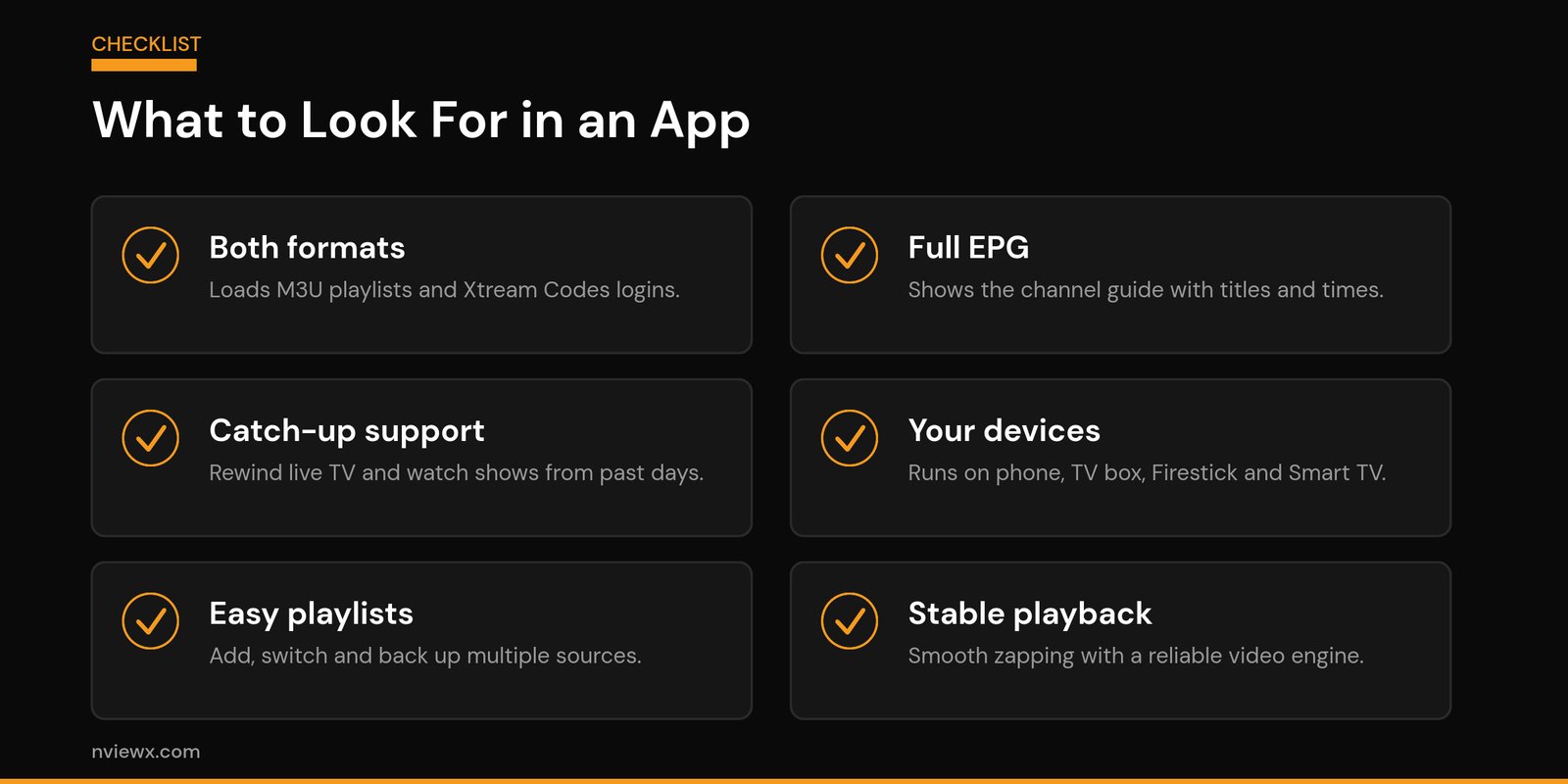
| Feature | Why it matters |
|---|---|
| M3U and Xtream Codes support | Works with whatever format your provider gives you, so you’re never locked out. |
| Full EPG | A proper now/next guide makes thousands of channels actually browsable. |
| Catch-up and recording | Rewind live TV or watch something that aired earlier (if your provider supports it). |
| Multi-device, multi-playlist | Same app and same look on your phone, box and TV; hold more than one source. |
| Stable playback | Fast channel switching and a reliable video engine with hardware decoding options. |
| Favourites and parental controls | Pin the channels you actually watch; lock down what kids can reach. |
If you’re choosing between apps, test the two that matter most first: does it load your playlist cleanly, and does the guide populate? Everything else is comfort.
How to set up an IPTV app (the short version)
The setup is the same shape in every player:
- Install the app on your device (from the store, or sideload it on a Firestick / box).
- Open it and choose how to add your source — M3U URL, or Xtream Codes login.
- Paste the link (or enter server, username and password) exactly as your provider sent it.
- Add the EPG / XMLTV link if it’s separate, so the guide fills in.
- Let it load, then open a channel to confirm it plays.
That’s the whole job. For a fuller walkthrough with the common pitfalls, see our step-by-step on how to set up IPTV, and the broader background in what an IPTV service is.
A quick word before you pick one
An IPTV app is only as good as the service behind it and the connection it runs on. Pick a reputable provider, use a player from a source you trust, and give it a stable Wi-Fi or wired connection. Get those three right and the app mostly disappears into the background — which is exactly what a good one should do. If you want help choosing and setting things up, the guides across Nviewx walk you through each step in plain language.
Frequently asked questions
Is an IPTV app the same as an IPTV subscription?
No. The app is the player software you install; the subscription is the service that provides the channels. The app is free to download in many cases and works with whatever service you sign up for separately.
Do I need an M3U link or an Xtream Codes login?
Either — whichever your provider supplies. An M3U is a single playlist URL; Xtream Codes is a server address plus a username and password. Many apps accept both, so use the one you were given. Xtream logins tend to last longer than raw M3U links.
Are IPTV apps free?
Many are. Free players usually cover the basics; paid or “pro” versions add things like a better guide, catch-up, recording and no ads. The price of the app is separate from the cost of any service you connect to it.
What is the EPG in an IPTV app?
The EPG (Electronic Program Guide) is the on-screen schedule showing what’s on now and next, with show titles and times. It usually comes from a separate XMLTV link you add in the app’s settings. No EPG source means a blank guide.
Can I use one IPTV app on my phone and my TV?
Yes — most popular apps have versions for phones, tablets, Smart TVs, and streaming boxes, with the same login. You enter your playlist or credentials once per device.
Why does my IPTV app keep buffering?
Usually the connection or the stream, not the app. Try a wired connection or stronger Wi-Fi, restart the app, and in settings switch the decoder (hardware vs software). If only one channel stutters, the issue is that stream rather than your setup.
Do I have to sideload IPTV apps?
Only when the app isn’t in your device’s official store. On phones and Android TV many are available directly; on a Firestick you’ll often sideload. When you do, install only from the app’s official source.
Is using an IPTV app legal?
The app itself is just a player — legal to install and use. What matters is the service you connect it to: stick with legitimate, properly licensed providers, and the app is simply the tool you watch through.