 Skip to content

Best Router for IPTV in 2026: What Actually Stops Buffering
The best router for IPTV is a dual-band Wi-Fi 6 model with a fast multi-core CPU, a spare Ethernet port and working queue management — something in the ASUS RT-AX86U class at the top end, or a TP-Link Archer AX55 class unit if the budget is tight. That is the answer most people came for.
Here is the answer nobody sells you: a new router only fixes buffering if the router was the thing breaking. Often it is not. The stream stutters at 9pm because the provider’s servers are packed, or because your line is being throttled, or because a streaming stick two walls away is clinging to a weak 2.4 GHz signal. A router upgrade does nothing about the first two, and there is a free fix for the third.
So this guide does the buying advice, but it starts with the diagnosis — because roughly half the people searching for a router for IPTV do not need one.
"IPTV mode" on a router is not what you think it is
This is the single most expensive misunderstanding in the whole category, and almost every router roundup repeats it.
Browse router spec sheets and you will find features named IPTV mode, IGMP proxy, IGMP snooping and VLAN tagging for IPTV. Buying guides then tell you to prioritise a router with "IPTV support" so your streams will not lag. If you are watching through an M3U link or Xtream Codes login in a player app, those features do nothing for you at all.
Those settings exist for the TV service your internet provider sells you — the set-top box that comes with a fibre package. That kind of TV is delivered by IP multicast: one copy of a channel is broadcast into the network and every household that wants it joins the group, which is what IGMP negotiates. Your router has to be told to pass that multicast traffic through, and often to tag it onto a separate VLAN. Get it wrong and the box shows nothing.
A subscription IPTV service you set up yourself works nothing like that. Your player app opens an ordinary HTTP connection to a server and pulls down a private unicast stream, exactly the way a browser pulls down a video. To your router it is indistinguishable from any other web traffic. There is no multicast group to join, no IGMP to proxy, no VLAN to tag.
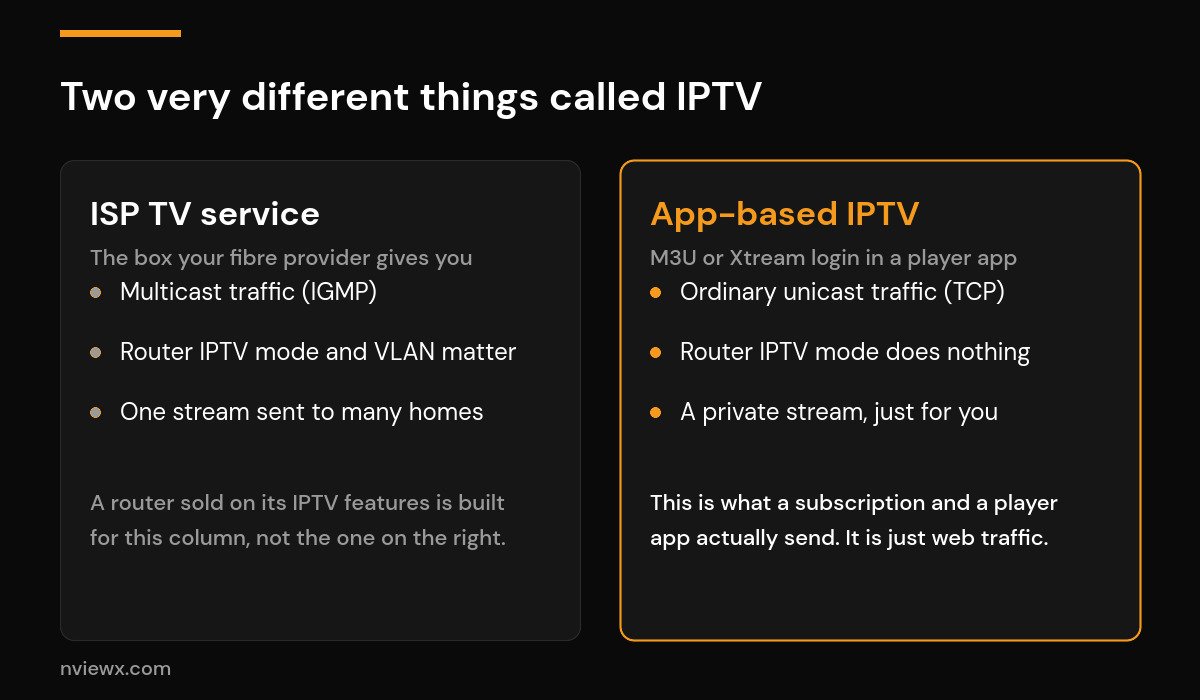
Practical consequence: ignore the IPTV checkbox on the box entirely. It is not a feature you are buying. What you are actually buying is a stable connection between a server on the internet and a player app in your living room — and the things that make that good are boring, general-purpose router qualities.
What actually matters in a router for IPTV
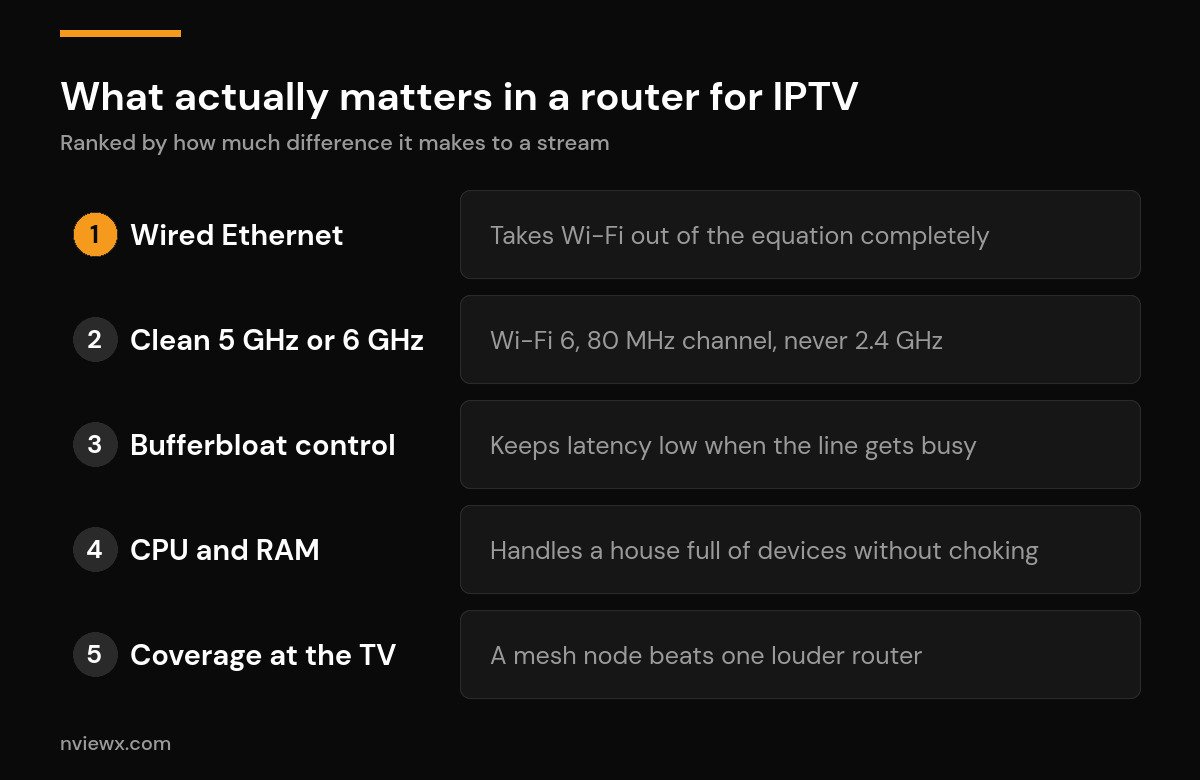
1. An Ethernet port you can actually reach
A cable removes Wi-Fi from the equation, and Wi-Fi is where most IPTV problems live. If the TV, box or console is within cable distance of the router, run one. It is the cheapest upgrade in this article and it beats every router in it. Streaming sticks are the awkward exception — most have no Ethernet port, though a small adapter usually solves that.
2. A clean 5 GHz or 6 GHz band
If you cannot run a cable, the goal is to get the player onto 5 GHz (or 6 GHz on a newer router) and keep it there. Wi-Fi 6 matters less for raw speed — a 4K stream needs well under 40 Mbps — and more for how it handles a crowded house. Its scheduling improvements mean a phone, a laptop and a doorbell camera stop taking turns elbowing your stream out of the way. That is the real-world win.
3. Bufferbloat control
This is the feature that genuinely changes how a stream feels and that no roundup mentions. Bufferbloat is what happens when your router’s queues fill with data from a big upload or a game download and everything else waits behind them. Your speed test still reads 300 Mbps. Your stream still stalls for two seconds every time someone in the house starts a backup.
The fix is smart queue management — implementations named CAKE or fq_codel — which keeps the queue short instead of letting it swell. Some routers expose it under quality of service or "adaptive QoS". A router that does this well makes a bigger difference to a busy household than a router with a higher headline speed.
4. CPU and RAM
A cheap router with a weak processor starts dropping things when thirty devices are connected and QoS is switched on. A quad-core chip with 512 MB to 1 GB of RAM does not. This is the specification that separates a bargain-bin router from a mid-range one, and it is worth paying for if your house is busy.
5. Coverage where the TV actually is
A single powerful router shouting through three walls loses to a modest mesh node sitting in the same room as the TV. If your streaming device shows two bars, no amount of router money fixes that — you need a second point, not a louder first one. The same logic applies whether you are streaming to a Smart TV or a Firestick.
Router picks by situation
These are classes of router rather than affiliate picks. Match the row to your house.
| Your situation | What to get | Why |
|---|---|---|
| Small flat, few devices | Budget Wi-Fi 6 dual-band (AX1800–AX3000 class, e.g. TP-Link Archer AX55) | More than enough headroom for 4K. Spending more buys you nothing here. |
| Busy household, several streams at once | Mid-to-high Wi-Fi 6 with a quad-core CPU and adaptive QoS (e.g. ASUS RT-AX86U class) | The CPU and the queue management are what stop the evening stutter, not the band count. |
| Big or awkwardly-shaped home | A mesh kit, with a node in the TV room | Coverage beats power. Use a wired backhaul between nodes if you possibly can. |
| You want it to last five years | Wi-Fi 7, tri-band with a 6 GHz radio | Genuinely future-proof, but honestly overkill for streaming alone today. |
| You enjoy tinkering | Anything that runs open firmware with CAKE or fq_codel | Proper bufferbloat control on a modest box outperforms an expensive one without it. |
One thing worth saying plainly: an expensive router does not make a stream sharper than a cheap one. Picture quality is decided by the source. All a better router buys you is consistency — fewer stalls when the house is busy.
The router settings that make the biggest difference
Do these before you buy anything. Several are free and fix the problem outright.
- Get the player onto 5 GHz. If your two bands share one network name, the device will happily sit on the slower 2.4 GHz one. Split them, at least temporarily, and connect the streaming device to the 5 GHz network by name. Our walkthrough of the best Wi-Fi settings for IPTV covers channel width and band steering in detail.
- Set the 5 GHz channel width to 80 MHz and pick a channel your neighbours are not sitting on.
- Turn on QoS or smart queue management and set it to roughly 85–95% of your real line speed. Counter-intuitive, but capping slightly below your maximum is exactly what keeps the queues short.
- Update the firmware. Unglamorous, occasionally decisive.
- Change your DNS if channels are slow to open rather than slow to play — that is a name-lookup delay, not a bandwidth one. We covered which resolvers help in best DNS for IPTV.
Three tests to run before you spend anything
Each takes a couple of minutes and tells you whether the router is even involved.
The cable test. Plug the device straight into the router with Ethernet and watch the channel that normally stutters. Still stuttering? Your Wi-Fi was never the problem, and a new router will not help. Smooth? Wi-Fi is your bottleneck, and now you are choosing between a cable, a mesh node and a better router.
The peak-hour test. Play the same channel at 11am and again at 9pm. If it is flawless in the morning and unwatchable in the evening while your speed test stays healthy, you are looking at congestion outside your house — either your provider’s servers or your ISP. We go through that diagnosis in IPTV buffering at peak hours.
The phone test. Play the same stream on your phone over mobile data. If it works there but fails on home Wi-Fi, something on your home network or at your ISP is interfering — a scenario we unpack in why IPTV works on a hotspot but not Wi-Fi. A VPN test will tell you whether throttling is behind it.
| What you observe | Most likely cause | Will a new router fix it? |
|---|---|---|
| Fine on Ethernet, stutters on Wi-Fi | Weak or congested Wi-Fi | Yes — or a cable, for free |
| Only buffers in the evening | Provider server load or ISP congestion | No |
| Stalls whenever someone downloads | Bufferbloat | Yes, if it does CAKE or fq_codel |
| Works on mobile data, not home Wi-Fi | ISP blocking or throttling | No — test with a VPN |
| One channel bad, the rest fine | A dead source on the provider’s end | No |
When a new router will not fix it
Be honest about these before you open your wallet.
The provider is oversold. If the servers saturate when everyone tunes in for live sports, your router is sitting idle, waiting. No hardware on your side of the line fixes a bottleneck on theirs. That is a provider problem.
Your ISP is throttling. A router cannot out-muscle a deliberate slowdown further up the line.
Your connection is genuinely too slow. Check what you actually need in our guide to internet speed for IPTV before assuming the router is at fault.
You have hit your connection limit. Streams that die the moment a second TV starts up are a plan limit, not a network one. See IPTV connection limit reached.
Your streaming device is the weak link. An ageing stick with 1 GB of RAM will stutter on a perfect network. Our device comparison and the best Fire TV Stick for IPTV guide cover what to replace it with, while our general buffering fixes cover the app-side settings. If you are still building the setup, start from how to set up IPTV.
Frequently asked questions
Does a better router stop IPTV buffering?
Only if your router is the bottleneck. A better router fixes buffering caused by weak Wi-Fi, a congested channel, an overloaded CPU or bufferbloat. It does nothing for buffering caused by an oversold provider, ISP throttling, a slow connection or a weak streaming device. Run the cable test first: if the stream is smooth over Ethernet, a router upgrade is worth it. If it still stutters, save your money.
Do I need a router with IPTV support or IGMP proxy?
Not for a subscription IPTV service you set up yourself. IGMP proxy, IPTV mode and VLAN tagging exist for the multicast TV service an internet provider delivers to its own set-top box. An M3U or Xtream stream in a player app is ordinary unicast web traffic and needs none of it.
Is Wi-Fi 6 worth it for IPTV?
Yes, but not for the reason people assume. A 4K stream needs well under 40 Mbps, so raw speed was never the issue. Wi-Fi 6 helps because it manages many devices at once far better than Wi-Fi 5, which is exactly the situation that makes a stream stutter in a busy home. Wi-Fi 7 is real, but it is overkill for streaming alone in 2026.
Is Ethernet really better than Wi-Fi for IPTV?
Yes, and it is not close. A cable gives you a stable, interference-free connection and takes the single most common cause of IPTV problems off the table. If you can reach the router with a cable, do that before spending anything. Most streaming sticks need a small Ethernet adapter, which costs far less than a router.
What internet speed does the router need to keep up with?
Around 25 Mbps of steady throughput comfortably carries a 4K stream, and 10–15 Mbps handles HD. Stability matters far more than the headline number: a rock-solid 50 Mbps line beats an erratic 500 Mbps one every night of the week.






