Skip to content
How to Install IPTV on Firestick & Fire TV (2026)
To install IPTV on Firestick, turn on Install Unknown Apps in Developer Options, install the Downloader app, use it to sideload an IPTV player, then add your playlist with an M3U URL or Xtream Codes login. The whole setup takes about ten minutes.
The Amazon Fire TV Stick is the device most people reach for first, and for good reason. It is cheap, it plugs into any TV with an HDMI port, and it runs a long list of IPTV player apps. This guide walks through the full process the way I would set it up for a friend — what you need, how to flip the right settings, how to get a player onto the stick, and how to fix the snags that trip everyone up. If you are brand new to all this, our explainer on what an IPTV service actually is is a good five-minute primer first.
Why the Firestick is so popular for IPTV
A Firestick is basically a tiny Android-based streaming computer on an HDMI dongle. Because most models are built on Amazon’s Fire OS — a fork of Android — they can run the same IPTV player apps that work on phones and Android TV boxes. You can read more about the hardware on the Amazon Fire TV reference page, and about the underlying delivery method on the Internet Protocol television page.
Three things make it the default choice. It is inexpensive, so it is low-risk to try. It is portable — unplug it, drop it in a bag, and it works on any hotel or relative’s TV. And it supports sideloading, which means you can install player apps that are not in the built-in store. That last point matters because most serious IPTV players are added manually rather than from the storefront.
One heads-up for 2026: the newest Fire TV Stick models have started shipping on Amazon’s newer Vega OS instead of Android, and those units do not support APK sideloading the same way. The method below is written for the standard Fire OS / Android-based sticks, which are still the vast majority of devices in use.
Before you start: what you actually need
Get these together first so you are not stopping halfway:
- A Firestick or Fire TV running Fire OS (the common Android-based models), already set up on your Wi-Fi.
- A working internet connection. For smooth live channels, aim for at least 15–25 Mbps; 4K needs more. A wired connection via an Ethernet adapter beats Wi-Fi for stability.
- Your playlist details from your provider. That is either an M3U playlist URL or a set of Xtream Codes credentials (a server URL, username, and password).
- Ten minutes. That is genuinely all it takes once you have the details handy.
If you want the bigger picture of how a subscription, a player, and a guide fit together across any device, our general IPTV setup walkthrough covers it.
Step 1: Enable app installs (Developer Options)
By default a Firestick only installs apps from its own store. To sideload a player you have to allow installs from other sources. The exact wording shifts between Fire OS versions, so you may see Apps from Unknown Sources on older sticks or Install Unknown Apps on newer ones.
Here is the path. From the home screen go to Settings → My Fire TV → Developer Options. If you do not see Developer Options at all, go to Settings → My Fire TV → About, highlight your device’s name, and click it seven times — a small counter appears, and Developer Options then unlocks. Open it and turn on Install Unknown Apps (or Apps from Unknown Sources). On newer sticks you toggle this per app, so once the Downloader app is installed you will enable it specifically for Downloader.
Step 2: Install the Downloader app
Downloader is a free, Amazon-approved app that lets you type in a web link and download a file straight to the stick — it is the standard on-ramp for sideloading. From the home screen open Find → Search, type Downloader, select it, and click Get or Download to install it. Open it once and accept its permissions. If your stick asks you to allow Downloader to install unknown apps, say yes — that is the per-app toggle from Step 1.
Step 3: Sideload an IPTV player app
Now use Downloader to grab a player. Popular Fire OS players include TiviMate, IPTV Smarters, and XCIPTV; the steps are the same for any of them. Open Downloader, go to the Browser or URL field, and enter the official download link for the player’s APK. Click Go, let the file download, and when prompted click Install, then Open or Done. After it installs, Downloader will offer to delete the APK file to save space — click Delete twice. Storage on a Firestick is tight, so this habit pays off.
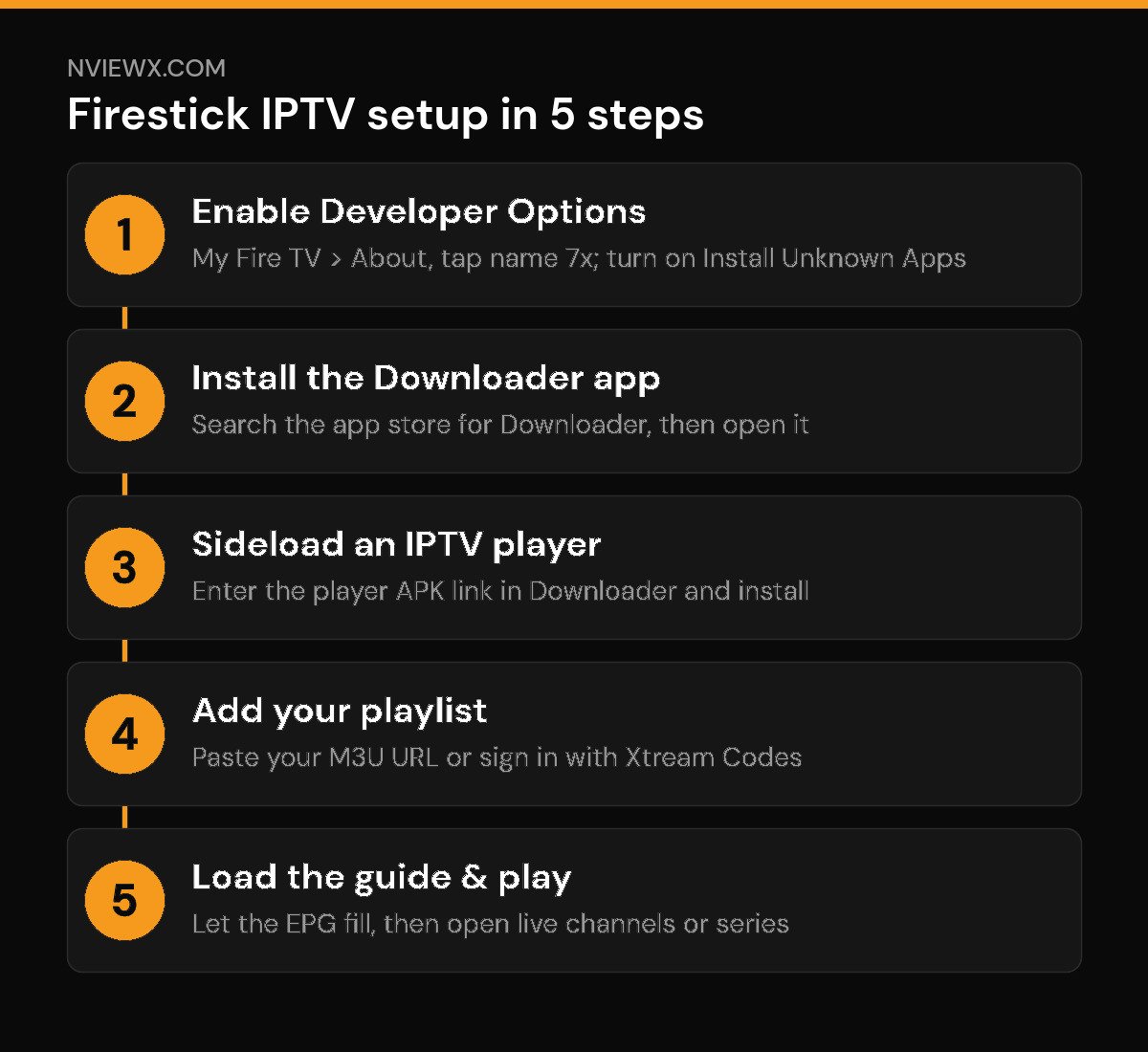
Here is the core install boiled down to a short checklist:
- Settings → My Fire TV → Developer Options → turn on Install Unknown Apps.
- Search the app store for Downloader and install it.
- In Downloader, enter your player’s APK link and install the player.
- Open the player and add your playlist (M3U URL or Xtream Codes login).
- Let the channel guide load, then start watching live channels or series.
Step 4: Add your playlist (M3U URL or Xtream Codes login)
Open your new player app. Almost every player offers two ways to connect, and you only need one:
- M3U URL. Choose Add Playlist or M3U URL, then paste the link your provider gave you. It looks something like
http://line.example:8080/get.php?username=USER&password=PASS&type=m3u_plus. Give it a name and save. - Xtream Codes login. Choose Xtream Codes (or Login with Xtream), then enter the server URL (for example
http://channel1.example:8080), your username, and your password. This is usually the more reliable option because it loads the channel guide automatically.
If your live guide is blank or wrong after connecting, you may need to add an EPG source — our guide to the IPTV EPG (electronic program guide) explains how the now-and-next data works and how to point your player at an XMLTV feed.
Fixing common Firestick problems
If something goes sideways, it is almost always one of a handful of issues. Work through these before assuming your subscription is at fault.
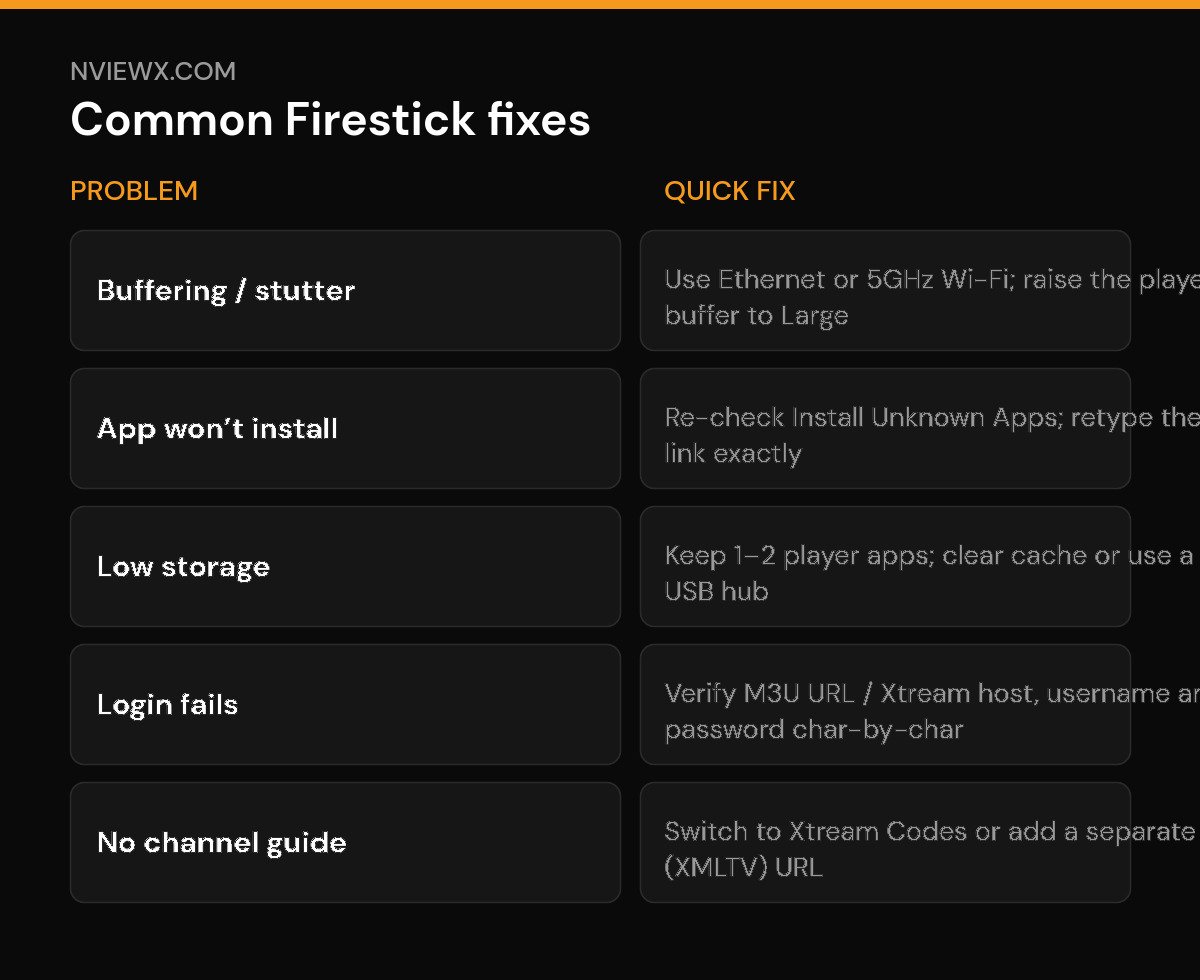
| Problem | Most likely cause | Quick fix |
|---|---|---|
| Buffering or stuttering | Weak or congested connection | Use a wired Ethernet adapter or 5GHz Wi-Fi; raise the player’s buffer size to Large; enable hardware decoding. |
| App won’t install | Unknown Apps still blocked, or bad link | Re-check Install Unknown Apps for Downloader; retype the APK link exactly — one wrong character breaks it. |
| Low storage / app crashing | Limited built-in storage | Keep just 1–2 player apps; delete downloaded APKs; clear app cache in Settings; consider a USB storage hub. |
| Login fails / no channels | Typo in URL or credentials | Re-enter the M3U URL or Xtream host, username and password character by character; confirm the URL with your provider. |
| No channel guide | Missing or wrong EPG source | Switch to an Xtream Codes connection (guide loads automatically) or add a separate XMLTV/EPG URL. |
Two more habits help long term. First, restart the stick now and then — Settings → My Fire TV → Restart clears memory and fixes a surprising number of glitches. Second, if buffering only hits during busy evening hours, the bottleneck is usually your home connection or peak-time load, not the app.
A quick word on staying smooth
A good player and a stable connection do most of the work, but the playlist behind it matters just as much. Nviewx is built to deliver reliable live channels and a clean, accurate guide to apps like these on Firestick — if you want a setup that just works with the steps above, it is worth a look. Whatever provider you use, the install process on this page stays the same.
Frequently asked questions
Do I need to jailbreak my Firestick to install IPTV?
No. “Jailbreaking” a Firestick just means enabling Install Unknown Apps and sideloading apps with Downloader — exactly the steps above. You are not modifying the operating system or voiding anything; you are using a setting Amazon built in.
Which IPTV player is best for Firestick?
There is no single best, but TiviMate, IPTV Smarters, and XCIPTV are the most widely used Fire OS players. TiviMate is popular for its polished guide; IPTV Smarters is simple and beginner-friendly. Try one, and if you do not like the layout, sideload another — your playlist details stay the same.
Why does my Firestick keep buffering?
Buffering is almost always a connection issue, not the app. Move the stick closer to the router or use a wired Ethernet adapter, switch to the 5GHz Wi-Fi band, and raise the buffer size inside your player’s settings. Restarting both the stick and your router clears most one-off stalls.
What is the difference between an M3U URL and Xtream Codes?
An M3U URL is a single link containing your whole channel list. Xtream Codes uses a server address plus a username and password, and it pulls the channel guide in automatically. Both come from your provider; Xtream Codes is generally the more reliable choice when it is offered. See our guides on M3U playlists and Xtream Codes for the full detail.
Why won’t my IPTV app install on the Firestick?
The two usual culprits are that Install Unknown Apps is still switched off for Downloader, or the APK link was mistyped. Re-check the per-app toggle, then re-enter the download link carefully. If storage is full, delete old APKs and unused apps and try again.
Will IPTV work on the newest Fire TV Stick models?
Most current Firesticks run Fire OS (Android-based) and sideload players fine. The newest units built on Amazon’s Vega OS do not support APK sideloading the same way, so check which OS your stick runs if the Downloader method will not install a player.
How much storage do I need for IPTV on a Firestick?
Not much — a player app is small. The catch is the Firestick’s limited built-in storage, so stick to one or two players, delete downloaded APK files after installing, and clear app cache occasionally to avoid crashes.
Can I use a VPN with IPTV on Firestick?
Yes. Many people install a VPN app from the Fire TV store and run it alongside their player for privacy. It can also help if your connection is throttled. A VPN does not change the install steps — set up your player first, then turn the VPN on.