 Skip to content

How to Set Up IPTV on an Android Phone or Tablet (2026)
Short version: to set up IPTV on an Android phone or tablet you install one player app from the Play Store, open it, and paste in the login your provider gave you — either an M3U link or a set of Xtream Codes. About ninety seconds later your channels load. Your phone already has the screen, the speaker, and the internet chip to do everything a streaming box does; it just needs a player app and your IPTV service details.
I set up IPTV on Android phones and tablets all the time — it is the fastest device to get running and the easiest one to test a new service on before I ever touch the TV. This guide walks the exact steps, shows you which login to pick, how much mobile data you will burn, how to throw the picture onto a big screen, and the two or three things that usually trip people up.
What you need before you start
Setting up IPTV on Android is short, but only if you have these four things ready first:
- An active subscription. A trial or paid plan from a provider, which gives you login details. Without valid credentials, no app will show a single channel.
- Your login, in one of two forms. Either an M3U URL (one long web link) or Xtream Codes (a server URL plus a username and password). Most providers email both — you only need one.
- An IPTV player app. Android does not play IPTV on its own; you install a dedicated player app (more on which below).
- A steady connection. Wi-Fi is ideal at home; mobile data works fine too, but watch your allowance (see the data section). A stable 15–25 Mbps handles HD comfortably — here is how much internet speed you actually need.
How to set up IPTV on an Android phone step by step
The flow is the same on any Android phone or tablet, whether it runs a recent version of Android or an older one. Five steps, start to finish.
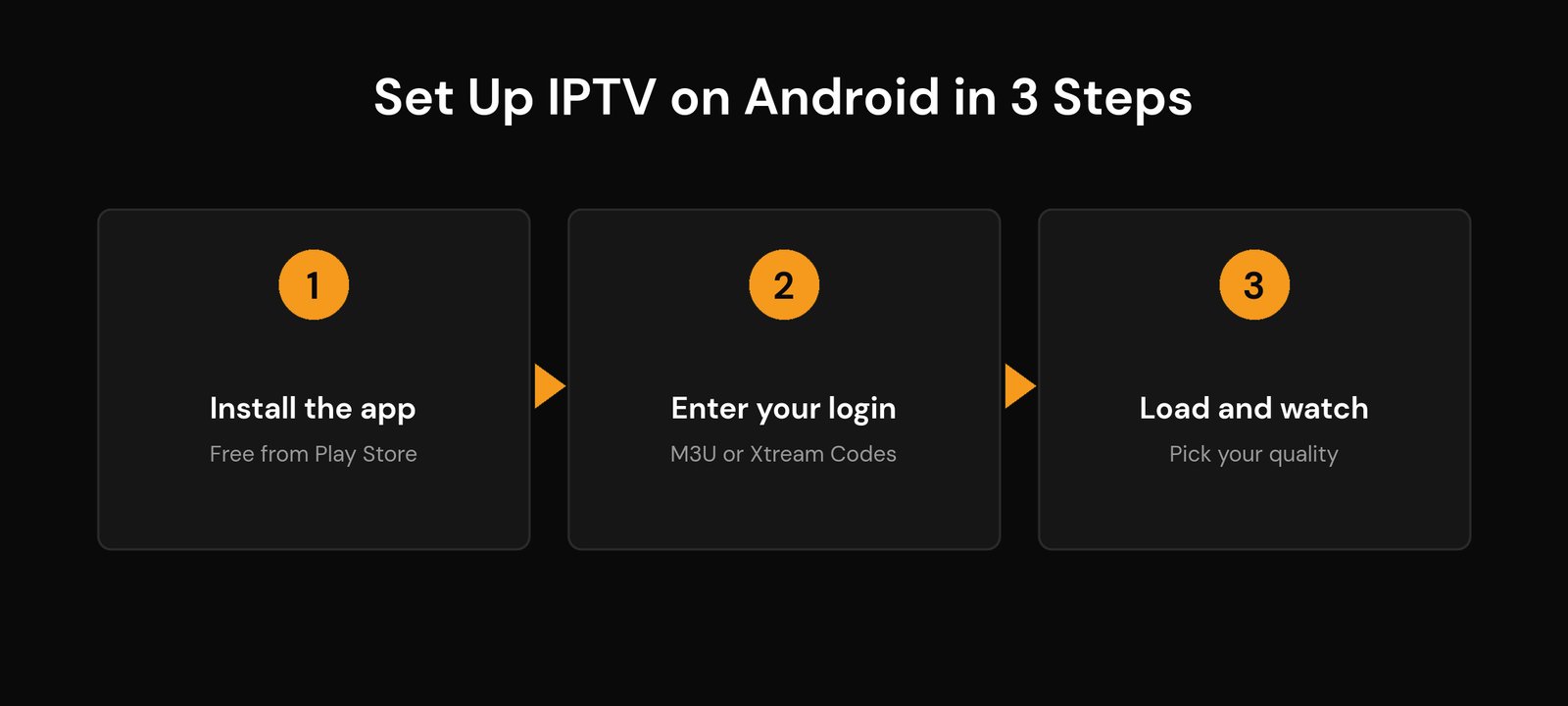
1. Install a player from the Play Store. Open the Play Store, search for an IPTV player (I use IPTV Smarters Pro as a default because it is beginner-friendly), and install it. It is free.
2. Open the app and choose your login type. On first launch the app asks how you want to add your service. You will see options like “Login with Xtream Codes API” and “Load your playlist / M3U URL.” Pick the one that matches the details your provider sent.
3. Enter your details. For Xtream Codes, type any name you like, then the server URL, username, and password exactly as given. For M3U, paste the full playlist link. Copy and paste rather than typing by hand — one wrong character is the number-one reason a playlist will not load.
4. Let the channel list load. Tap add or connect and give it a moment. The app pulls your live channels, on-demand titles, and the TV guide (EPG). On a first load over a big playlist this can take ten to thirty seconds — that is normal.
5. Start watching and set your quality. Open any live channel to confirm it plays. Then dive into the app settings and, if you are on mobile data, cap the stream quality so you do not chew through your plan. That single toggle is the difference between a comfortable month and a nasty overage.
M3U or Xtream Codes: which login should you use?
If your provider gives you both, use Xtream Codes. It is an API login — a server address plus a username and password — so the app pulls live channels, on-demand, catch-up, and the guide through structured endpoints and keeps working even when the provider updates their servers. An M3U link is a single playlist file; it works, but it is more likely to expire or need re-pasting, and the EPG often has to be added separately.
| Xtream Codes | M3U URL | |
|---|---|---|
| What you enter | Server URL + username + password | One long playlist link |
| TV guide (EPG) | Loads automatically | Often added separately |
| Stability | Keeps working through server changes | More likely to expire |
| Best for | Almost everyone | Providers that only give a link |
Best IPTV player apps for Android
Any of these handle both M3U and Xtream Codes and run well on a phone or tablet. The “best” one is mostly about which layout you like:
- IPTV Smarters Pro — the easiest starting point. Clean layout, auto-rotates between portrait and landscape, and handles both login types. My default recommendation for a first setup.
- XCIPTV — similar feature set with a slightly more customizable interface; good if you like to tweak.
- GSE Smart IPTV — strong for people who manage their own playlists and want fine control.
- OTT Navigator — the nicest interface for browsing a large on-demand library on a small screen.
All four are IPTV players — they are empty until you add your own service, exactly like a web browser is empty until you type an address. If you are still deciding which app style suits you, our explainer on how IPTV player apps work breaks down the differences.
How much mobile data does IPTV use on Android?
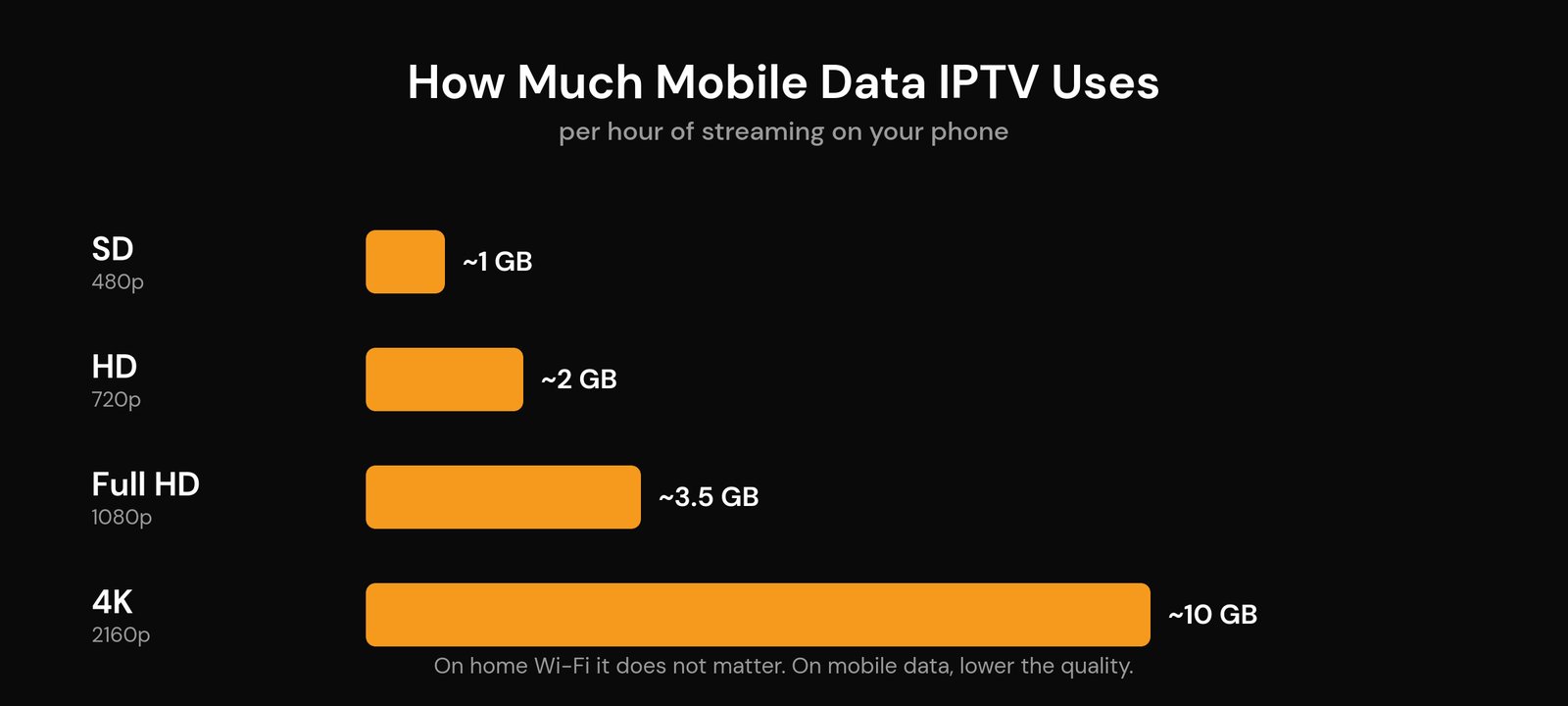
This is the part phone users skip and then regret. Streaming live TV is heavy, and the number that matters is gigabytes per hour, not per month. Roughly:
| Picture quality | Data per hour | 1 hour a day for a month |
|---|---|---|
| SD (480p) | ~0.7–1 GB | ~20–30 GB |
| HD (720p) | ~1.5–2.5 GB | ~45–75 GB |
| Full HD (1080p) | ~3–4 GB | ~90–120 GB |
| 4K (2160p) | ~7–12 GB | 210+ GB |
So one hour of HD a day can quietly eat 45–75 GB in a month — enough to blow through a capped plan. Two ways to keep it sane: drop the resolution to SD or HD in the app when you are on cellular (the only setting that meaningfully cuts data), and never leave a stream running in the background when you have stopped watching. On unlimited Wi-Fi at home, none of this matters — watch in Full HD and enjoy it.
Watch on your phone, play it on the big screen
The phone is great for testing and for watching in bed, but you can push the picture to a TV in two ways. The simplest is built-in screen mirroring (Cast) from Android to a compatible TV or dongle — quick, but it drains the battery and can stutter on weaker Wi-Fi. The more reliable route is to install the same player directly on the TV device: here is how to install IPTV on a Firestick or set it up on a Samsung or LG smart TV using the same login you just entered on your phone. Because the credentials are the same, whatever you set up on mobile carries straight over.
Common problems and quick fixes
Most first-time snags on Android come down to a handful of causes:
- Playlist will not load. Almost always a typo in the URL, username, or password, or an expired plan. Re-paste the details carefully; if it still fails, your subscription or the provider’s server is the issue, not the app.
- It plays on mobile data but not on home Wi-Fi. That points at your router or network blocking the stream — a specific, fixable problem covered in why IPTV works on a hotspot but not Wi-Fi.
- Buffering or freezing. Usually bandwidth or a busy connection. Lower the quality, get closer to the router, or work through these buffering fixes and Wi-Fi settings for IPTV.
- Worried about privacy on public Wi-Fi. A coffee-shop network is a good reason to consider a VPN for IPTV on your phone.
Frequently asked questions
Which app is best for IPTV on an Android phone?
IPTV Smarters Pro is the easiest for most people — it is free, installs from the Play Store, supports both M3U and Xtream Codes logins, and auto-rotates between portrait and landscape. XCIPTV, GSE Smart IPTV, and OTT Navigator are strong alternatives if you want more customization or a nicer on-demand layout.
How do I add my IPTV playlist on Android?
Open your player app, choose the login type that matches your details, and enter them. For Xtream Codes, add a name, the server URL, your username, and your password. For M3U, paste the full playlist link. Copy and paste the details rather than typing them, then let the channel list load.
How much mobile data does IPTV use on a phone?
Roughly 0.7–1 GB per hour for SD, 1.5–2.5 GB for HD, 3–4 GB for Full HD, and 7–12 GB for 4K. On a capped mobile plan, lower the app’s quality to SD or HD; on home Wi-Fi it does not matter. Never leave a stream running when you have stopped watching.
Can I watch IPTV on my phone and cast it to my TV?
Yes. You can screen-mirror (Cast) from Android to a compatible TV or dongle, though it uses battery and can stutter on weak Wi-Fi. For a smoother result, install the same player app on your Firestick, smart TV, or streaming box and log in with the same credentials.
Why will my IPTV playlist not load on my Android phone?
Nine times out of ten it is a typo in the server URL, username, password, or M3U link, or an expired subscription. Re-enter the details by copy and paste. If it still fails, test the same login on another device — if it fails there too, the problem is your plan or the provider, not your phone.






