Skip to content
How to Set Up IPTV in 2026: Easy Step-by-Step Guide (Any Device)
To set up IPTV you need three things: an active IPTV subscription, a compatible device, and a stable internet connection. Then you install an IPTV player app and sign in — either with your Xtream Codes login (server URL, username, password) or a single M3U URL. That’s the whole process, and it usually takes under five minutes. This guide walks you through the exact, current way to set up IPTV on every major device in 2026, the best settings for smooth playback, how to add your TV guide, and how to fix the problems people hit most.
Set up IPTV in about 5 minutes (quick version)
- Pick a player app for your device and install it (jump to the per-device steps below).
- Open the app and choose Add playlist or Login with Xtream Codes API.
- Enter your Xtream Codes login (server URL, username, password) or paste your single M3U URL.
- Let the channels load, then add your EPG so the TV guide fills in.
- Turn on auto-reconnect and hardware decoding for smoother playback.
Jump to your device: Firestick · Android TV · Apple TV / iPhone · Samsung / LG TV · Windows / Mac · MAG / Enigma2
What you need before you start
- An active IPTV subscription. Your provider gives you login details — either Xtream Codes (a server URL + username + password) or an M3U playlist link. Keep these handy; you enter them right after installing the app.
- A compatible device. Firestick/Fire TV, an Android TV or Google TV box, Apple TV or iPhone/iPad, a Samsung or LG smart TV, a Windows or Mac computer, or a MAG/Enigma2 box.
- A stable connection. See the speeds below. Wired Ethernet is the most reliable; on Wi-Fi, use the 5 GHz band.
| Quality | Recommended speed (per stream) |
|---|---|
| SD | ~10 Mbps |
| HD / Full HD | 15–25 Mbps |
| 4K | 35 Mbps+ |
New to all this? Start with what an IPTV service is, then come back here to set it up. For a neutral overview, see the Wikipedia entry on IPTV.
Xtream Codes or M3U? Know which one you have
Your provider gives you one of two ways to connect. Both reach the same content, but they’re entered differently — and Xtream Codes is the easier of the two because it loads your TV guide for you.
| Login type | What you enter | TV guide (EPG) |
|---|---|---|
| Xtream Codes | Server URL + username + password | Loads automatically |
| M3U URL | One long playlist link | Often added separately |
Use Xtream Codes if your provider offers it — fewer steps and the guide is automatic. Use M3U if that’s what you were given; it works everywhere. For the full breakdown, see our guides to Xtream Codes and M3U playlists. The M3U format is an open playlist standard.
Choose an IPTV player app
You watch IPTV through a player app. Most modern players accept both Xtream Codes and M3U. Pick based on your device:
| App | Best for | Xtream Codes |
|---|---|---|
| TiviMate | Firestick / Android TV (best UI) | Yes |
| IPTV Smarters Pro | All platforms, beginner-friendly | Yes |
| XCIPTV | Android / Fire devices | Yes |
| Smarters Player Lite | Apple TV / iPhone / iPad | Yes |
| Smart IPTV | Samsung / LG smart TVs | M3U (MAC-based) |
| Kodi (PVR Simple Client) | PC / advanced setups | Via add-on |
App availability and features vary by device and version.
The universal setup (works in every app)
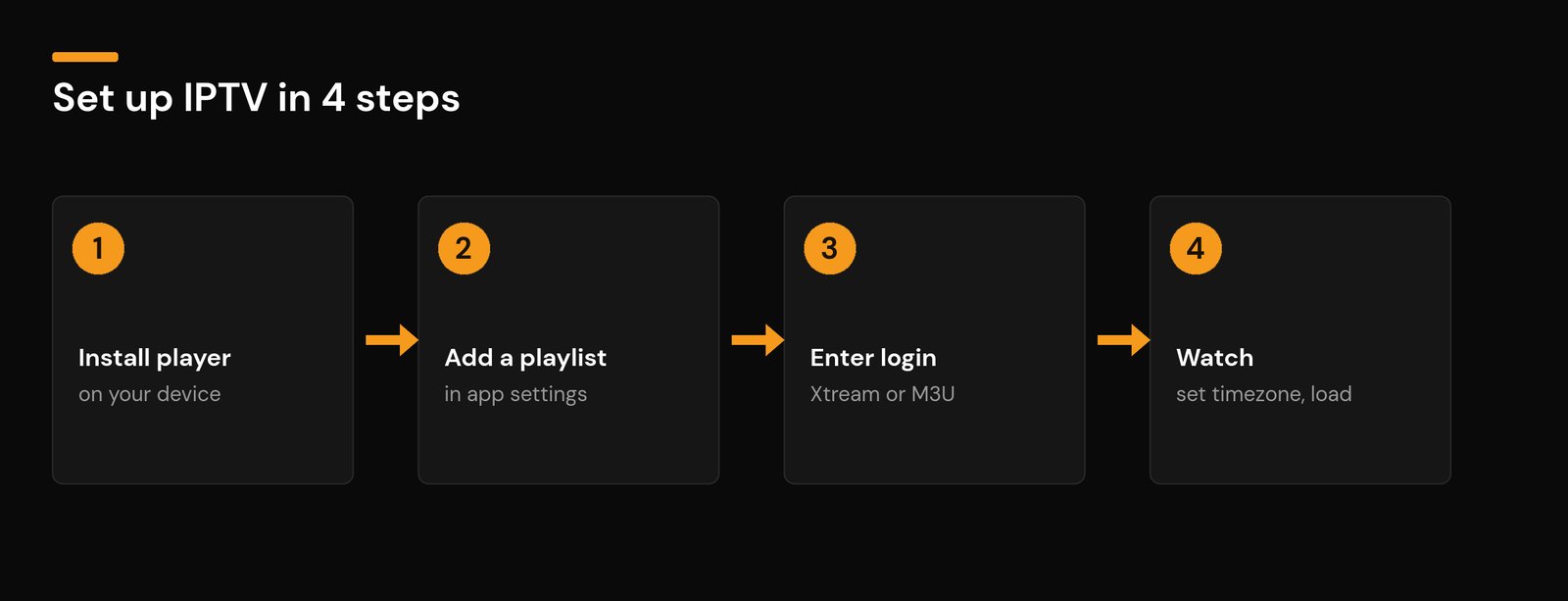
Whatever app and device you use, the logic is identical:
- Install the player on your device.
- Add a playlist in the app’s settings.
- Choose your login type — enter your Xtream Codes (server, username, password) or paste your M3U URL.
- Let it load, then set your timezone so the guide matches your clock.
Now here’s how that looks on each device.
How to set up IPTV on Amazon Firestick / Fire TV
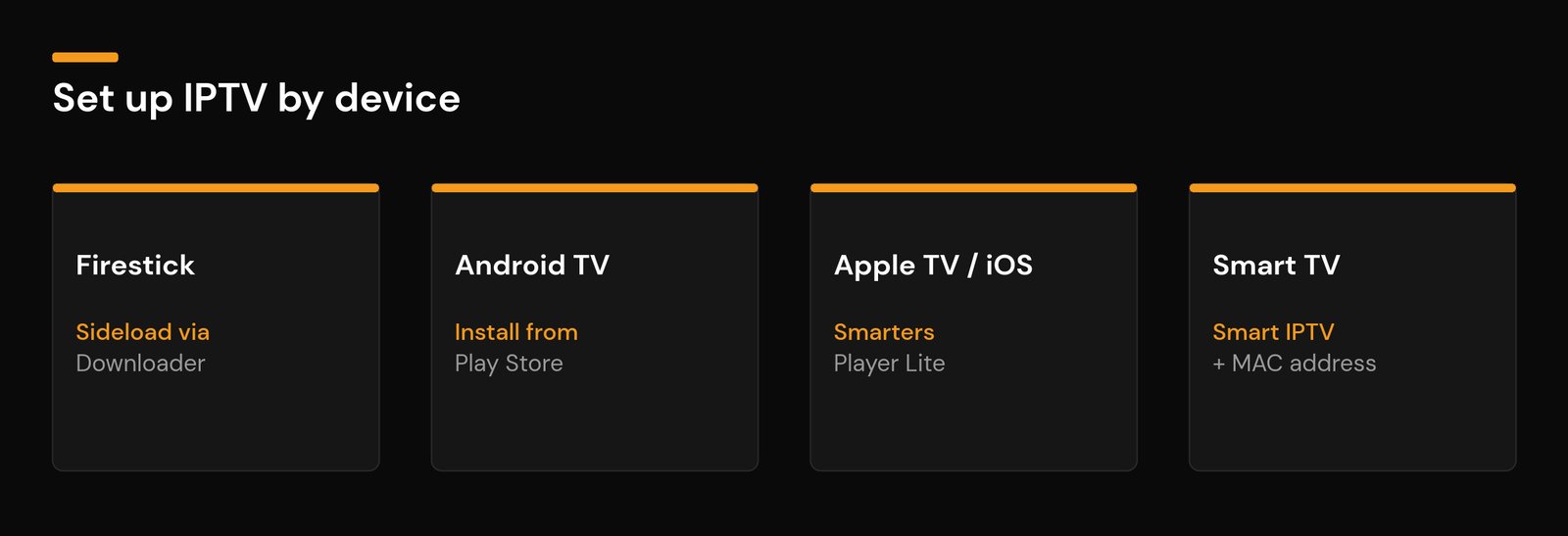
Most IPTV players aren’t in the Amazon Appstore, so you sideload them with the free Downloader app. It sounds technical, but it’s a five-minute job.
- On the Fire TV home screen, open Settings → My Fire TV → Developer Options and turn on Apps from Unknown Sources (and Install unknown apps for Downloader if asked).
- From the Appstore, search for Downloader and install it.
- Open Downloader and enter the URL your provider (or the player’s official site) gives you for the player APK. Download and install it.
- Open the player, choose Add playlist → Xtream Codes (or M3U), enter your details, and connect.
- Set your time offset and let the guide load. On a Firestick, keep your channel list trimmed so it stays fast.
TiviMate gives the best experience here, while IPTV Smarters Pro is the simplest if you just want to sign in and watch.
How to set up IPTV on Android TV / Google TV
- Open the Google Play Store and install your player (TiviMate, IPTV Smarters Pro, or XCIPTV). If a box doesn’t list it, install the APK from the player’s official site using a file or Downloader app.
- Open the app and add your playlist via Xtream Codes or M3U.
- Set the timezone, refresh, and you’re done. A Bluetooth remote or air-mouse makes typing your login much easier.
How to set up IPTV on Apple TV, iPhone & iPad
- Open the App Store and install Smarters Player Lite (the iOS/tvOS player).
- Choose Login with Xtream Codes API and enter your server URL, username, and password — or pick the M3U option and paste your link.
- Set your region/timezone and load the guide. Apple TV follows the same steps as iPhone and iPad, and your login works across all of them.
How to set up IPTV on a Samsung or LG smart TV
Tizen (Samsung) and webOS (LG) are closed systems, so you use a MAC-address player such as Smart IPTV instead of a sideloaded app.
- Install Smart IPTV from your TV’s app store and open it. Note the MAC address it displays.
- On a computer or phone, go to the Smart IPTV website, enter that MAC address and your M3U URL, and save.
- Reboot the app on the TV — your channels appear. Some TVs need a small one-time activation fee for the app.
How to set up IPTV on Windows or Mac
- Install a desktop IPTV player (IPTV Smarters Pro for desktop), or use VLC for a quick M3U test.
- Add your Xtream Codes login, or open your M3U URL.
- For a proper guide and favorites, use a dedicated player rather than VLC, which is best for a quick check.
How to set up IPTV on a MAG or Enigma2 box
On MAG and portal-based boxes, IPTV is configured through the portal URL your provider supplies (entered in the box’s network/portal settings). On Enigma2 receivers you load an IPTV bouquet with the correct service details. These devices use the portal or bouquet rather than an app store, so follow your provider’s portal instructions exactly.
Add your TV guide (EPG)
With Xtream Codes the EPG usually loads on its own. With M3U you may add the XMLTV EPG URL separately and set a time offset so listings match your clock. Our full IPTV EPG guide walks through adding and fixing the guide on every app.
Best settings for smooth, reliable IPTV
Once you’re connected, a few settings make the difference between buttery playback and constant buffering:
- Use Ethernet where you can. On Wi-Fi, pick the 5 GHz band and stay near the router.
- Raise the buffer in your player (TiviMate, Smarters and others let you increase it) so short network dips don’t interrupt playback.
- Toggle hardware decoding. If a channel stutters, switch between hardware and software decoding — one usually runs smoother on your device.
- Lower the resolution on heavy channels during busy evenings if your connection is borderline.
- Limit stored EPG days on low-power devices like a Firestick so the guide loads quickly and the app stays responsive.
- Close background apps and keep the player and device firmware updated.
Organize your channels
Most players let you build a favorites list, hide groups you don’t watch, and reorder channels. A trimmed, focused list loads faster and is far easier to navigate — especially with a TV remote. Set this up once and your everyday viewing becomes a couple of clicks.
Fix common IPTV setup problems
- Login fails / wrong credentials: re-check the server URL, username, and password exactly (they’re case-sensitive). Confirm your subscription is active and not expired.
- App installed but no channels: the playlist didn’t load — re-add it, and make sure you picked the right login type (Xtream vs M3U).
- Buffering: use Ethernet or 5 GHz Wi-Fi, raise the player’s buffer, and lower the resolution on heavy channels. If it only happens at night, it’s usually peak-hour load rather than your setup.
- Player not in the store: sideload it via Downloader (Fire devices) or install the APK from the player’s official site (Android boxes).
- Guide blank or wrong times: see the EPG guide above — it’s almost always a missing EPG URL or a timezone offset.
- Works on mobile data but not home Wi-Fi: your network may be blocking IPTV; try changing your DNS or using a VPN.
Is it safe to set up IPTV?
Setting up IPTV is safe when you use a legitimate provider and a trusted player app. A few sensible habits keep it that way: only download player apps from official sources, never share your login credentials, and use a provider that delivers properly licensed content. If you’re unsure what to look for, our guide on how to get a legal IPTV service explains the green flags to check before you subscribe.
Quick IPTV setup checklist
- Get an active subscription and your login (Xtream Codes or M3U).
- Install an IPTV player for your device.
- Add your playlist and enter your login.
- Set your timezone and load the guide.
- Build a favorites list and tune your buffer/decoding.
- Prefer Ethernet or 5 GHz Wi-Fi for the smoothest playback.
Frequently asked questions
What do I need to set up IPTV?
An active IPTV subscription, a compatible device (Firestick, Android TV, Apple TV, smart TV, or computer), a stable internet connection, and your login details (Xtream Codes or an M3U URL).
Should I use Xtream Codes or M3U?
Use Xtream Codes if your provider offers it — it needs a server URL, username, and password, and loads your TV guide automatically. M3U is a single link and works everywhere, but you may add the guide separately.
Which IPTV app is best?
TiviMate has the best interface on Firestick and Android TV; IPTV Smarters Pro is the easiest all-rounder; Smarters Player Lite is the go-to on Apple TV and iPhone. All accept Xtream Codes.
How do I set up IPTV on a Firestick?
Enable Apps from Unknown Sources, install the Downloader app, use it to install your IPTV player’s APK, then open the player and sign in with your Xtream Codes or M3U details.
How do I set up IPTV on a smart TV?
On Samsung and LG TVs, install a MAC-based app like Smart IPTV, note the MAC address it shows, then add that MAC and your M3U URL on the app’s website and reload the app.
Can I use IPTV on more than one device?
Yes, if your plan allows multiple connections. Install a player on each device and sign in with the same details — check how many simultaneous streams your subscription includes.
Why is my IPTV buffering after setup?
Usually the network: use Ethernet or 5 GHz Wi-Fi, raise the player buffer, and lower the resolution on heavy channels. Night-time buffering is often peak-hour load rather than your setup.
How long does IPTV setup take?
Usually under five minutes once you have your subscription and login details — install the app, enter your credentials, and load the guide.
That’s everything you need to set up IPTV in 2026. If you want a service where setup is just sign in and watch — with the guide and channels ready out of the box — Nviewx is built to make it effortless.