Skip to content
What Is an IPTV EPG? The Complete Guide + Easy Fixes (2026)
An IPTV EPG (Electronic Program Guide) is the on-screen TV guide built into your IPTV app — it shows what’s playing now and next on every channel, with titles, start times, and short descriptions. A working EPG turns a plain channel list into a browsable schedule and powers reminders, catch-up, and recording. This complete guide explains exactly how the IPTV EPG works, how to add and configure one in every major app and device, and how to fix the problems people hit most — a blank guide, missing channels, or wrong times — with no guesswork.
“EPG on TV” and “IPTV EPG” mean the same thing. EPG stands for Electronic Program Guide – the grid of now-and-next listings. On a regular TV it arrives with the aerial or satellite signal; on IPTV the very same guide is delivered as a data file (usually XMLTV) that your app downloads and matches to your channels. Everything below applies to IPTV apps and devices.
What an IPTV EPG does
An EPG displays the current and upcoming programmes for each channel, usually with the programme name, air time, and a short synopsis. Instead of flicking channel by channel to find something, you open one guide and jump straight to what’s on. Beyond the listings themselves, modern IPTV apps use EPG data to power the features people rely on every day:
- Now & next: see what’s playing and what follows, per channel, at a glance.
- Reminders: get alerted before a match or show starts so you never miss it.
- Catch-up & archive: apps with catch-up use the EPG to know when each programme aired, so you can rewind the schedule and replay it.
- Recording / DVR: schedule a recording straight from a programme in the guide.
EPG vs catch-up vs VOD: what’s the difference?
These three get mixed up constantly, so it’s worth being clear:
- EPG is the schedule — the data about what is on and when.
- Catch-up (also called archive or timeshift) lets you go back and watch something that already aired on a live channel. It uses the EPG to know what aired and when.
- VOD (Video on Demand) is a separate library of movies and shows you pick from any time — it isn’t tied to the live schedule at all.
In short: the EPG is the timetable, catch-up replays the timetable’s past, and VOD is its own on-demand shelf.
How an IPTV EPG works
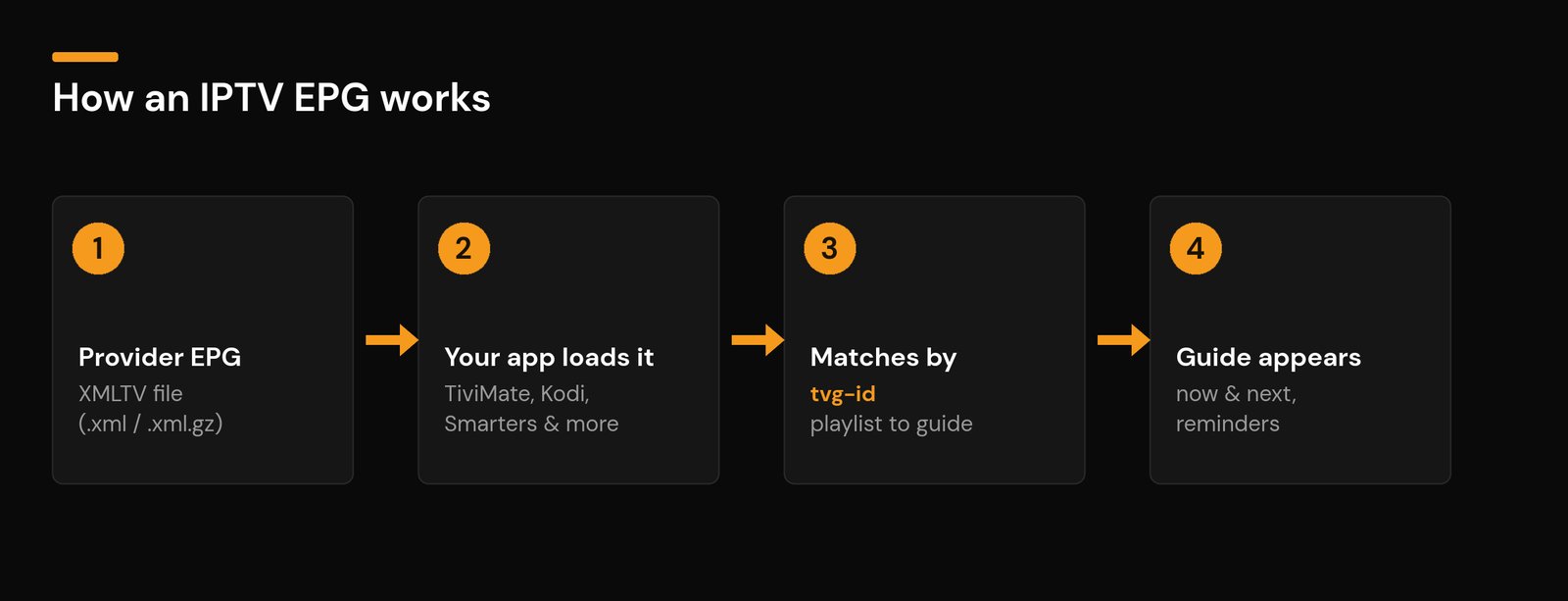
EPG listings are delivered in a standard format called XMLTV — an XML file usually published at a web address ending in .xml or a compressed .xml.gz. Your IPTV app downloads that file and matches each programme to one of your channels using a channel identifier called tvg-id.
That matching step is the part most people never see — and it’s the root of most EPG problems. In a typical M3U playlist, each channel line carries a tvg-id that must match a channel block inside the XMLTV file:
#EXTINF:-1 tvg-id="channel1.example" tvg-name="Channel One" group-title="News",Channel One
If the tvg-id on a channel matches an ID in the EPG data, that channel shows a full guide. If it doesn’t match (or is blank), that channel shows an empty guide even though the stream plays perfectly. The app re-downloads the XMLTV file on a schedule (often daily) to keep listings current. For background on the format itself, see the XMLTV project and Wikipedia’s overview of the electronic program guide.
The XMLTV time format (why your times go wrong)
Inside an XMLTV file, each programme has a start and stop time written like 20260605200000 +0000 — that’s year, month, day, hour, minute, second, followed by a timezone offset. If your app’s time offset doesn’t match your real timezone, every single programme shifts by the same amount. That’s why “wrong times” is almost never a broken guide — it’s a one-setting timezone fix, covered below.
Where EPG data comes from
There are two common sources, and which you use decides how much manual work you’ll do:
- Provider-supplied EPG: your IPTV service publishes an XMLTV URL (or bundles it with an Xtream Codes login) already matched to its channel list. This is the easiest and most reliable option — always try it first.
- Third-party XMLTV: free or community EPG sources you add manually. They can fill gaps, but their channel IDs rarely line up with your playlist, so you’ll often need to match channels by hand.
How the EPG loads on different connection types
| How you connect | How the EPG is added |
|---|---|
| Xtream Codes login (username + password + server URL) | The EPG usually loads automatically with your account — no separate URL needed. |
| M3U playlist (a single playlist link) | You often add the EPG (XMLTV) URL separately in the app’s settings. |
| MAC / device portal apps (Smart IPTV, etc.) | The EPG is configured in the portal or the app’s own settings. |
Not sure which you have? Our guides to M3U playlists and Xtream Codes explain the difference in plain language. New to all this? Start with what an IPTV service is.
How to add an EPG to your IPTV app (step by step)
The menu names differ, but the logic is identical in every app: load your playlist, point the app at the EPG source, set your timezone, then refresh. From setting this up across plenty of boxes, that exact order — playlist first, EPG source second, timezone third, refresh last — is the one that never fails. Here’s how it looks in the most popular players and devices.
TiviMate (Firestick, Android TV)
- Open Settings → Playlists and add your playlist (Xtream Codes or M3U).
- Go to Settings → EPG. With Xtream Codes the guide is usually detected automatically; for M3U, choose Add EPG source and paste your XMLTV URL.
- Set the Time offset if listings don’t match your clock.
- Select Update EPG and wait for it to finish.
IPTV Smarters Pro / IPTV Smarters
- Sign in with your Xtream Codes details, or load your M3U URL.
- Open Settings → EPG and, for M3U, add your XMLTV URL under the EPG / Manual EPG option.
- Set your timezone and refresh the guide.
XCIPTV
- Add your playlist (Xtream Codes or M3U).
- In Settings → EPG Settings, enable EPG and paste the XMLTV URL for M3U playlists.
- Adjust the time offset and update.
Smart IPTV (Samsung Tizen / LG webOS)
- Note the device MAC address shown in the app and activate it on the Smart IPTV website.
- Add your playlist and your EPG (XMLTV) URL in your account on the site.
- Set the timezone, then reload the app on the TV.
Kodi (PVR IPTV Simple Client)
- Install/enable PVR IPTV Simple Client.
- Under the playlist settings, add your M3U URL.
- Open the EPG Settings tab, paste your XMLTV URL, enable the PVR and restart Kodi.
Apple TV / iOS (iPlayTV, TiviMate)
- Add your playlist via Xtream Codes or M3U URL.
- If the EPG isn’t automatic, add the XMLTV URL in the app’s EPG settings.
- Set your region/timezone and refresh.
Enigma2 / MAG boxes
- On MAG/portal devices, the EPG comes from the portal — make sure your portal URL is correct.
- On Enigma2 receivers, EPG is handled by the box; an IPTV bouquet with correct service IDs will populate the guide.
With Nviewx, the EPG is included and loads automatically when you sign in — there’s no separate URL to paste on supported apps.
How to manually match channels to the EPG
If a channel streams fine but its guide is blank, the tvg-id doesn’t match the EPG data. Most good apps let you fix this by hand:
- In TiviMate, long-press the channel → Edit channel → EPG source / EPG ID, and pick the matching guide channel.
- In other players, look for an “EPG” or “match guide” option in the channel’s settings.
In practice the blank channels are almost always a small handful of regional ones whose tvg-id differs slightly from the EPG file — matching those by hand once fixes them for good. If many channels are unmatched, it’s faster to ask your provider to correct the mapping — a well-maintained provider EPG matches automatically.
EPG, catch-up and recording
A correct EPG is what makes catch-up and recording usable. With catch-up enabled, you scroll back through the guide and replay a programme that already aired (providers typically offer a few days of archive). For recording, apps like TiviMate Premium let you select a future programme in the guide and schedule a recording — the EPG supplies the start/stop times, so accurate listings mean accurate recordings.
Using more than one EPG source
Some users add a second XMLTV source to fill gaps the main guide misses (for example a regional sports source). Apps that support multiple EPG sources merge them by channel ID. Keep it simple where you can: extra sources add load and increase the chance of mismatched IDs, so only add a second source if your provider’s EPG genuinely lacks channels you need.
EPG features by app, at a glance
| App | Auto EPG with Xtream | Catch-up / archive | Recording |
|---|---|---|---|
| TiviMate | Yes | Yes | Yes (Premium) |
| IPTV Smarters Pro | Yes | Yes | Limited |
| XCIPTV | Yes | Yes | Limited |
| Smart IPTV | Manual URL | Limited | No |
| Kodi (Simple Client) | Manual URL | Add-on dependent | Yes |
Feature availability varies by app and version.
Why your IPTV EPG isn’t showing (and how to fix it)
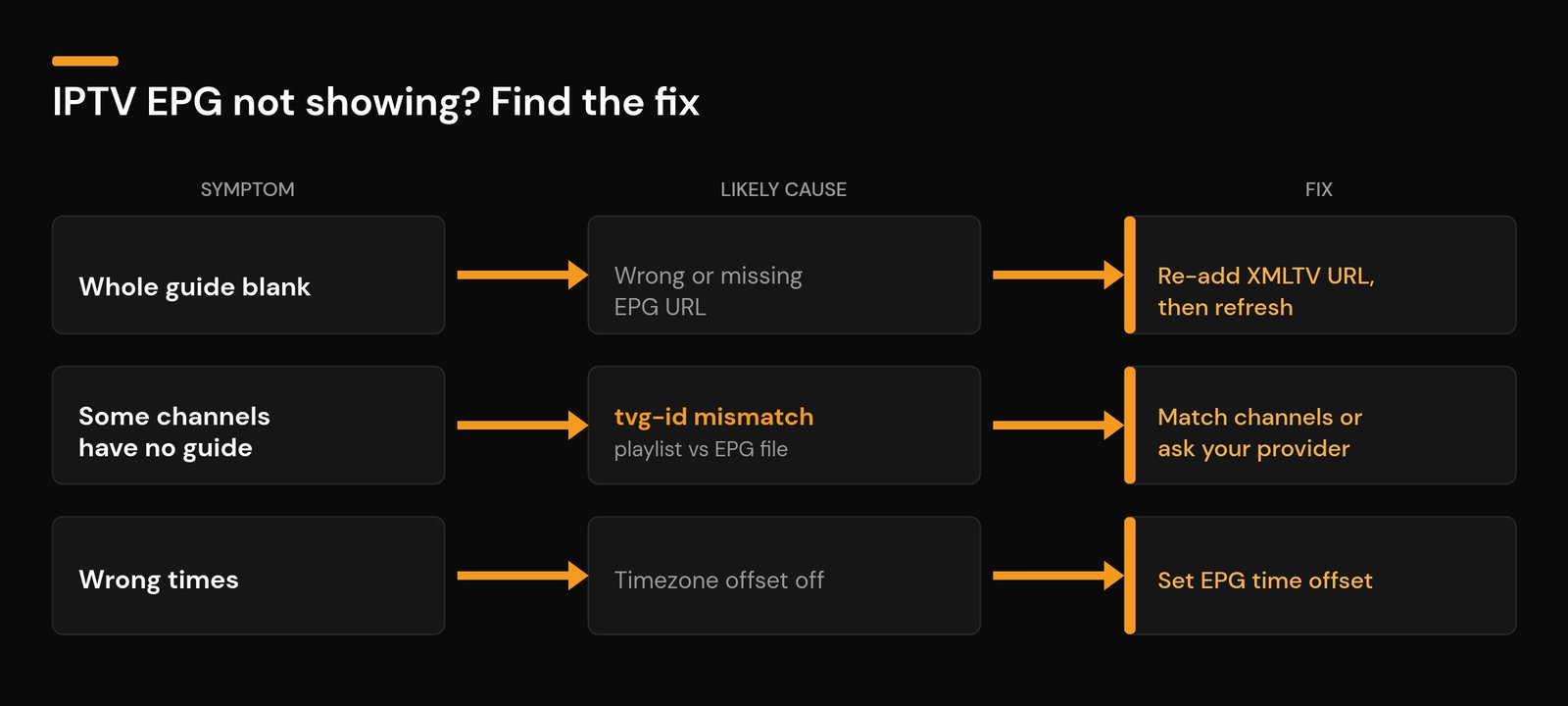
Almost every EPG issue is one of five problems. Work down this list in order:
1. The whole guide is blank
The EPG source is missing or wrong. Re-enter the correct XMLTV URL, or with Xtream Codes confirm your login is active and your subscription hasn’t expired, then force an EPG refresh. Give large guide files a minute or two to download fully before deciding it’s broken.
2. Only some channels have a guide
This is a tvg-id mismatch — the channel’s ID doesn’t match the EPG data. Use the manual matching steps above, or ask your provider to correct the channel mapping. Provider-supplied EPG avoids this because the IDs are already aligned.
3. The times are wrong
A timezone problem (see the XMLTV time format above). Set the correct EPG time offset in the app — for example +1 or -5 hours — so listings line up with your local clock. One change fixes every channel at once.
4. The guide is outdated
Force an EPG refresh, and set the app to update the EPG more often (daily). If a third-party source is consistently stale, switch to your provider’s EPG.
5. The EPG is slow, laggy, or crashes (low-power devices)
On a Firestick or older Android box, a huge EPG (many days, thousands of channels) can use too much memory. Reduce the number of EPG days the app stores, hide channel groups you don’t watch, and clear the app cache. In our own testing on a Firestick, keeping more than about three days of EPG for a large, multi-country playlist is usually what tips it into stuttering; capping it at two or three days clears it up. A smaller, focused playlist loads its guide far faster.
How to choose an IPTV service with a reliable EPG
A good EPG is one of the clearest signs of a well-run service. When you compare providers, check that: the EPG loads automatically with your login, listings cover the channels you actually watch, times are correct for your region, and catch-up is available on the main channels. A provider that gets the guide right usually gets the rest right too. Nviewx includes a full, auto-loading EPG with catch-up on supported apps, so the guide works the moment you sign in.
Types of EPG
You’ll mainly meet three styles: a linear guide (a straight now-and-next schedule), an interactive guide (pause, rewind, or record straight from the guide), and a personalized guide that recommends content based on what you watch.
IPTV EPG glossary
- XMLTV: the standard file format EPG data is published in (.xml or .xml.gz).
- tvg-id: the channel identifier that links a playlist channel to its guide data.
- tvg-name: the display name of a channel in the playlist.
- Time offset: the timezone correction that aligns guide times to your local clock.
- Catch-up / archive: replaying programmes that already aired on a live channel.
- PVR: the recording/guide engine in apps like Kodi.
Quick IPTV EPG setup checklist
- Use your provider’s EPG first (auto with Xtream Codes).
- For M3U, paste the correct XMLTV URL in the app’s EPG settings.
- Set your timezone / time offset.
- Force an EPG update and let it finish.
- Manually match any blank channels by tvg-id.
- On weak devices, limit EPG days to keep it fast.
Frequently asked questions
What is an IPTV EPG?
An IPTV EPG is the electronic TV guide inside your IPTV app that shows current and upcoming programmes for each channel, with times and descriptions, pulled from an XMLTV data file.
Why is my IPTV EPG not showing?
Usually the EPG URL is missing or wrong, or the channel IDs don’t match the guide data. Re-enter the correct XMLTV link (or sign in again on Xtream Codes) and refresh. If only some channels are blank, it’s a tvg-id mismatch your provider can fix.
How do I add an EPG URL to my IPTV app?
Open the app’s EPG or TV Guide settings, paste your provider’s XMLTV (.xml or .xml.gz) URL, set your timezone offset, and save. With Xtream Codes logins the EPG normally loads automatically.
Why does my EPG show the wrong times?
That’s a timezone mismatch. XMLTV stores times with an offset; set the correct EPG time offset in your app so the listings line up with your local time.
What is a tvg-id and why does it matter?
The tvg-id is the channel identifier that links a channel in your playlist to its listings in the XMLTV EPG file. If it’s missing or doesn’t match, that channel shows an empty guide even though it plays normally.
How many days of EPG can I see?
It depends on the source — many providers supply a few days ahead and a few days of catch-up behind. You can usually limit how many days your app stores to keep performance smooth on low-power devices.
Does the EPG use a lot of data or storage?
The XMLTV file is small to download, but a very large guide can use noticeable memory on weak devices. Limiting EPG days and hiding unused groups keeps it light.
Do all IPTV services include an EPG?
Not all do, but reputable providers include a regularly-updated EPG. Nviewx includes a full EPG that loads automatically when you sign in.
Does the EPG affect streaming quality?
No. The EPG is just listings data; it doesn’t change video quality or cause buffering. A missing guide is a data/matching issue, not a streaming one.
Related guides: What is an IPTV service? · M3U playlists · Xtream Codes
A reliable IPTV EPG is one of the small things that makes IPTV feel effortless. If you want a service where the guide, catch-up, and channels just work out of the box, Nviewx includes a full, auto-loading EPG with your subscription.