Skip to content
IPTV Error Codes & DNS Issues: What Each One Means and How to Fix It
Most IPTV error codes come down to one of three things: a login your server rejected, a connection that never completed, or a DNS lookup that quietly failed. A 401 means your credentials were refused. A timeout usually means the app could not reach the server at all, and that is where DNS comes in. Get those two ideas straight and you can fix the large majority of IPTV problems in a few minutes without contacting anyone.
This guide walks through the common IPTV error codes, what each actually means, and the DNS fixes that clear most of them. It is device-agnostic, so it applies whether you use a player on a Firestick, Android TV box, Smart TV, or a desktop app.
Why IPTV errors happen in the first place
An IPTV app is really just a client talking to a server over the internet. When you open a stream, three handshakes have to succeed in order: your device resolves the server’s address (DNS), it opens a connection to that address, and the server authorises your account. An error code is the app telling you which handshake broke.
That is why the same on-screen symptom can have very different causes. “Nothing loads” might be an expired subscription, an overloaded server, or your Domain Name System resolver refusing to look up the host. The code (or the wording of the message) is your shortcut to the right fix. If you are new to how the whole thing fits together, our explainer on what an IPTV service is gives useful background.
The most common IPTV error codes explained
Here is what the codes you will actually see mean. They borrow from standard Internet Protocol television and HTTP conventions, so the numbers are consistent across most players.
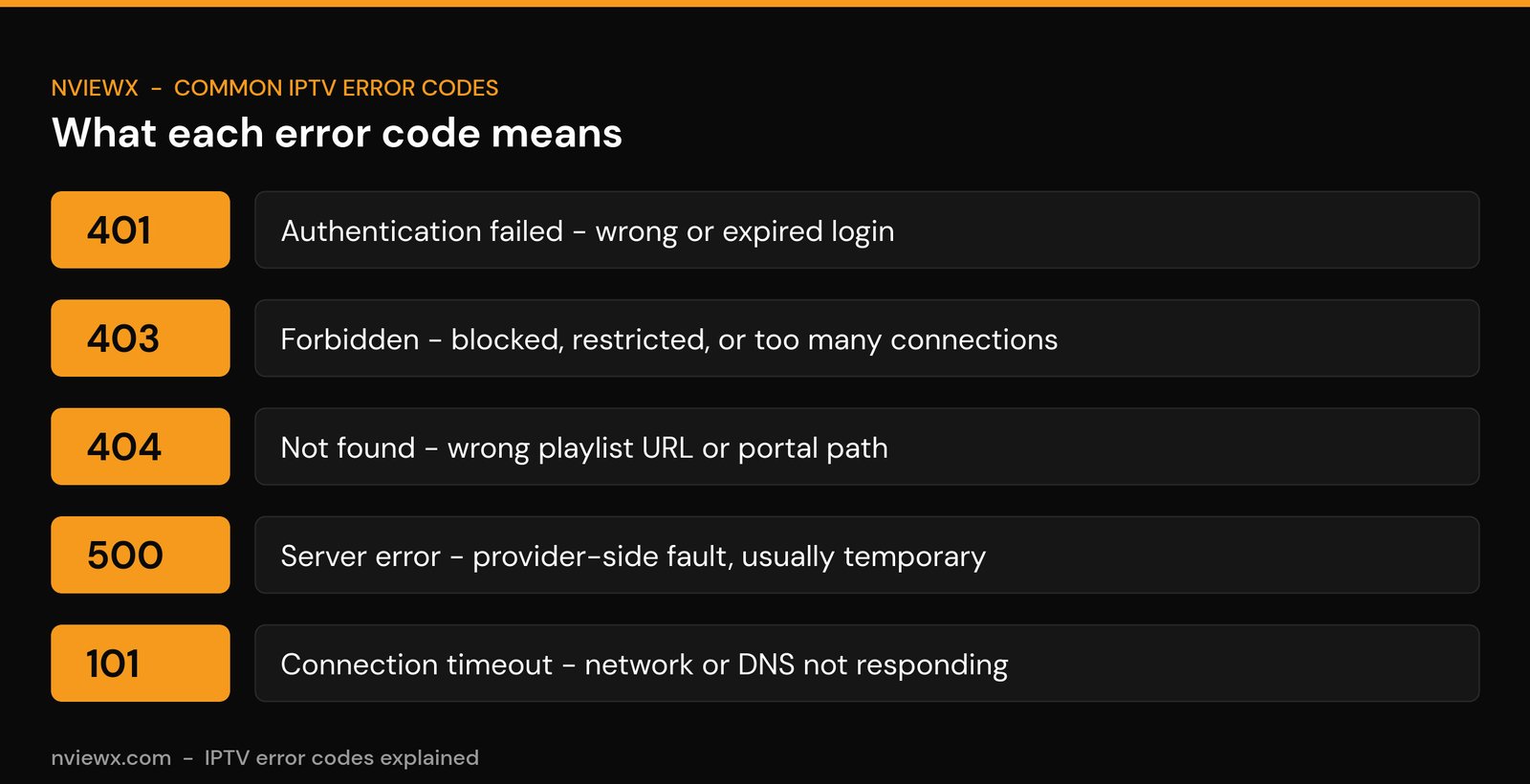
- 401 (Unauthorized): the server is reachable but rejected your login. Wrong username or password, an expired account, or credentials pasted in the wrong field.
- 403 (Forbidden): your login was understood but access is refused. Often a blocked or restricted account, exceeded connection limit, or an IP/region restriction.
- 404 (Not Found): the app asked for something the server does not have. Usually a mistyped playlist URL, a wrong portal path, or a server address that has changed.
- 500 (Internal Server Error): a fault on the provider’s side. There is nothing to fix on your end; it usually clears on its own.
- 101 / connection timeout: the app tried to reach the server and got no reply in time. A network problem, a server outage, or a DNS failure.
DNS issues and how to fix them
DNS is the phone book of the internet: it turns a server name into an IP address your device can dial. When DNS misbehaves, the app cannot find the server, so you see timeouts, “cannot connect,” or channels that simply never load. Two things cause most IPTV DNS issues: a slow or broken DNS resolver, and an ISP that uses DNS to block or redirect streaming traffic.
The fix is almost always the same: stop using your ISP’s default DNS and point your device (or router) at a fast public resolver, then clear the old lookups.
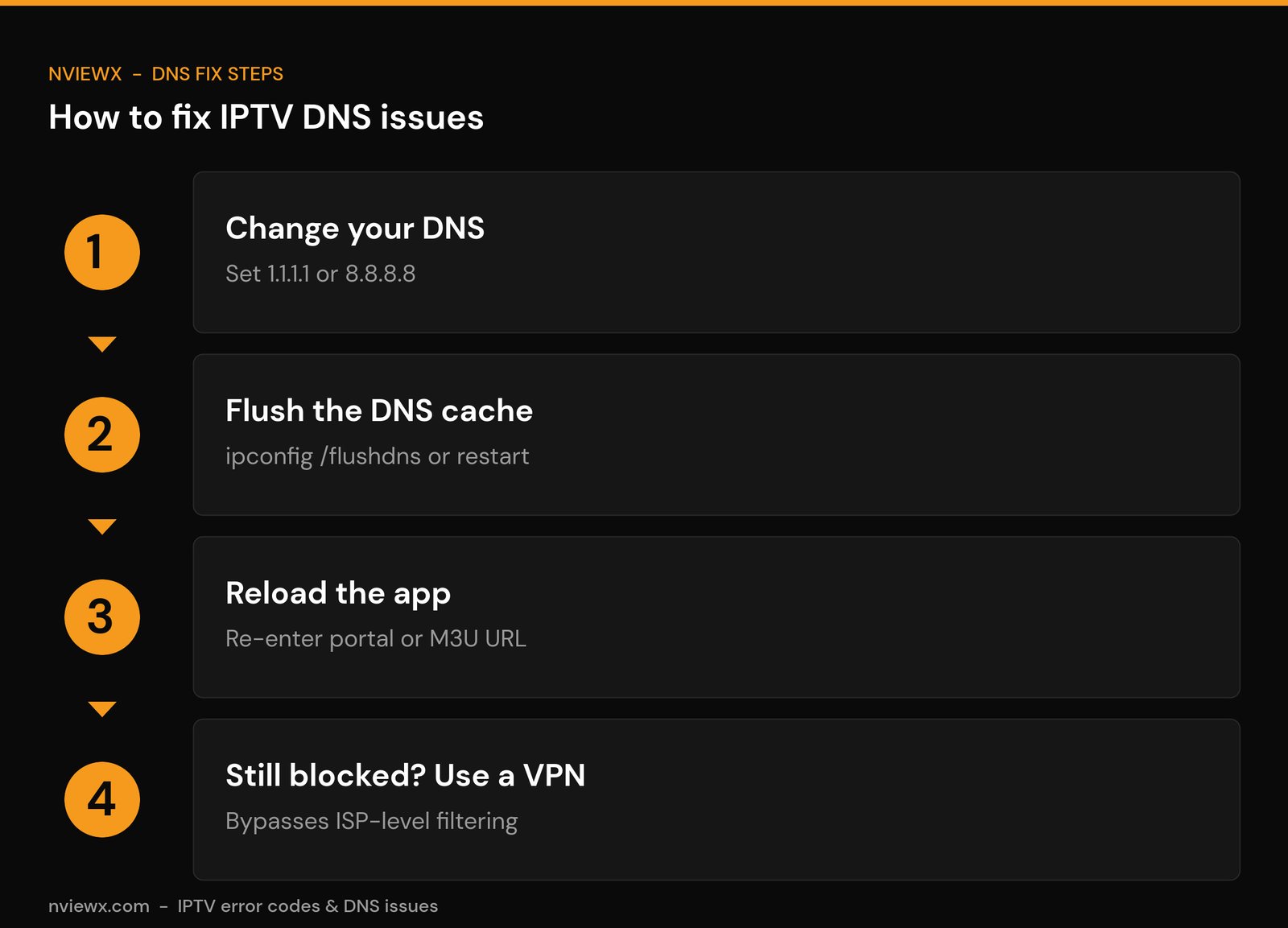
- Change your DNS. Set your primary DNS to
1.1.1.1(Cloudflare) or8.8.8.8(Google), with1.0.0.1or8.8.4.4as secondary. You can do this in your device’s network settings or, better, in your router so every device benefits. - Flush the DNS cache. On Windows, open Command Prompt and run
ipconfig /flushdns. On a streaming box or phone, toggling airplane mode or restarting the device clears the cache. - Reload the app. Re-enter your portal or M3U URL so the player resolves the host again with the new DNS.
- Still blocked? Use a VPN. If switching DNS does not help, your ISP may be using deeper filtering. A reputable VPN routes around it. See our notes on how to handle IPTV restrictions.
Try DNS first because it is free and instant. Public resolvers also tend to be faster than the average ISP resolver, which can quietly reduce buffering as a bonus.
Authentication and login errors (401 and the “failed to authorize” message)
The single most common cause of a 401 or “authentication failed” message is a tiny typo. One wrong character in a username, password, or portal URL and the server rejects everything. Rather than typing credentials by hand, copy and paste them directly from your provider’s email or dashboard.
Run through this short list before assuming the account is dead:
- Re-paste the username, password, and server/portal URL exactly, with no leading or trailing spaces.
- Confirm the URL uses the right scheme and port (some portals need
http://with a specific port number). - Check the subscription has not expired or been suspended. If every channel fails at once, an expired account is the usual answer.
- If you are using the Xtream Codes login format, make sure the server, username, and password fields are filled in the correct boxes rather than pasted into a single M3U field.
If the credentials are definitely right and still rejected, the problem has moved server-side, and that is when contacting your provider makes sense.
Connection and timeout errors
A timeout means the conversation never started. The app reached out and heard nothing back. Work from your side of the connection outward:
- Test your internet. Load any website on the same device. If nothing loads, fix the network first.
- Prefer a wired connection. Ethernet is steadier than Wi-Fi for live streams; if you must use Wi-Fi, move closer to the router.
- Switch your DNS (see above) to rule out a resolver problem, which is a frequent hidden cause of timeouts.
- Reduce the load. Too many simultaneous streams can trip a “max connections” or “account in use” message; close streams on other devices.
- Restart the chain. Reboot the router, then the streaming device. It clears stale connections more often than people expect.
If a clean setup still times out and your DNS is fine, the server itself may be down, an outage no amount of local tweaking will fix. If you are setting up a device from scratch, our IPTV setup walkthrough and Firestick install guide cover the basics that prevent many of these errors.
IPTV error codes at a glance: meaning and fix
| Error | What it means | First fix to try |
|---|---|---|
| 401 Unauthorized | Login rejected (wrong or expired credentials) | Re-paste username, password, and URL; check expiry |
| 403 Forbidden | Access refused (blocked, restricted, or too many connections) | Close extra streams; contact provider if persistent |
| 404 Not Found | Wrong playlist URL or portal path | Re-enter the exact server/M3U URL |
| 500 Server Error | Provider-side fault | Wait; it usually clears on its own |
| 101 / Timeout | No reply from the server (network or DNS) | Change DNS to 1.1.1.1 or 8.8.8.8; restart router |
When to contact your provider
Most IPTV error codes are yours to fix. A few are not. Reach out to your provider when: a 500 error persists for hours across all channels, a 403 keeps appearing after you have closed extra streams and confirmed your account is active, or your credentials are verified correct but a 401 will not clear. Those point to a server-side or account-side issue only the provider can change. Before you message them, note the exact code, whether it affects one channel or all of them, and what you have already tried, it gets you a faster answer.
Want fewer error codes to begin with? A stable setup, the right player settings, and a fast DNS prevent most of them. Browse more practical IPTV troubleshooting guides on Nviewx to keep your streams running clean.
Frequently asked questions
What does IPTV error 401 mean?
Error 401 means the server rejected your login. The connection works, but the username, password, or portal URL is wrong or the account has expired. Re-paste your credentials carefully and confirm the subscription is active.
How do I fix an IPTV connection timeout?
A timeout means the app could not reach the server. Test your internet, switch your DNS to 1.1.1.1 or 8.8.8.8, flush the DNS cache, and restart your router and device. If it still times out with a clean setup, the server may be down.
Can changing my DNS really fix IPTV problems?
Often, yes. If your ISP’s resolver is slow or is blocking the stream, switching to a public DNS like Cloudflare or Google lets your device find the server again and can reduce buffering. It is the first thing to try because it is free and instant.
Why do all my channels stop working at once?
When every channel fails together, the cause is usually account-wide: an expired or suspended subscription, a server outage, or a DNS failure stopping the app from reaching the host, rather than a problem with any single channel.
What is an IPTV 403 error?
A 403 means access is forbidden even though your login was understood. Common causes are a blocked or restricted account, exceeding your allowed number of simultaneous connections, or an IP or region restriction. Close extra streams first; if it persists, contact your provider.
How do I flush my DNS cache?
On Windows, open Command Prompt and run ipconfig /flushdns. On a phone or streaming box, restarting the device or toggling airplane mode clears the cached lookups so the new DNS takes effect.
Do I need a VPN to fix IPTV errors?
Not usually. Most errors are credential, server, or DNS related and need no VPN. A VPN only helps when your ISP is actively filtering the traffic and changing DNS did not get around it.