 Skip to content

IPTV on Game Consoles: Can You Watch on Xbox or PlayStation? (2026)
Short answer: yes, you can watch IPTV on game consoles, but only one of the two big systems makes it easy. On an Xbox you can install a real IPTV player straight from the Microsoft Store and load your playlist in a few minutes. On a PlayStation there is no native IPTV app at all, so you are left with slow, fiddly workarounds. For most people a cheap streaming stick is the smarter move than either console.
If your console is already sitting under the TV, it feels natural to use it as your IPTV box too. This guide shows exactly what works on each system, how to set it up step by step, and when you should reach for a dedicated device instead. New to the terminology? It helps to first understand what an IPTV app actually is and how a playlist gets loaded.
IPTV on game consoles: the quick verdict
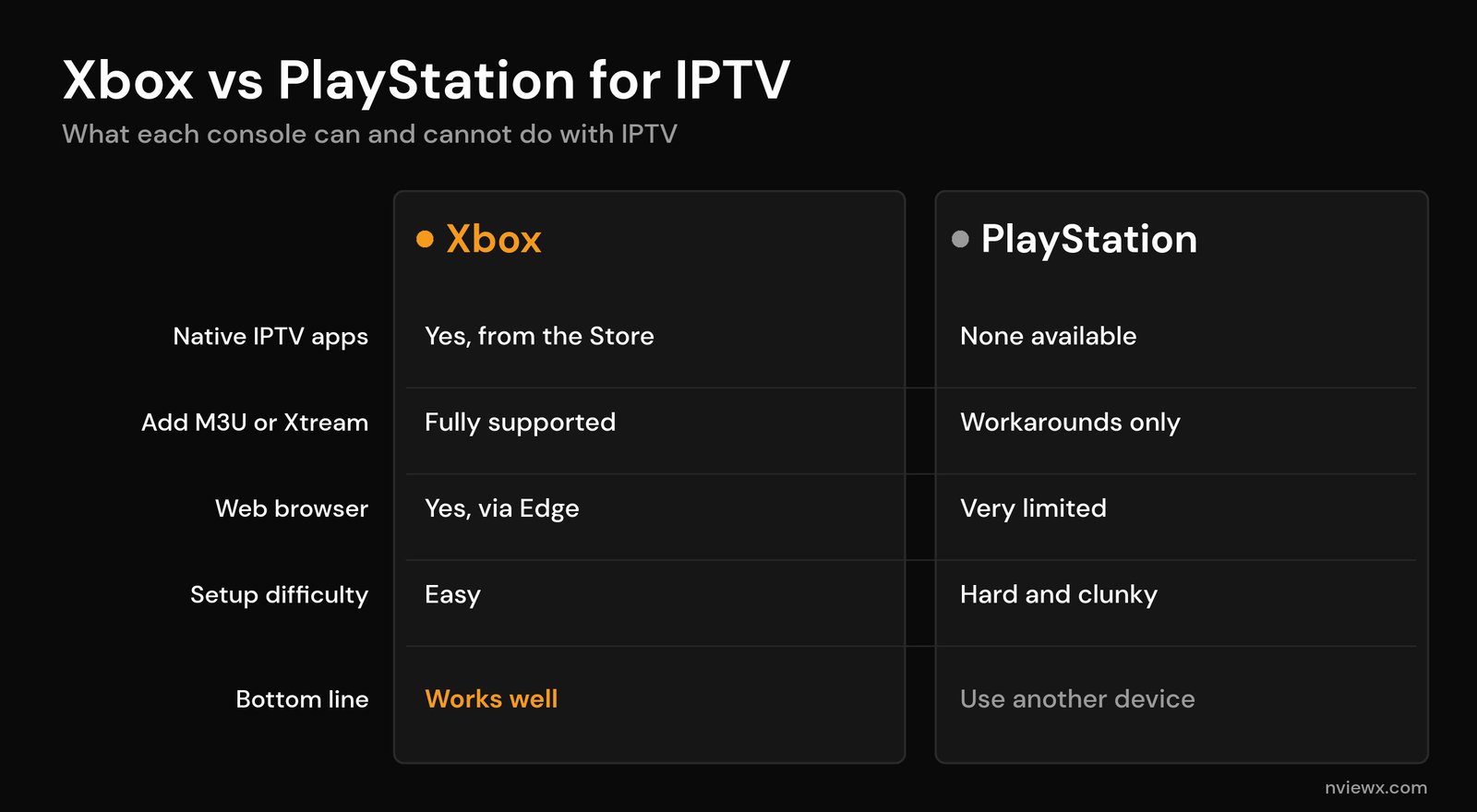
The two consoles could not be more different here. An Xbox behaves a lot like a small Windows computer, so it happily runs third-party media apps. A PlayStation runs a tightly locked system that only allows the apps Sony approves, and no dedicated IPTV player has ever made that list. Here is the side by side.
| What you can do | Xbox (Series X|S, Xbox One) | PlayStation (PS5, PS4) |
|---|---|---|
| Native IPTV player apps | Yes, from the Microsoft Store | None on the PlayStation Store |
| Load an M3U or Xtream Codes line | Fully supported in several apps | Only through workarounds |
| Built-in web browser | Yes (Microsoft Edge) | PS4 has a hidden one; PS5 has none |
| Controller-friendly playback | Yes | Not really |
| Ease of setup | Easy, a few minutes | Hard and fiddly |
| Bottom line | A genuinely usable IPTV device | Better to use another device |
IPTV on Xbox (Series X|S and Xbox One)
Xbox is the console to use if you want IPTV. Because the system supports installable media apps, you can download a proper player, sign in with your provider details, and watch live TV and on-demand content with your controller. Everything below works the same on the Xbox Series X, Series S, and the older Xbox One.
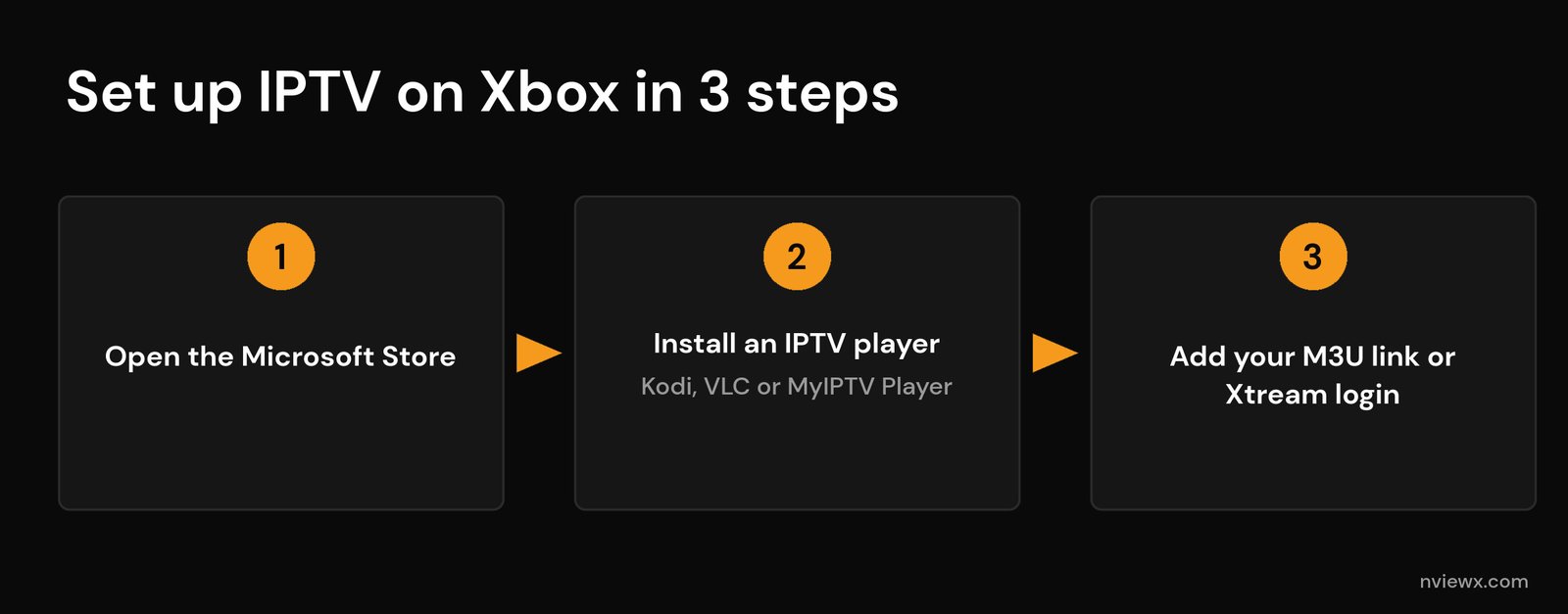
Three apps do the job well, and all three are free in the Microsoft Store:
- Kodi is the open-source media centre. Add the built-in PVR IPTV Simple Client add-on, point it at your M3U link, and it turns Kodi into a full live-TV app with an on-screen guide. Kodi is the most flexible option.
- MyIPTV Player is a simple, controller-friendly app built specifically for M3U playlists and EPG guides. It is the easiest to set up if you just want channels and nothing fancy.
- VLC is the well-known media player. Open the Network Stream option and paste an M3U URL to play it directly. VLC media player is handy for quick testing.
How to set up IPTV on Xbox, step by step
- From the Xbox home screen, open the Microsoft Store and search for your player of choice (Kodi, MyIPTV Player, or VLC). Select it and choose Get to install.
- Have your M3U link or Xtream Codes login (server URL, username, password) ready from your provider. If you are unsure what these are, read our explainer on what an M3U playlist is.
- Open the app, add a new playlist, and paste the M3U URL (or enter the Xtream Codes details). Let the channel list and guide load.
- Optional: add your EPG (guide) URL if the app asks for one separately, then start watching.
A couple of tips. Xbox also ships with the Microsoft Edge browser, so as a last resort you can open a web-based IPTV player and log in there, which is useful for a quick check even if a dedicated app is far smoother. And because a console pulls a lot of data during live playback, a wired connection beats Wi-Fi; check how much internet speed you need for IPTV before you blame the app.
IPTV on PlayStation (PS5 and PS4)
This is where the news gets disappointing. The PlayStation runs a closed media environment, and Sony does not allow sideloading or third-party IPTV players. Search the PlayStation Store and you will not find a single dedicated IPTV app. That leaves only workarounds, and none of them are pleasant:
- Media-server route. Install a media-server app such as Plex on the console, then run the server software on a PC with a plugin that feeds it your M3U playlist. It can work, but it needs a computer left running and a fair bit of setup.
- Screen mirroring or Remote Play. Play IPTV on a phone, tablet, or PC and mirror the screen to the console. This adds lag and defeats the point of using the console at all.
- Web browser. The PS4 has a semi-hidden browser you can coax into opening a web player, but it is slow and unstable. The PS5 has no general-purpose web browser, so even this trick is off the table.
In short, getting IPTV onto a PlayStation is possible only in the loosest sense. If the PlayStation is your only device, the honest recommendation is to spend a little on hardware that is actually built for streaming, which is covered next.
Is a game console really a good IPTV device?
Even on Xbox, where it works well, a console is not the most sensible everyday IPTV box. Consoles are large, draw far more power than a streaming stick, and spin up fans during long sessions. You also navigate with a game controller rather than a simple remote, which gets old fast for channel surfing.
A dedicated streaming device costs very little, sips power, and runs mature IPTV apps built for a remote. If you are weighing your options, our comparison of the best devices for IPTV is the place to start. A budget stick like the ones in our best Fire TV Stick for IPTV guide handles playlists effortlessly, and if you want more power an Android TV box gives you the widest choice of players. It is the same pattern you see with any locked platform, as our guide to IPTV on Roku shows.
Use the Xbox for IPTV when it is genuinely convenient, such as a spare room, a dorm, or a setup where you do not want another gadget. For your main TV, a proper streaming device is quieter, cheaper to run, and easier to live with.
Getting smooth playback on a console
Whichever route you take, a few basics keep streams stable. Connect the console by Ethernet where you can, since live IPTV is bandwidth-heavy and Wi-Fi drops cause the buffering wheel. Close background game downloads while you watch, as they eat the bandwidth your stream needs. And if your provider throttles at busy times or you simply want more privacy, a VPN for IPTV can help, though expect a small speed cost.
Frequently asked questions
Can you watch IPTV on a PS5?
Not directly. The PS5 has no native IPTV app and no general web browser, so the only options are indirect ones like a media-server setup or screen mirroring from another device. For a straightforward experience, use an Xbox or a dedicated streaming device instead.
Which IPTV app is best for Xbox?
Kodi is the most capable because it adds a full guide and playlist manager through its PVR IPTV Simple Client add-on. MyIPTV Player is the simplest for plain M3U playback, and VLC is great for quickly testing a stream. All three are free in the Microsoft Store.
Is watching IPTV on a game console legal?
The device is not the issue. What matters is the service behind your playlist. A legitimate, properly licensed provider is legal to use on any device, including a console. Streaming from an unlicensed source is where the legal risk lies, regardless of the hardware.
Do I need a special subscription to use IPTV on a console?
No. You use the same M3U link or Xtream Codes login your provider already gave you. The console just runs a player app that reads that playlist; there is no console-specific IPTV plan.
Why does IPTV buffer on my console?
Usually it is the network, not the console. A weak Wi-Fi signal, a slow connection, or a background game download will all cause buffering. Switch to a wired connection, pause any downloads, and make sure your speed meets the requirements for the resolution you are streaming.






