 Skip to content
IPTV Catch-Up TV and DVR Recording: How to Set It Up (2026)
IPTV catch-up and DVR recording are two different ways to watch something after it airs. Catch-up plays a program straight from your provider’s servers by scrolling back in the guide, while DVR recording saves the show to your own device or a USB drive so you keep it for good. This guide shows how each one works, how to switch them on in TiviMate and OTT Navigator, and what to check when catch-up refuses to play.
Miss the start of a big match or a late-night show? You don’t have to. Most decent IPTV setups can replay the last few days of live TV, and the better player apps can record a program to keep. The catch is that the two features live in completely different places — one on your provider’s side, one on yours — and mixing them up is why so many people think recording is “broken” when it was never set up in the first place.
Catch-up vs DVR recording: what’s the difference?
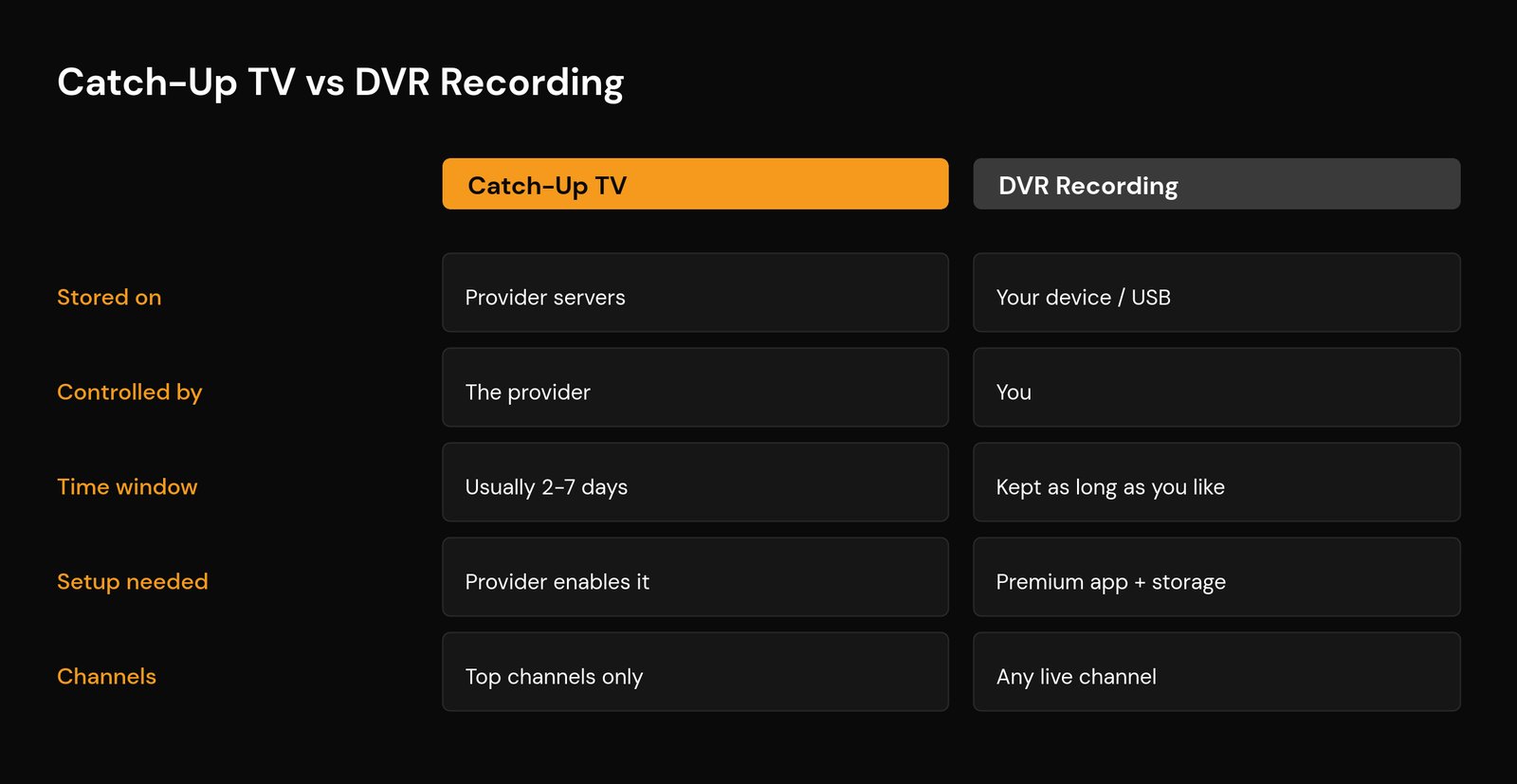
This is the part worth getting straight before you touch any settings. Catch-up TV is a rolling archive your provider keeps on their servers. When a program airs, their system records the popular channels automatically, and you replay it by opening the electronic program guide (EPG) and scrolling back in time. You’re not storing anything — you’re streaming their copy. It’s a form of time-shifted viewing, and it usually covers somewhere between 2 and 7 days, occasionally up to a month on premium plans.
DVR recording is yours. A capable player app captures the live stream and writes the file to your device’s internal storage or an attached USB drive, the same idea as an old digital video recorder box. You decide what to record, you keep it as long as you have space, and it plays back even if the channel later drops it. The trade-off: recording usually needs a premium player and enough free storage.
| Catch-up TV | DVR recording | |
|---|---|---|
| Where it’s stored | Provider’s servers | Your device or USB drive |
| Who controls it | The provider | You |
| Time window | Usually 2–7 days | As long as you keep the file |
| Setup needed | Provider must enable it | Premium player + free storage |
| Works for which channels | Top channels only | Any channel you can watch live |
What you need before you start
Both features lean on a clean, working setup. If live TV itself is stuttering, fix that first — recordings and replays inherit every problem the live stream has. A quick checklist:
- An active subscription that supports the feature. Catch-up has to be switched on by your provider; not every plan includes it. Recording doesn’t depend on the provider, but you still need a stream stable enough to capture.
- A player app that can do the job. TiviMate Premium and OTT Navigator both handle catch-up and DVR recording. IPTV Smarters Pro and Perfect Player support catch-up too. The basic free tier of some apps will replay catch-up but won’t record — see how IPTV player apps work if you’re unsure what yours can do.
- A working program guide. Catch-up is driven entirely by the EPG — no guide data, no replay. If your guide is blank or showing the wrong times, sort that out first.
- Enough storage for DVR. An hour of HD video is roughly 2–4 GB. A small streaming stick fills up fast, so a USB drive is the sensible move for anything more than the occasional recording.
- A steady connection. Recording a 4K stream while the line is congested gives you a choppy file. If buffering is a regular thing, check your internet speed for IPTV before relying on recordings.
How to use catch-up TV (replay the last few days)
Catch-up is the simpler of the two because there’s almost nothing to install — it either works or it doesn’t, depending on your provider. Here’s the flow in a player like TiviMate:
- Open the guide. Press OK/Select to bring up the EPG, then move left (back in time) on any channel that supports catch-up.
- Look for the playable past programs. Channels with catch-up usually highlight earlier shows or mark them with a small icon. A greyed-out program means no archive exists for it.
- Select the show and play. Highlight it, press OK, and it streams from the provider’s archive like on-demand content.
If you connect with Xtream Codes, catch-up data loads automatically — the app pulls the archive window straight from the provider’s API. With a plain M3U playlist, catch-up only appears if the provider has tagged the playlist with the right catch-up parameters, which not all of them do. That single difference explains a lot of “catch-up missing” complaints.
How to set up DVR recording in TiviMate
Recording lives behind the Premium tier in TiviMate, but once you’re on it the controls are straightforward. There are two ways to capture a program.
Record what’s on right now
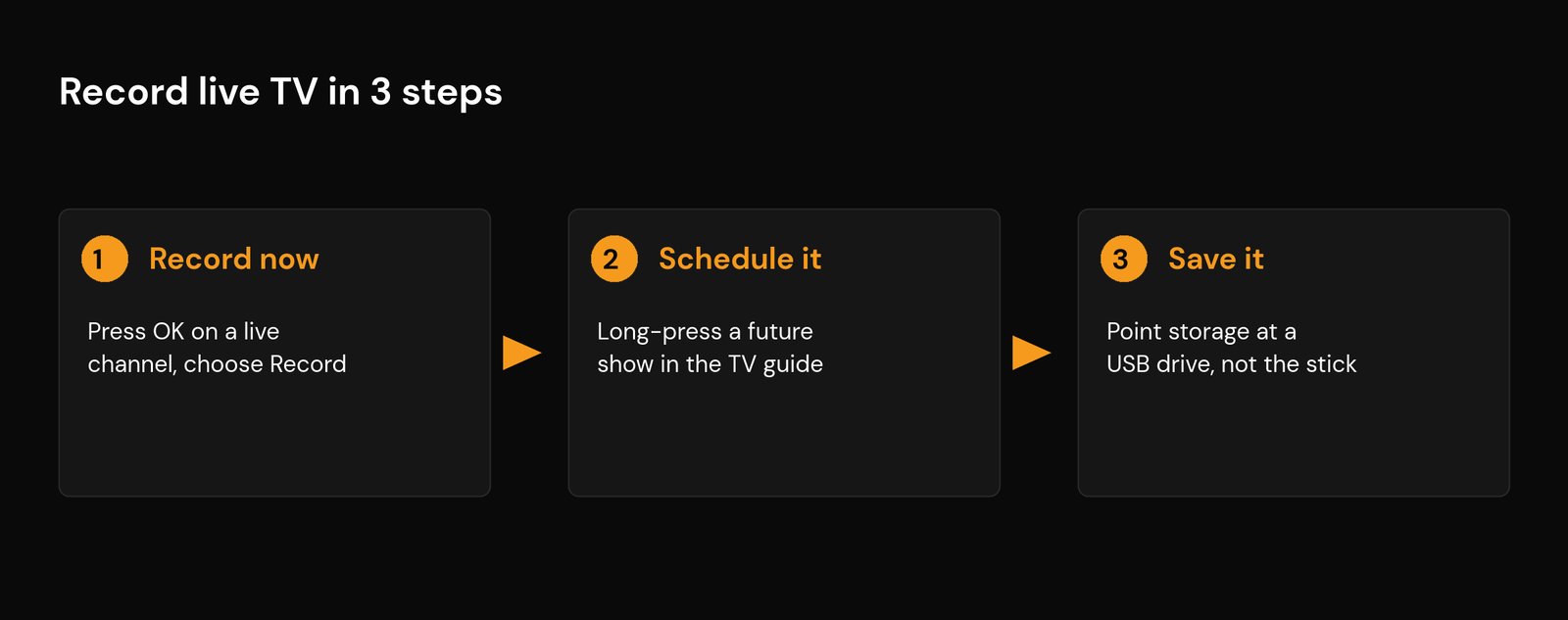
While watching a live channel, press OK/Select to open the on-screen menu, choose Record, and pick Record current program to grab the rest of the show, or Custom to set your own stop time. The file saves to whatever storage location you set (more on that below).
Schedule a recording from the guide
Open the EPG, move forward to a program that hasn’t aired yet, and long-press it. Choose Schedule recording, then decide between recording the single episode or the whole series for a recurring show. The app handles the rest at air time, as long as the device is on and awake.
One genuinely useful setting: add padding. Set the recording to start a few minutes early and end a few minutes late (2–5 minutes each side is plenty). Live broadcasts drift off schedule constantly, and that padding is the difference between catching the final whistle and missing it.
Pick the right storage
In TiviMate’s settings, set the recording folder to a USB drive if you have one plugged in. Streaming sticks and many set-top boxes ship with very little free space, and recordings are the fastest way to fill it — which can also start crashing your apps. If your player has started closing on you, the storage squeeze may be the cause; our guide on why a Firestick IPTV app keeps crashing covers that. On a shared TV like a Samsung or LG Smart TV, external storage support varies, so check before you rely on it.
OTT Navigator: the free recording option
If you’d rather not pay for a premium player, OTT Navigator is the standout because it includes recording at no cost and still supports catch-up on channels that offer it. The layout is busier than TiviMate’s, but the mechanics are the same: scroll back in the guide for catch-up, long-press a future program to schedule a recording, and point the storage path at a USB drive. It reads both M3U and Xtream Codes, so catch-up behaves the same way it does elsewhere — automatic with Xtream Codes, dependent on playlist tags with M3U.
Catch-up or DVR not working? Common fixes
Almost every “it won’t record” or “there’s no catch-up” problem comes down to one of these:
- The provider hasn’t enabled catch-up. This is the big one. If scrolling back shows nothing playable on any channel, the archive simply isn’t part of your plan. Ask your provider directly — it’s their side, not the app’s.
- You’re on M3U instead of Xtream Codes. Catch-up often won’t surface on a plain M3U link unless the provider tags it. Re-adding the service with Xtream Codes login details usually brings the archive back.
- The guide is wrong or empty. Catch-up maps directly to EPG times. A timezone mismatch makes replays land on the wrong program; a blank guide means no catch-up at all.
- The channel isn’t in the archive. Providers only keep catch-up for the most-watched channels to save on storage costs. Smaller channels often have none, even when the big ones do.
- The archive window has passed. If catch-up only goes back 3 days, a show from last week is gone. That’s normal, not a fault.
- Recording fails on low storage. A full drive silently kills recordings. Clear space or switch to a USB drive.
- The stream itself is unstable. A recording captured during heavy buffering will be choppy. Fix the live playback first, then record.
If a recording plays but the sound drifts away from the picture, that’s a decoder issue rather than a recording fault — the same one that hits live channels. Our guide on fixing IPTV audio out of sync walks through it. And if you’re still setting things up from scratch, the step-by-step IPTV setup guide covers getting a stable playlist and guide loaded in the first place.
Quick tips to get more out of both
A few habits that save headaches: record to a USB drive, not internal storage, so a full device never stops a capture. Use series recording for anything that airs on a schedule instead of setting each episode by hand. Keep a little padding on every scheduled recording. And treat catch-up as a bonus, not a guarantee — because it depends on your provider, it can change without warning, whereas a file you’ve recorded is yours to keep.
Frequently asked questions
Does every IPTV service have catch-up TV?
No. Catch-up is a provider feature, not something the app creates. Some plans include a rolling archive of the top channels, others don’t include it at all. If scrolling back in the guide never shows anything playable, your provider hasn’t enabled it — ask them before blaming the app.
How many days of catch-up do you usually get?
Most providers keep 2 to 7 days, and only for their most popular channels. Some premium plans stretch to a month or more, but a full archive of every channel is expensive to store, so wide, long windows are rare.
Can I record IPTV without paying for a premium app?
Yes. OTT Navigator includes DVR recording for free. TiviMate keeps recording behind its Premium tier. Either way you’ll need enough free storage — ideally a USB drive — because video files add up quickly.
Where do my recordings get saved?
To wherever you point the player: the device’s internal storage by default, or an attached USB drive if you set one in the app’s settings. A USB drive is the better choice on streaming sticks and boxes, which rarely have much room to spare.
Why does my scheduled recording miss the end of the show?
Live broadcasts almost never start and finish exactly on the guide’s clock. Add a few minutes of padding to the start and end of every scheduled recording — 2 to 5 minutes each side — and you’ll stop clipping the opening and the finish.






