Skip to content
Firestick IPTV App Keeps Crashing or Closing? Here’s How to Fix It (2026)
If your Firestick IPTV app keeps crashing — closing the instant it opens, freezing on a black screen, or dropping you back to the home screen halfway through a stream — the cause is almost never your subscription. Nine times out of ten it’s the stick itself running out of memory or storage. The good news: it’s one of the easiest IPTV problems to fix, and you usually don’t need to buy anything.
We run IPTV on Firesticks every day, and the same short checklist clears up the vast majority of crashes. Work through the eight fixes below in order and your player should stay open and stable.
Quick answer: A Fire TV Stick has very little spare memory and storage. When it fills up, your IPTV player has no room to cache the live stream and force-closes. Clear the app cache, free up storage, close background apps, and restart the stick — that fixes most crashes in a couple of minutes.
Why your IPTV app keeps crashing on Firestick (the real cause)
A Fire TV Stick is a tiny computer with deliberately modest hardware. Most sticks ship with only about 2 GB of RAM and 8 GB of storage (the Fire TV Stick 4K Max is the exception, with 16 GB). Older 1st and 2nd-generation sticks have even less. After the operating system and a few background apps take their share, there’s very little left for your IPTV player.
Streaming live TV is memory-hungry. Your player constantly downloads a few seconds ahead and holds it in a buffer so playback stays smooth. If the stick is low on free RAM or storage, there’s nowhere to put that buffer — so the app either crashes on launch or freezes and force-closes mid-stream. That’s the whole story behind most “my IPTV keeps closing” complaints.

Knowing that, almost every fix below does one thing: free up memory and storage so the player has room to work. (If you want a refresher on how these players actually operate, see our explainer on how IPTV player apps work.)
Fix 1: Force stop and clear the app cache
Over time your player builds up a cache of temporary data — logos, guide data, stream fragments — and a corrupted cache is the single most common cause of crashes on launch. Clearing it is safe and won’t log you out or delete your playlist.
Go to Settings › Applications › Manage Installed Applications, pick your IPTV app, choose Force Stop, then Clear Cache. Reopen the app fresh. Do this once a week if you stream heavily and crashes will become rare.
Fix 2: Free up storage (keep 1–2 GB free)
An almost-full stick crashes constantly, even though your IPTV app is small, because it still needs free space to write temporary stream data. Check Settings › My Fire TV › About › Storage. If you have less than about 500 MB free, the stick is gasping for room.
Delete games and apps you never use, clear the cache on the biggest offenders, and aim to keep at least 1–2 GB free. This is the fix people skip most often, and it’s frequently the whole problem.
Fix 3: Restart the stick properly
Putting a Firestick to sleep is not the same as restarting it — sleep leaves all the memory clutter in place. A real reboot clears RAM and ends stuck background processes. Go to Settings › My Fire TV › Restart, or hold the Select and Play/Pause buttons together for about five seconds. Get into the habit of restarting once or twice a week.
Fix 4: Close background apps to free RAM
Crashes often trace back to other apps eating the RAM your player needs. The Fire TV interface keeps recently used apps running in the background. Force-stop the ones you aren’t using via Settings › Applications › Manage Installed Applications › (each app) › Force Stop. With more free memory, your IPTV app has room to open and hold its buffer.
Fix 5: Switch the player engine or turn off hardware acceleration
If the app opens fine but crashes during playback — especially on certain channels — the problem is usually video decoding, not memory. Most IPTV apps let you choose the playback engine in their settings: try System Player, ExoPlayer, and the VLC/software option one at a time. One of them almost always handles your provider’s stream format better than the others.
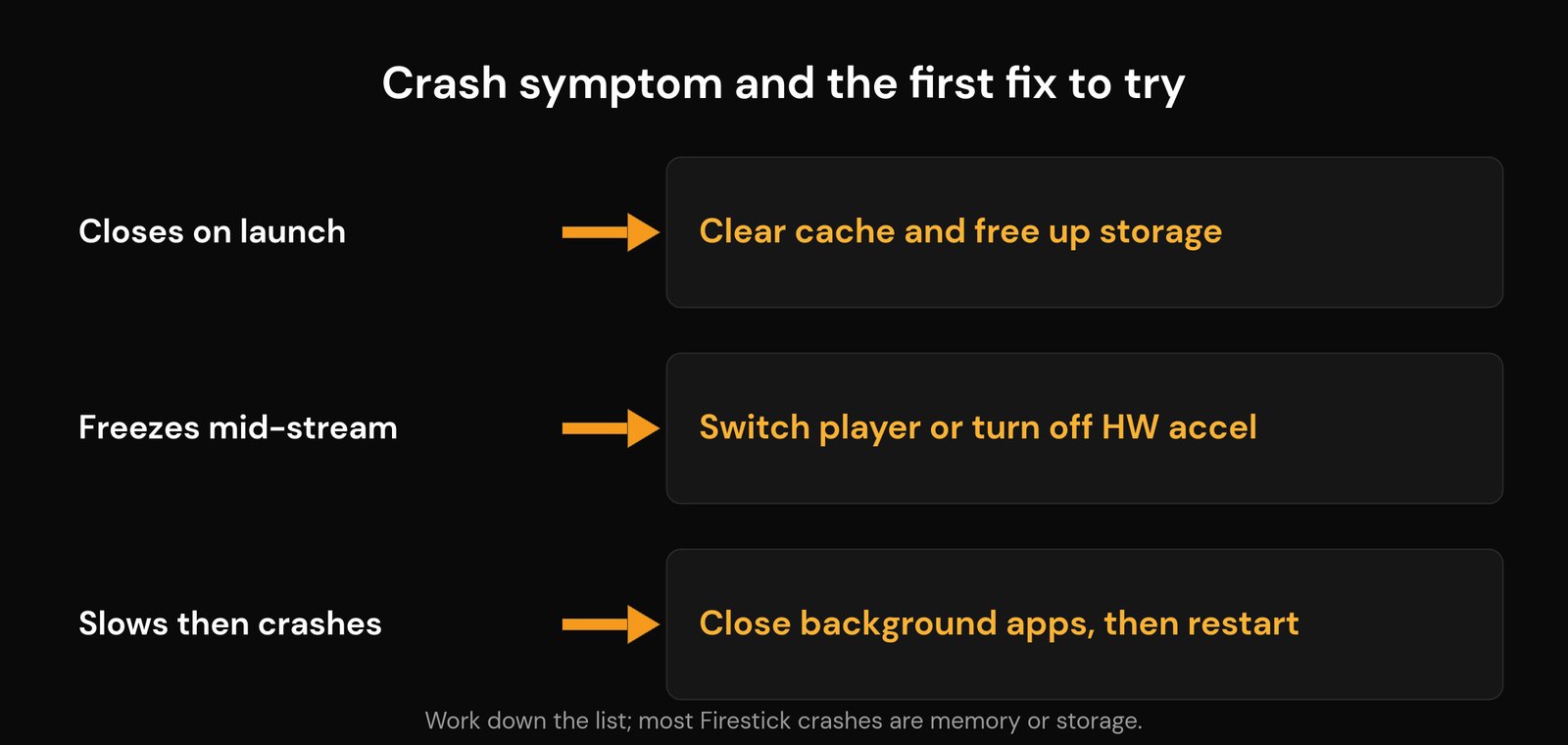
On older sticks, turning hardware acceleration off (which forces software decoding through the CPU) can stop playback crashes caused by a buggy or dated GPU. It uses a little more power but is far more stable on aging hardware.
Fix 6: Update the app and Fire OS — or roll back a bad update
An outdated app version can crash on modern streams, and a buggy Fire OS update can break players for everyone. Check for a Fire OS update under Settings › My Fire TV › About › Check for Updates, and update your IPTV app from wherever you installed it. If crashes started right after an app update, the newest build may be the culprit — reinstall the previous stable version (many sideloaded players let you grab an older APK through the Downloader app).
Fix 7: Lower the stream quality or trim a bloated playlist
Pushing 4K streams through a budget stick on a weak connection is a recipe for freezes and crashes. If a channel keeps killing the app, try a lower-quality feed of the same channel. A massive playlist with tens of thousands of entries also strains the app’s memory on launch — hide categories you never watch so the player loads a leaner list. If buffering rather than crashing is the real issue, our guide on how to fix IPTV buffering goes deeper.
Fix 8: Reinstall the app cleanly (last resort)
If nothing else works, uninstall the player completely, restart the stick, then reinstall the latest version and re-add your playlist or login. A clean install clears any corrupted settings a cache wipe missed. Have your M3U URL or Xtream Codes login handy first — if you need a refresher, see our walkthrough on installing your IPTV app on Firestick.
Which Fire TV sticks crash the most?
Hardware matters. The less memory and storage a stick has, the more likely your IPTV app is to crash — especially with big playlists or 4K streams. Here’s how the common models compare:
| Fire TV model | RAM | Storage | Crash risk for IPTV |
|---|---|---|---|
| Older 1st/2nd-gen Stick | ~1–1.5 GB | 8 GB | High — struggles with modern apps |
| Fire TV Stick HD / Select | ~1 GB | 8 GB | Medium–high on heavy playlists |
| Fire TV Stick 4K | 2 GB | 8 GB | Medium — fine if storage is kept free |
| Fire TV Stick 4K Max | 2 GB | 16 GB | Low — most headroom and best choice |
If you’re on a years-old stick that crashes no matter what you do, upgrading to a 4K Max is the most reliable cure — the extra storage alone removes the most common trigger.
Still crashing? When it’s not your Firestick
If you’ve worked through every fix and the app still misbehaves, the cause may be off-device. A flaky connection can look like an app crash: streams stall, the buffer empties, and the player gives up. Confirm you have the internet speed you actually need for IPTV and dial in your best Wi-Fi settings. If the stream only fails on home Wi-Fi but plays on mobile data, your router or provider may be interfering — we cover that in why IPTV works on hotspot but not Wi-Fi. And if you’re seeing specific on-screen errors, match them up in our guide to IPTV error codes and DNS issues.
Frequently asked questions
Why does my IPTV app keep crashing on Firestick?
Almost always because the stick is low on free RAM or storage, or the app’s cache is corrupted. Clear the app cache, keep 1–2 GB of storage free, close background apps, and restart the stick. If it only crashes during playback, switch the player engine or turn off hardware acceleration.
How do I clear the cache for an IPTV app on Firestick?
Go to Settings › Applications › Manage Installed Applications, select your IPTV app, choose Force Stop, then Clear Cache. It won’t delete your playlist or log you out, and it fixes most launch crashes.
How much free storage does a Firestick need for IPTV?
Keep at least 500 MB free, and ideally 1–2 GB. The app needs room to write temporary stream data, so a nearly full stick crashes even though the player itself is small. Check usage under Settings › My Fire TV › About › Storage.
Will my provider or a VPN make the app crash?
A provider or VPN issue usually shows up as buffering or a failure to load channels rather than the app force-closing. True crashes are almost always a device-side memory, storage, or decoding problem. If playback stalls instead of crashing, look at your connection and stream quality first.
Does a Fire TV Stick 4K Max crash less than older sticks?
Yes. The 4K Max has 16 GB of storage versus 8 GB on most sticks, plus a faster processor, so it keeps far more headroom for the app and its buffer. If an old stick crashes no matter what you try, upgrading is the most dependable fix.