Skip to content
How to Bypass IPTV Restrictions in 2026: Safe Fixes That Actually Work
To bypass IPTV restrictions, first work out which restriction you’re actually hitting — because the four common ones each need a different fix. If your stream buffers constantly, your internet provider is probably throttling it, and a reputable VPN that encrypts your traffic usually clears it. If you see “not available in your region,” that’s a geo or licensing block tied to your location or plan. If the service won’t load at all, it’s often a DNS issue you can fix by changing your resolver. And if it only stutters on Wi-Fi, that’s your home network, not a restriction at all.
This guide is about restoring smooth access to content you’re legitimately entitled to — the channels and on-demand titles your subscription already covers. It is not about unlocking anything you haven’t paid for. With that out of the way, here’s how to diagnose and fix each type.
What “IPTV restrictions” usually mean
People say “my IPTV is restricted” to describe four very different problems. Lumping them together is why so many fixes fail — you can’t solve a DNS block by buying a faster router, and a VPN won’t help a service that’s simply down.
- ISP throttling. Your internet provider spots streaming traffic using deep packet inspection and quietly caps its speed, usually during busy evening hours. Everything else feels fine; only the stream chokes. This is the one most people mistake for the provider’s fault.
- Geo or licensing limits. Some content is only licensed for certain countries, so the provider gates it by your location or your subscription tier. You’ll see a clear “not available in your region” message rather than buffering.
- DNS-level blocking. The default DNS resolver your provider assigns can fail to look up — or deliberately refuse — the address the app needs. The result looks like the service is offline when the rest of the web works.
- Plain buffering. Weak Wi-Fi, an overloaded router, or a too-small player buffer makes a perfectly accessible stream stutter. It looks like a restriction, but nothing is blocking you.
How to tell which one you’re facing
Spend two minutes on this before you change anything — it saves you chasing the wrong fix. Ask:
- Does it buffer mainly in the evening but run fine at 7am? That time pattern is the signature of throttling. Run a speed test with the stream playing and again with it off — if your measured speed drops sharply only while streaming, your provider is shaping that traffic.
- Do you get an explicit region or “not entitled” message? Then it’s geo/licensing, not a network problem. No amount of router tuning fixes a licensing gate.
- Does the app fail to connect at all, while websites load normally? Try changing your DNS (below). If that revives it, it was a DNS block. If it doesn’t, your provider is filtering deeper and a VPN is the next step.
- Does it only stutter on Wi-Fi, or only on one device? That points squarely at your local network. Plug into Ethernet to confirm — if the stutter vanishes, it was never a restriction.
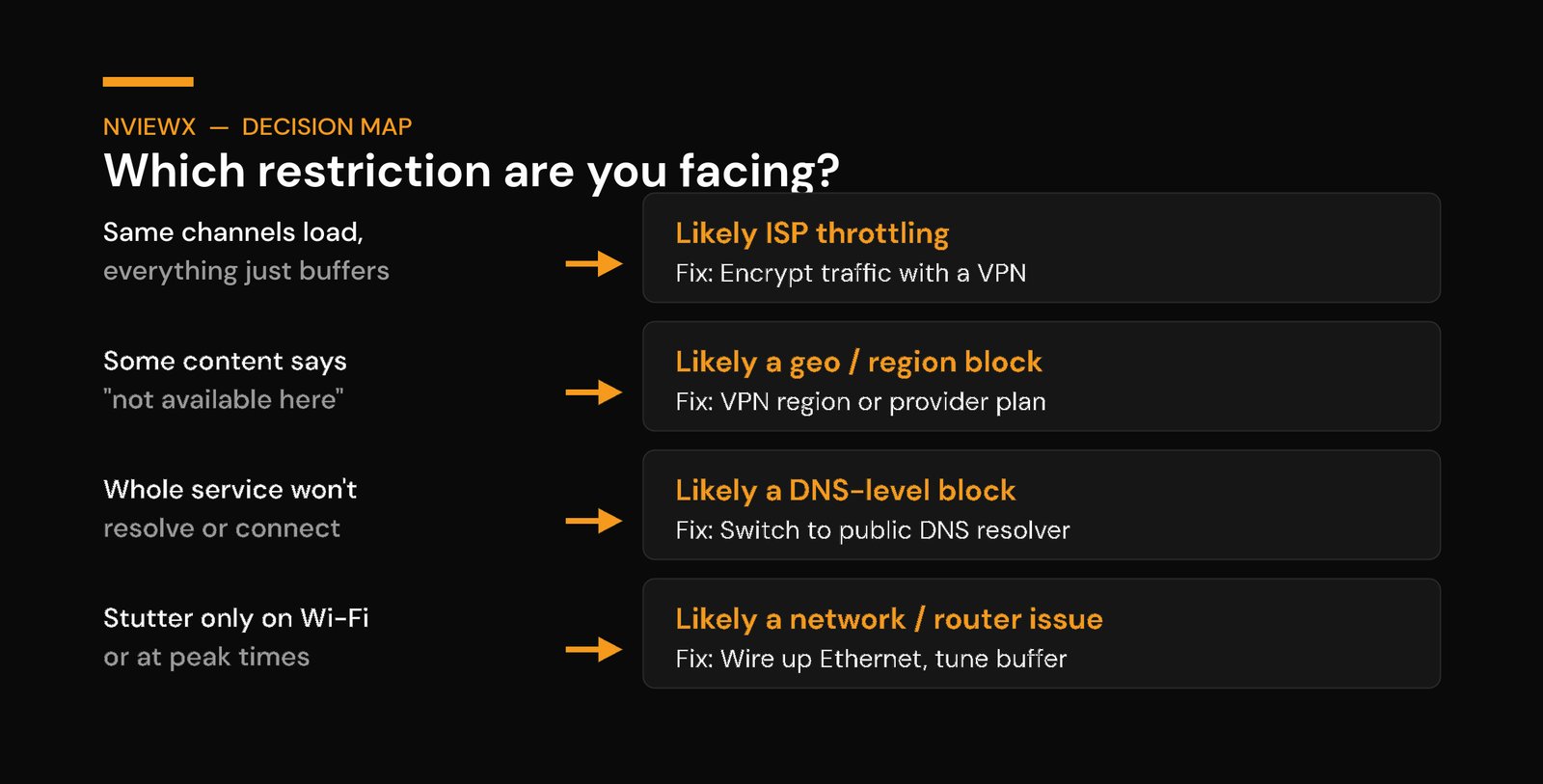
The decision map above lines these symptoms up against their likely cause so you can match yours at a glance.
Using a reputable VPN: what it does and what to look for
A VPN wraps your connection in an encrypted tunnel to a server you choose. Your provider can still see that you’re sending data, but not what it is — so it can’t single out your stream for throttling, and a DNS block at the provider level no longer applies. That’s why a VPN is the single most reliable fix when buffering is caused by traffic shaping rather than a slow line. In real-world tests, people on throttled connections often recover a large chunk of their effective speed once the provider can no longer classify the traffic.
It also helps with geo limits in the narrow, legitimate case where you’re travelling and your own subscription is regionally gated — connecting back to your home country can restore access you already pay for. Don’t use it to reach content you aren’t entitled to; that’s a licensing violation, not a “fix.”
What actually matters when picking one:
- Modern, fast protocol. Look for WireGuard support — it adds the least overhead, so a good VPN typically costs you only about 5–15% of your raw speed, which is nothing next to the throttling it removes.
- A real no-logs policy, ideally independently audited, plus servers in or near your country so latency stays low.
- A native app for your device — Firestick, Android TV, Apple TV — so you’re not stuck with fiddly manual setup. Router-level VPN is an option if you want every device covered at once.
If your line genuinely isn’t fast enough for the stream, a VPN won’t manufacture bandwidth — it removes artificial slowdowns, it doesn’t add capacity.
DNS and router tweaks worth trying first
Before a VPN, two free changes fix a surprising share of “won’t load” and “keeps dropping” complaints.
Switch your DNS resolver. Set your router — or just the streaming device — to a public resolver such as Cloudflare’s 1.1.1.1 or Google’s 8.8.8.8 instead of your provider’s default. If the service was being blocked or slowed at the DNS layer, it springs back to life immediately. Doing it at the router covers every device on the network at once. If changing DNS makes no difference, the block is deeper and you’ll want the VPN.
Fix the local network. Wi-Fi is the most common buffering culprit that gets blamed on the provider. A wired Ethernet run to the streaming box is far steadier; if that isn’t practical, move the device closer to the router or onto the 5GHz band. Rebooting the router clears a lot of intermittent stutter. As a rough guide you want around 10–25 Mbps of stable throughput for HD and roughly 25 Mbps or more for 4K — stability matters more than the headline number.
Raise the player buffer. Most apps let you increase the buffer (cache) size. Bumping it to a few seconds smooths over small dips on an otherwise fine connection. It won’t rescue a badly throttled line, but it’s a one-tap win for borderline cases. If you’re still setting things up, our guide to setting up IPTV walks through player choices and where these settings live.
When it’s really a provider or network problem
Sometimes nothing on your end is the issue, and grinding through VPN and DNS changes just wastes an evening. A few tells:
- Everyone using the same service has the same problem. If it’s down for the whole user base, it’s a server-side outage or overload. Check the provider’s status channel and wait it out.
- One specific stream is broken while the rest are fine. That’s a source feed issue on the provider’s side — nothing you configure locally will fix a single dead channel.
- Your Xtream Codes login or M3U playlist URL has expired. Authentication errors and a service that loads but shows nothing often trace back to stale credentials or a playlist that needs refreshing from the provider.
- The EPG (guide) is wrong but streams play. That’s a guide-data problem, not a restriction — a different fix entirely, and not something a VPN touches.
When the cause is provider-side, the right move is to contact support with specifics (which channels, what time, your device) rather than reconfiguring your network.
Staying legal and safe
The whole point of the steps above is performance and reliability for content you’re entitled to — not getting around licensing or accessing anything unauthorised. A VPN, a different DNS server, and an Ethernet cable are ordinary networking tools used by millions of people for privacy and speed. Using them to remove throttling on your own legitimate subscription is fine; using them to reach content you have no right to is not, and we don’t cover that.
Two practical safety notes: stick to a paid, audited VPN rather than a free one (free VPNs frequently log or sell your data, which defeats the privacy point), and only enter your IPTV service credentials into the official app for your provider. If a setup ever asks you to disable security features or sideload from an unknown source, treat that as a red flag.
Quick troubleshooting reference
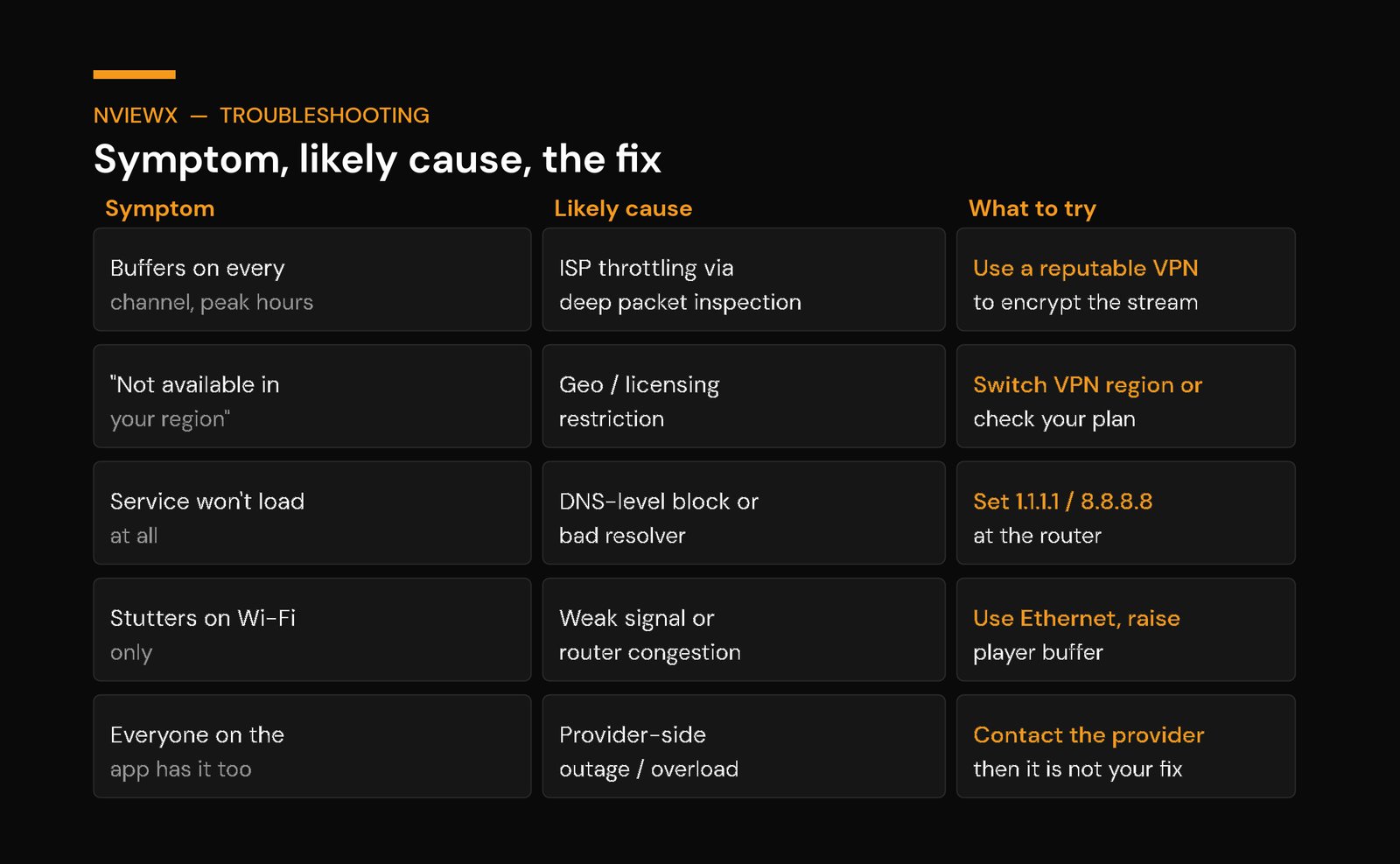
| Symptom | Likely cause | Fix to try |
|---|---|---|
| Buffers every evening, fine in the morning | ISP throttling via deep packet inspection | Use a reputable VPN to encrypt the stream |
| “Not available in your region” message | Geo / licensing restriction or wrong plan tier | Connect to your home region (if entitled) or check your subscription |
| Service won’t connect, but websites load | DNS-level block or a failing resolver | Set DNS to 1.1.1.1 or 8.8.8.8 at the router; VPN if that fails |
| Stutters only on Wi-Fi or one device | Weak signal, router congestion, small buffer | Use Ethernet, move closer to the router, raise the player buffer |
| App loads but shows nothing / login error | Expired credentials or stale playlist URL | Refresh your login or playlist from the provider |
| Everyone on the service has the same fault | Provider-side outage or overload | Wait it out and contact provider support |
Frequently asked questions
Does a VPN always stop IPTV buffering?
Only when the buffering comes from your provider throttling the traffic. A VPN hides the stream so it can’t be singled out and slowed — that’s a real, common fix. But if your line is genuinely too slow, or the provider’s server is overloaded, a VPN can’t add bandwidth it doesn’t have. Diagnose the cause first.
Is bypassing IPTV restrictions legal?
Removing artificial throttling on a service you legitimately pay for, using ordinary tools like a VPN or a different DNS, is fine. Using those same tools to access content you have no licence or subscription for is not, and isn’t something we’d recommend. The legality hinges on what you’re accessing, not the tool.
Will changing my DNS speed up streaming?
It can, if the slowdown was happening at the DNS layer or your provider’s default resolver was the bottleneck. Switching to 1.1.1.1 or 8.8.8.8 is free and quick to test. If it makes no difference, the problem is elsewhere — likely throttling or your local Wi-Fi.
Why does my stream only buffer at night?
Evening is peak usage, and that’s exactly when providers are most likely to shape or throttle heavy streaming traffic to manage congestion. A consistent night-time-only pattern is the clearest sign you’re being throttled rather than running out of raw speed.
Do I need a VPN if Ethernet already fixed it?
No. If a wired connection cleared the stutter, the problem was your Wi-Fi, not a restriction — you’ve already solved it. Only reach for a VPN when the issue is throttling or a provider-side block, not a weak local signal.
Can a VPN unlock content I’m not subscribed to?
It shouldn’t, and you shouldn’t try. A VPN changes your apparent location, but it doesn’t grant entitlement. Accessing content outside your subscription or licence is a violation regardless of the tool, so keep a VPN to its legitimate uses: privacy and defeating throttling.
Is a free VPN good enough?
For streaming, usually not. Free VPNs tend to be slow, capped, and — worse — many fund themselves by logging or selling your traffic, which undermines the privacy you wanted. A modest paid plan with WireGuard and an audited no-logs policy is the safer, faster choice.
What internet speed do I actually need?
Roughly 10–25 Mbps of stable throughput for HD and about 25 Mbps or more for 4K. Stability beats the headline figure — a steady 30 Mbps streams better than a spiky 100 Mbps that collapses every evening.
Need a clean setup to begin with? Nviewx focuses on smooth, reliable access to the content you’re entitled to — start with our IPTV basics and setup guide, then come back here the moment anything starts buffering.