 Skip to content

IPTV Black Screen or Green Screen? How to Fix It (2026)
An IPTV black screen or a bright green screen almost always means one thing: your device could not decode the video, not that your subscription is dead. The sound often keeps playing, the channel list still loads, and everything looks connected — but the picture is either a blank black or a solid green wash. In most cases you can fix it in under a minute by changing a single setting in your player.
This guide covers both faults: a black screen (with or without sound) and the classic green screen. You will see what each symptom is really telling you and the exact order to try the fixes on a Firestick, Android TV box, Apple TV, smart TV, or phone. If your picture freezes or stutters instead of going blank, that is a different problem — read our guide to IPTV buffering and cloud errors instead.
The 30-second answer
If you only try one thing, try this: open your IPTV player app, find its player or decoder setting, and switch the video decoder from hardware (HW) to software (SW). Then reopen the channel. That one change clears the large majority of green screens and most black-screen-with-audio problems, because it forces your device to decode the stream a different way. Everything below explains when to use it and what to do if it does not work.
Black screen vs green screen: what each one means
The two look different, but they usually share the same root cause — the video decoder. Read your exact symptom before you start:
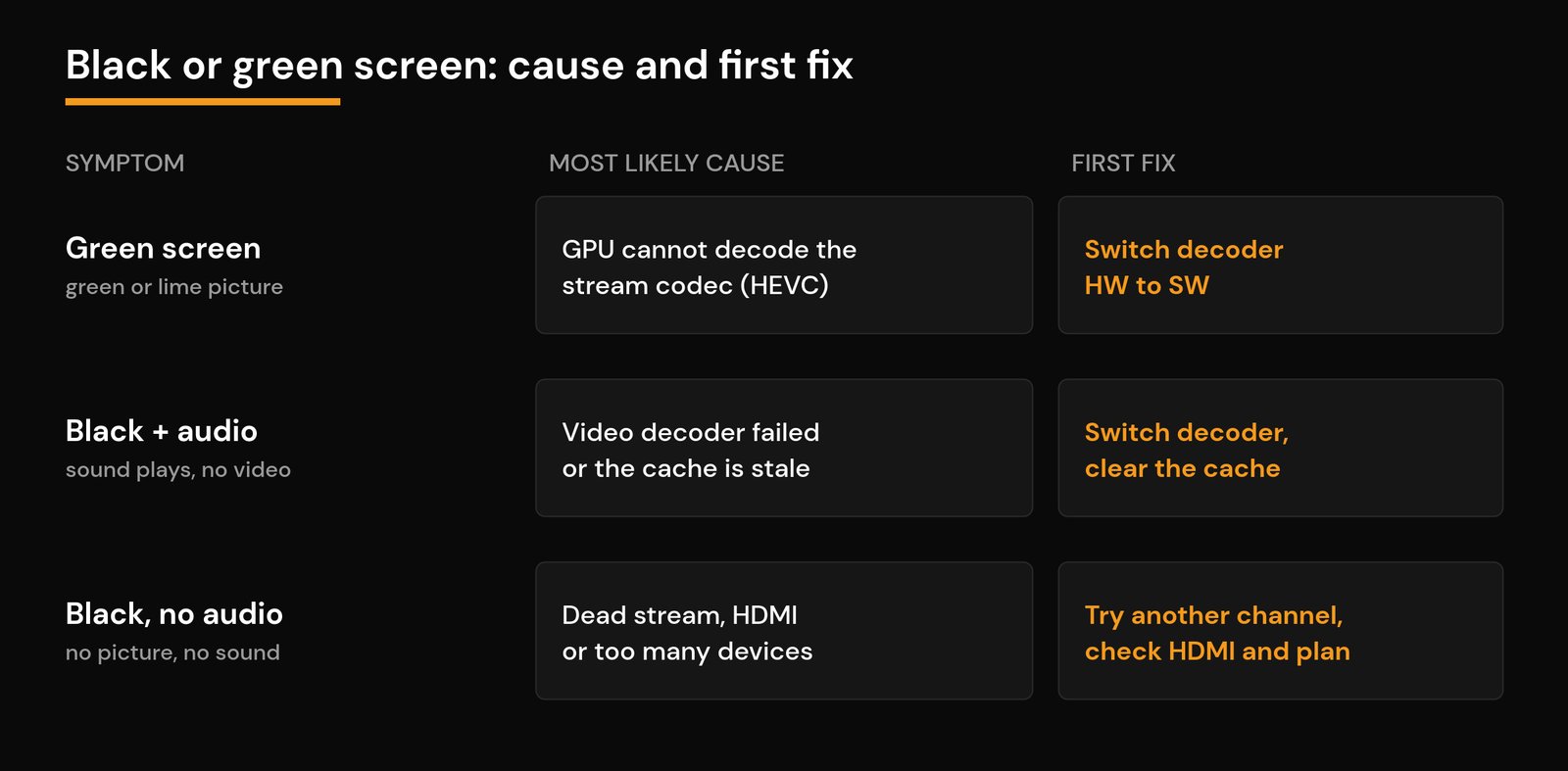
| What you see | What it usually means | First thing to try |
|---|---|---|
| Green or lime-coloured picture | The device tried to hardware-decode a codec it cannot handle (often HEVC) | Switch the decoder to software (SW) |
| Black screen, sound still plays | The video decoder failed or the app cache is corrupted | Switch the decoder, then clear the app cache |
| Black screen, no sound at all | The stream is dead, or it is an HDMI/input or subscription issue | Test another channel, then check HDMI and your plan |
| Black only on certain channels | Those streams use a codec or resolution your device struggles with | Switch the decoder, then lower the resolution |
Why IPTV shows a black screen (with or without audio)
Whether the sound is playing is the single most useful clue you have.
Black screen but audio plays. The connection is fine and the stream is arriving — your device just cannot turn the video into a picture. This is a decoder problem nine times out of ten. It shows up most on cheaper sticks and older boxes when a channel is sent in HEVC (H.265), a newer, more efficient codec that some hardware cannot decode. A stale or corrupted app cache produces the same black picture.
Black screen with no audio at all. Now the stream itself is probably not playing. The usual reasons are that the channel is temporarily down, the stream has stopped, your subscription has expired, or you have hit your IPTV connection limit because too many devices are using the line at once. It can also be a hardware handshake: a loose HDMI cable, the TV set to the wrong input, or an HDCP copy-protection mismatch between your box and your TV.
Why IPTV shows a green screen
A green screen is the most misunderstood IPTV fault, and one of the most reliable to fix. It is not a corrupted stream and it is not a virus. It is your device’s hardware video decoder failing to render the frames, so the empty video layer shows its default colour — usually a flat green. The fix is to stop using the hardware decoder for that stream and let the software (CPU) decoder take over.
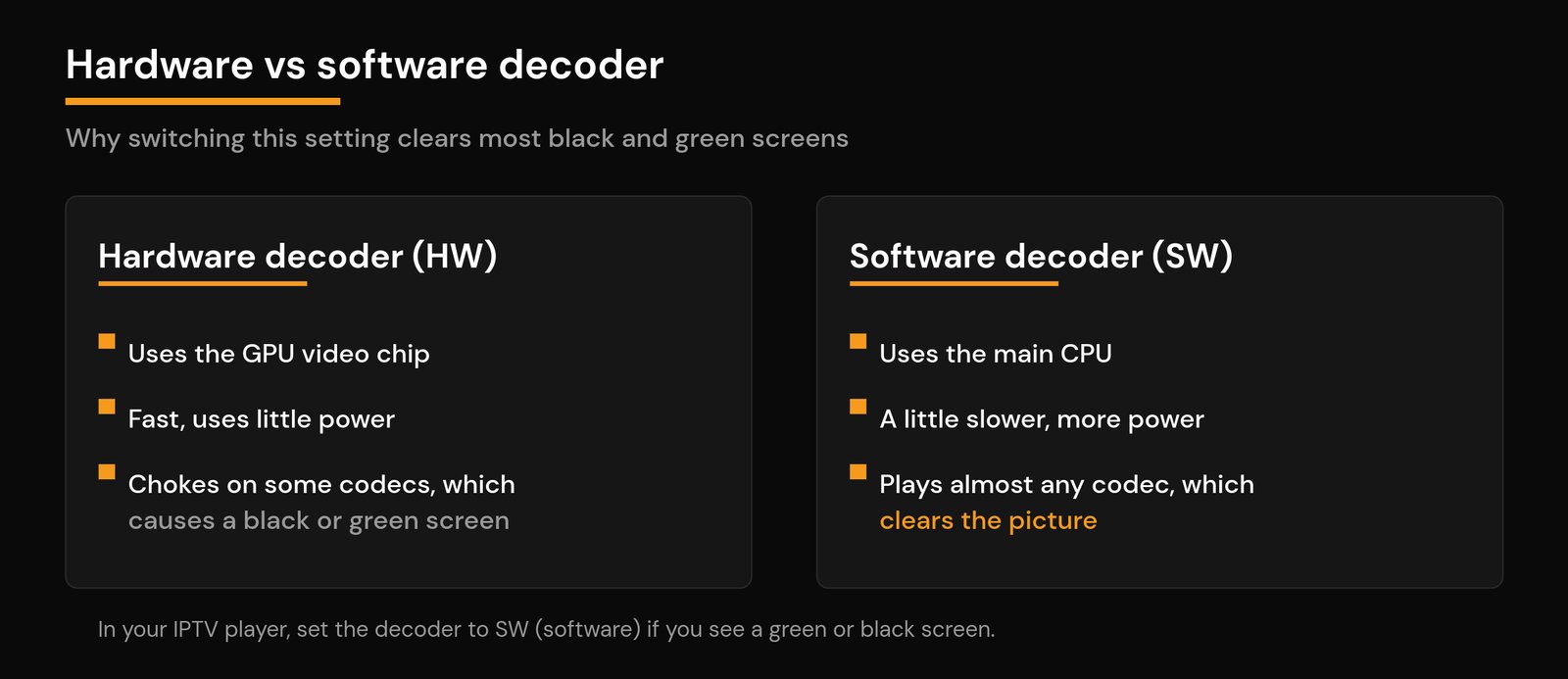
Software decoding leans on the main processor, so on a very old device it can run a little warm or drop the odd frame, but it plays almost any codec and it clears the green screen instantly. On most modern sticks and boxes you will not notice a speed difference at all.
How to fix a black or green screen, step by step
Work through these in order and stop as soon as the picture returns. The first two solve the vast majority of cases.
- Switch the video decoder from HW to SW. In your player’s settings, change the decoder (sometimes labelled “Decoder”, “Player” or “Hardware acceleration”) from hardware to software, then reopen the channel. App-by-app steps are in the next section.
- Clear the app cache, then reopen it. A corrupted cache is a common cause of a sudden black screen. On Fire TV or Android TV: Settings > Applications > Manage Installed Applications > your player > Clear Cache. Relaunch and test.
- Restart the device and the router. Unplug both for 30 seconds and power them back up. This clears a stuck video buffer and re-establishes the HDMI handshake — the oldest fix in the book because it still works.
- Set a fixed screen resolution. On a Firestick, go to Settings > Display & Sounds > Display > Video Resolution and choose 1080p instead of Auto. Automatic resolution switching can cause a black screen every time the stream changes resolution.
- Turn off tunneled or special playback. Some players include a “tunneled playback” option that triggers black screens on Fire TV. If your app has it, switch it off.
- Check the HDMI cable, port and input. Reseat the cable, try a different HDMI port, and make sure the TV is on the correct input. If you use a separate box, a cheap or damaged cable can break the HDMI handshake and leave you with a black screen.
- Update the player app. An outdated app often carries decoder bugs that a newer build has already fixed. Update it from your device’s app store and try again.
- Test a different channel and an on-demand title. If only one channel is black or green, the problem is that single stream, not your setup — move on and report it to your provider.
- Check your subscription and connection limit. If every channel is black with no sound, confirm your plan is still active and that you are not over your connection limit from watching on several devices at once.
- Try a second player app. If one app still shows green or black after all of the above, install a different IPTV player, load the same playlist, and see whether it plays. That quickly tells you whether the fault is the app or the device.
Switch the video decoder: where the setting lives
Every serious IPTV player lets you choose how it decodes video. Here is where to find the decoder switch in the most common apps:
| Player | Where to switch the decoder |
|---|---|
| TiviMate | While a channel plays, press and hold OK to open the panel (or Settings > Playback) and change the decoder to Software, or switch the player engine. |
| IPTV Smarters Pro and similar | Open Settings > Player Selection (or the gear icon on a channel) and change the decoder from HW to SW, or pick a different built-in player. |
| Kodi-based players | Settings > Player > Videos and toggle “Allow hardware acceleration” off (you may need expert settings mode). |
| VLC | Preferences > Video or Codecs and set hardware-accelerated decoding to Disable. |
If software decoding fixes it but you want the sharpest picture, you can leave hardware decoding on for the channels that work and only switch to software for the ones that turn green or black.
When it is not the app: your TV, HDMI and subscription
If switching the decoder, clearing the cache and testing other channels all fail, the problem is usually outside the player:
- Wrong input or a loose cable. The most common non-app cause. Confirm the TV source matches the port your device is plugged into, and reseat or swap the HDMI cable.
- HDCP handshake. If you use an HDMI splitter, adapter or a long cheap cable, the copy-protection handshake can fail and leave a black screen. Plug the device straight into the TV to rule this out.
- Expired plan or connection limit. A black screen with no audio on every channel usually points here rather than to your device.
- Weak connection. A poor signal normally causes buffering rather than a permanent black screen, but it is worth checking your Wi-Fi settings and whether you meet the internet speed for IPTV your streams need.
How to stop black and green screens coming back
Once the picture is back, a few habits keep it that way. Keep your player updated so you always have the latest decoder fixes. Choose a player that lets you switch between hardware and software decoding, so a green screen is a five-second fix rather than a dead end. If you watch a lot of HD or 4K, use a device that can hardware-decode HEVC rather than a bottom-end stick, and keep your screen resolution fixed instead of Auto. Two related faults share the same decoder and device roots, so it helps to know them too: IPTV audio out of sync and a Firestick IPTV app that keeps crashing.
Related guides
- IPTV Audio Out of Sync? How to Fix Lip-Sync Delay
- Firestick IPTV App Keeps Crashing or Closing? How to Fix It
- How to Fix IPTV Buffering and Cloud Errors
- IPTV Connection Limit Reached? Fix Max Connections
- The Best Wi-Fi Settings for IPTV
Frequently asked questions
Why does my IPTV show a green screen?
A green screen means your device’s hardware video decoder cannot render the stream’s codec — most often HEVC (H.265) on a cheaper stick or older box — so the empty video layer shows green. Open your player’s settings and switch the video decoder from hardware (HW) to software (SW), then reopen the channel. That clears it in the large majority of cases.
Why is my IPTV screen black but the sound still works?
Audio playing with a black picture means the stream is arriving but your device cannot decode the video. It is almost always a decoder or cache issue, not a dead subscription. Switch the decoder from HW to SW, clear the app cache, and restart the device. One of those three fixes it the vast majority of the time.
How do I switch the video decoder in my IPTV app?
In TiviMate, press and hold OK on a playing channel (or open Settings > Playback) and set the decoder to Software. In IPTV Smarters Pro and similar apps, open Settings > Player Selection and change HW to SW, or pick a different built-in player. In Kodi-based players and VLC, turn off “hardware acceleration” in the video settings.
My IPTV is a black screen with no sound at all — what is wrong?
No picture and no sound usually means the stream itself is not playing. Test another channel: if it works, the first stream was simply down. If every channel is black and silent, check the HDMI cable and TV input, then confirm your subscription is active and you have not hit your connection limit from using too many devices at once.
Does a black or green screen mean my IPTV subscription is dead?
Usually not. A green screen or a black screen with audio is a device and decoder problem, not a billing one. The only time it points to your plan is when every single channel is black with no audio and you cannot log in — then check whether the subscription has expired or you are over your connection limit.






