 Skip to content
IPTV Playlist Not Updating? How to Refresh Your Channels and EPG
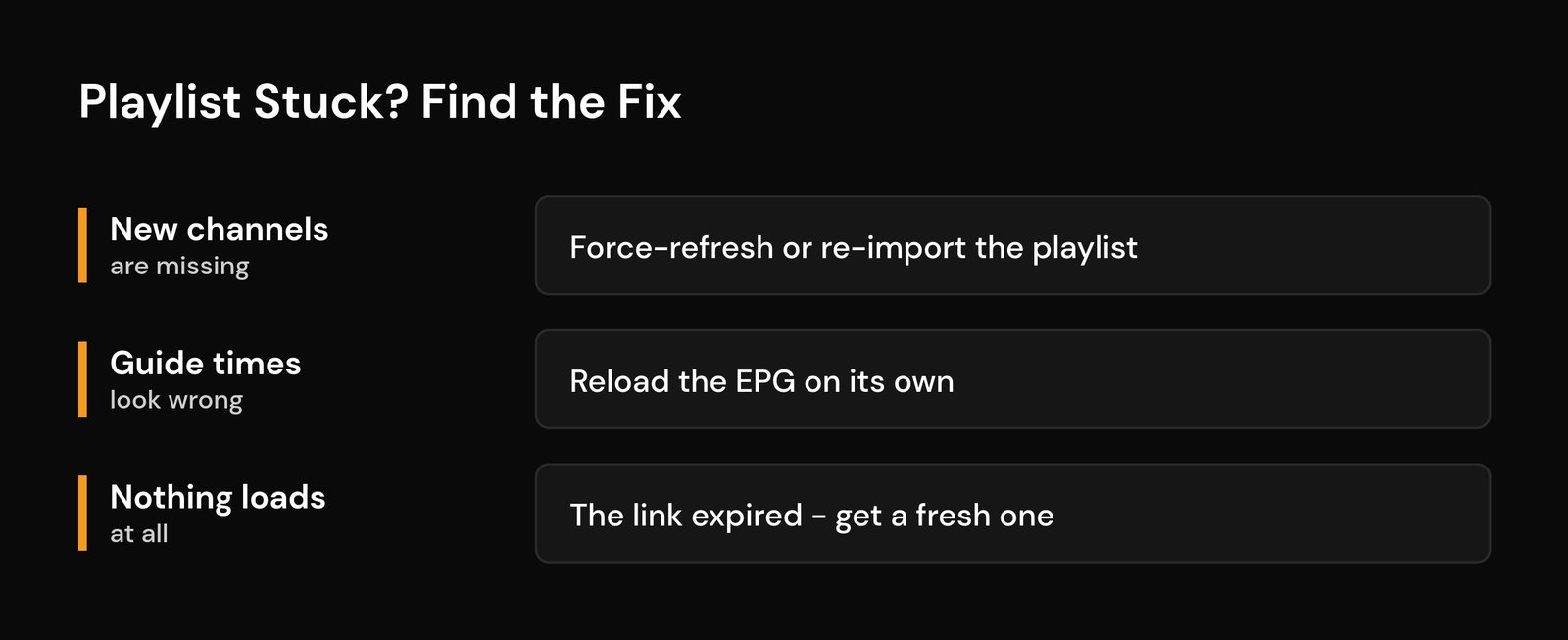
If your IPTV playlist is not updating, the fix is almost always faster than you think: your player is showing an old copy of the channel list and needs to be told to pull a fresh one. New channels your provider added won’t appear, removed ones linger, and the guide drifts out of date — not because anything is broken, but because most apps only re-download the playlist on a schedule (or when you force them to).
Here’s the 30-second version before we go deeper. Open your player, go to the playlist or account settings, and hit Update or Refresh. If that doesn’t pull the new channels in, remove the playlist and add it again with the same details. If nothing loads at all, your link or subscription has probably expired and you need a new one from your provider. Below I’ll show exactly where those buttons live in the popular players, why an M3U list behaves differently from an Xtream Codes login, and what to do when the refresh genuinely won’t take.
Why your IPTV playlist won’t update
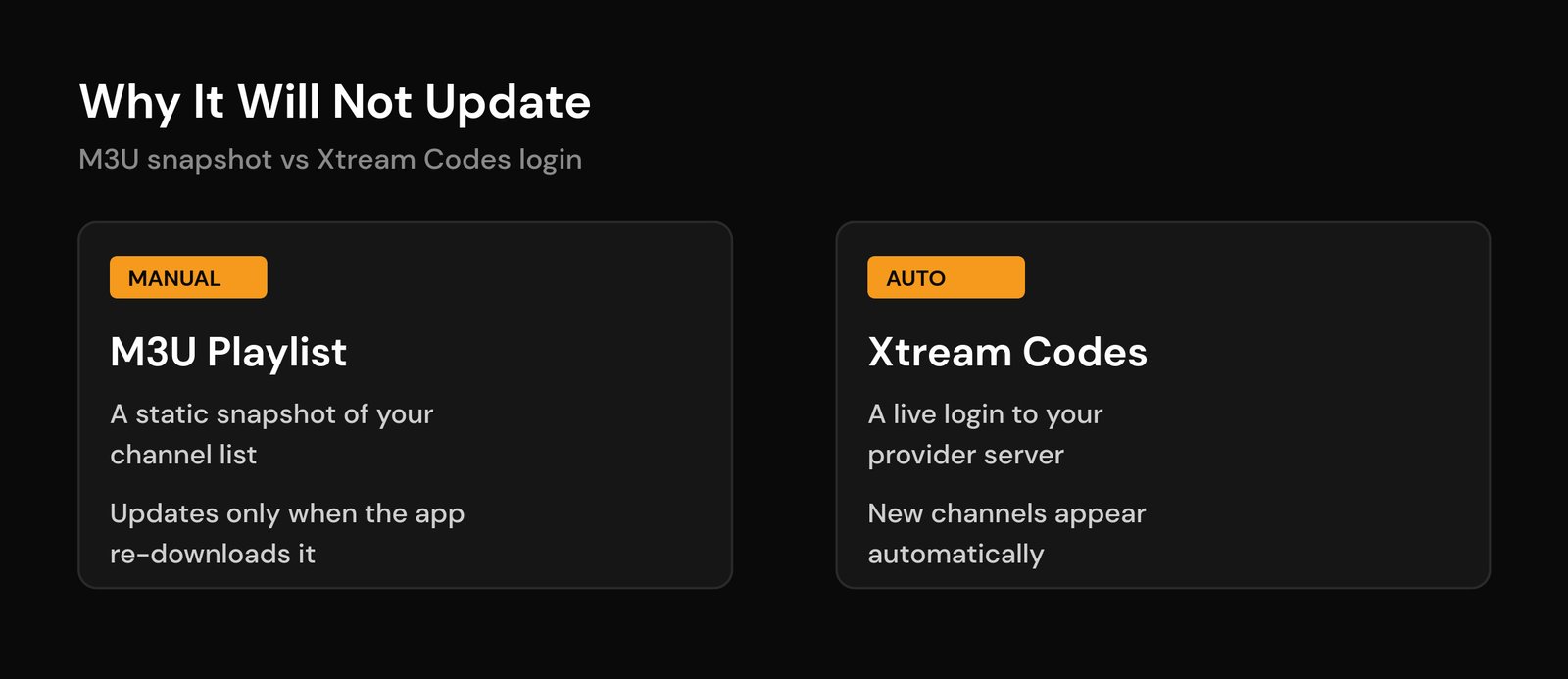
The single most useful thing to understand here is how your channels get onto your screen, because it decides whether updates are automatic or manual. There are two common setups, and they behave very differently.
An M3U playlist is a plain text file — a snapshot of your channel list at the moment your app downloaded it. Think of it like a screenshot. When your provider adds a channel next week, your saved snapshot doesn’t magically change. The app has to fetch the file again to see the new version. That re-fetch is what “refreshing the playlist” actually does. (If you want the technical background, the M3U format is just a list of stream URLs with a bit of metadata.)
An Xtream Codes login — where you enter a server URL, username, and password instead of one long link — is different. Your app talks to the provider’s server live through its API, so it tends to reflect additions and removals much sooner, often without you doing anything. This is exactly why I steer people toward the Xtream Codes option when a provider offers both: fewer “my channels didn’t update” headaches.
One more distinction worth drawing early: the channel list and the EPG (the on-screen TV guide) are two separate downloads. Your channels can be perfectly current while the guide shows yesterday’s schedule, because the guide comes from a different file — usually an XMLTV feed — on its own refresh cycle. If only the guide looks wrong, jump to the EPG section below; you don’t need to touch the playlist at all.
How to force-refresh your playlist
Here’s where the update button lives in the players most people use. The wording changes slightly between versions, but the path is stable.
TiviMate
Go to Settings → Playlists, select your playlist, and choose Update (or Reload). That forces an immediate re-download. While you’re there, look for Update frequency — that’s the auto-refresh interval, and setting it sensibly (see the table further down) means you rarely have to do this by hand. If a manual update still doesn’t bring in new channels, delete the playlist and re-add it; TiviMate rebuilds the list cleanly. For a fuller walkthrough of the app itself, our TiviMate vs IPTV Smarters comparison covers the settings menus in more detail.
IPTV Smarters / similar players
Open Settings → Playlist Management, tap your active playlist, and choose Update Now. Some builds also let you pull-to-refresh by swiping down on the channel list. If the refresh finishes but the list looks identical, back out fully, then remove and re-add the playlist with your same login details — a stale cache occasionally survives a plain refresh.
Kodi, VLC, and generic M3U players
Lightweight players like VLC often treat an M3U URL as a one-time import with no auto-update at all. To get the current list you simply re-open or re-import the URL. In Kodi’s IPTV add-ons, look for a Clear data / Refresh option in the add-on settings, then restart the add-on. When in doubt with any player: remove the source and add it again is the universal reset.
How to refresh the EPG (TV guide) on its own
If your channels are fine but the guide is blank, frozen, or showing the wrong times, refresh the EPG separately. In TiviMate that’s Settings → EPG → Update; in IPTV Smarters it’s usually a Reload EPG option in the menu. Guide files can be large, so give it anywhere from 30 seconds to a few minutes to finish before judging the result.
Two things trip people up here. First, wrong times in the guide are almost always a time-zone mismatch, not a refresh problem — set your app’s EPG time offset to match your region. Second, if channels show no guide data at all, the culprit is often a mismatch between the channel’s ID and the guide’s ID. We break that down in what an IPTV EPG is and in the deeper fix for when the EPG is not showing.
Set up automatic playlist updates so this stops happening
The best fix for a stale playlist is to never let it go stale. Most serious players have an auto-update interval — set it and forget it. More frequent isn’t always better: every refresh adds a little startup delay, so match the interval to how often your provider actually changes the lineup.
| Update interval | Best for | Trade-off |
|---|---|---|
| Every 2–6 hours | Providers that add/drop channels often | Slightly slower app startup |
| Every 12 hours | A sensible middle ground | New channels appear within half a day |
| Every 24 hours | Most stable setups (recommended) | Up to a day’s lag on changes |
| Manual only | Players without auto-update (VLC) | You must refresh yourself |
On my own setup I run a 24-hour refresh and re-import by hand only when a provider tells me they’ve added something I want that day. It’s the least fiddly balance I’ve found.
Playlist still not updating? The deeper fixes
When a normal refresh won’t take, work down this list in order — it’s roughly most-common cause to least.
1. Clear the app’s cache. A stubborn old list is often cached. On Firestick or Android, go to device Settings → Apps → [your player] → Clear cache (not Clear data, which wipes your login). Reopen and refresh.
2. Remove and re-add the playlist. As covered above, this is the reliable reset. Re-enter the exact same M3U URL or Xtream Codes details.
3. Test the link in a browser. Paste your M3U URL into any web browser. If it downloads a file, the link is alive and the problem is app-side. If it errors or times out, the link itself is dead — skip to the provider steps.
4. Check your connection. A refresh that hangs can be a network issue rather than a playlist one. If streams also stutter, our guide to fixing IPTV buffering covers DNS and Wi-Fi tweaks that often clear it up. A blank screen after a “successful” refresh can also point to a stream problem — see IPTV no signal.
5. Restart the device. Unglamorous, but a full power-cycle clears memory that a soft refresh doesn’t.
When it’s the provider, not your app
If you’ve cleared the cache, re-added the playlist, and confirmed the link is dead in a browser, the ball is in your provider’s court. The usual reasons: your subscription or trial expired, the provider rotated their server URL (common after maintenance), or they’ve migrated to a new domain. None of that is something you can refresh your way out of — you need an updated link or credentials.
Message your provider and ask for a fresh M3U URL or current Xtream Codes login. A dependable service will hand it over quickly; if yours goes quiet or keeps changing servers without warning, that’s a sign to reconsider who you’re with. IPTV only works as well as the service behind it, and a stable, responsive provider is worth more than a cheap one that leaves you re-adding playlists every week.
Frequently asked questions
Why do my IPTV channels not update automatically?
Because most apps use a saved M3U snapshot that only changes when the app re-downloads it. Set an auto-update interval, or switch to an Xtream Codes login, which syncs with the provider’s server on its own.
How do I force my IPTV playlist to refresh?
Open your player’s playlist settings and choose Update or Reload. If that doesn’t pull in new channels, remove the playlist and add it again with the same details — that clears any cached copy.
My channels updated but the guide is still wrong. What now?
The EPG refreshes separately from the channel list. Reload the EPG in your app’s guide settings, and if the times are off, set the EPG time-zone offset to match your region.
I refreshed and now nothing loads at all. Did I break it?
Almost certainly not. Paste your M3U URL into a browser: if it won’t download, your link or subscription has expired and you need a new one from your provider. If it does download, clear the app cache and re-add the playlist.
How often should an IPTV playlist update?
Every 24 hours suits most setups. Choose a shorter interval only if your provider changes the lineup frequently, since each refresh adds a little startup delay.
Related guides
Keep going with these: What is an M3U playlist?, What is an IPTV EPG?, IPTV EPG not showing, and TiviMate vs IPTV Smarters.
About the author: The Nviewx team runs a premium IPTV service and sets up, tests, and troubleshoots streaming every day across Firestick, Android TV, Apple TV, smart TVs, and mobile. These guides come from that hands-on experience. Last updated August 2026.






