 Skip to content

IPTV EPG Not Showing? How to Fix a Blank or Wrong TV Guide
If your IPTV EPG is not showing, the cause is almost always one of five things: the guide URL is missing or dead, your app is holding a stale cache, your channels don’t line up with the guide (a tvg-id mismatch), the guide server is slow, or your time zone is set wrong so every programme lands at the wrong hour. The good news is that a blank or wrong TV guide is one of the easier IPTV problems to fix, and you almost never need to reinstall the app. This guide runs through each cause in order, from the 30-second fixes to the ones that point back at your provider.
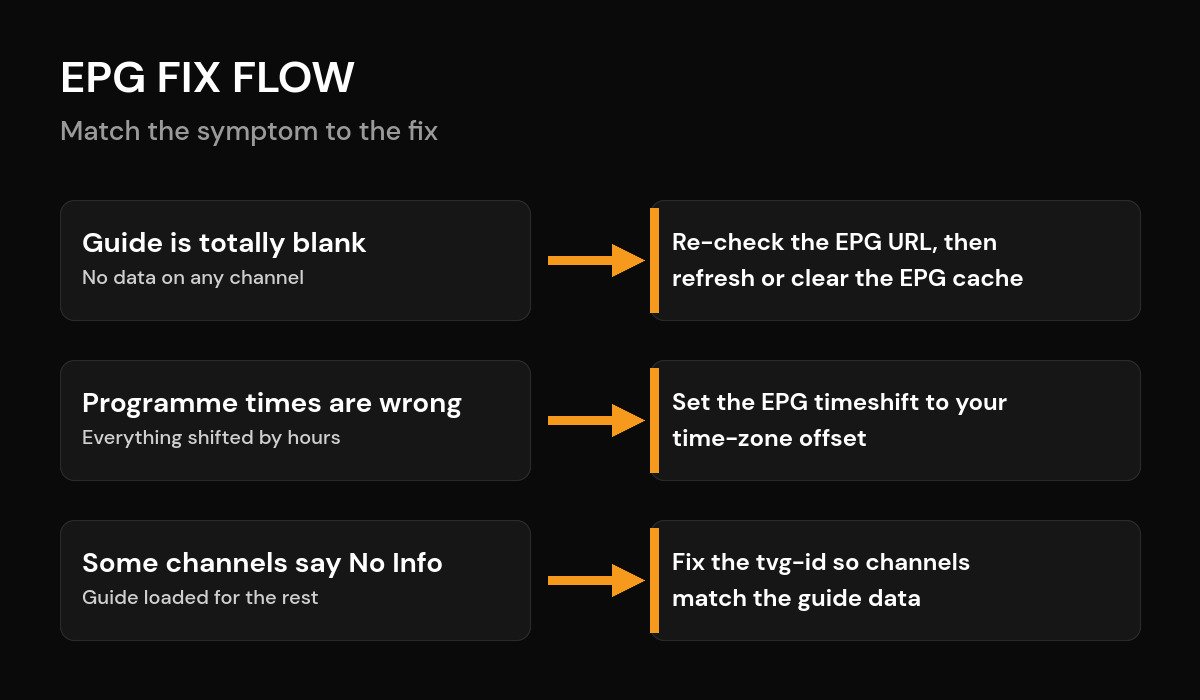
Short on time? Start with the table below. Match what you are actually seeing on screen to the fix that usually clears it, then jump to that section.
| What you see | Most likely cause | Fastest fix |
|---|---|---|
| Guide is empty on every single channel | No EPG URL set, or the source is down | Re-add the guide URL and force an EPG update |
| Guide loads but every time is wrong | Time-zone or offset mismatch | Set the EPG timeshift to your offset |
| Most channels work, a few say “No Information” | tvg-id mismatch on those channels | Correct the tvg-id so it matches the guide |
| Guide was fine yesterday, blank today | Stale cache or expired daily data | Clear the EPG cache and reload the playlist |
| Guide is a day behind or only half full | Large guide file timing out | Trim channels or change the update frequency |
First, what the EPG is actually doing
The EPG, or electronic programme guide, is the on-screen grid that shows what is on now and next. It does not come from the video stream. It is a separate file, usually in the XMLTV format, that your player downloads on its own schedule and then matches to your channel list. Because the guide is a second, independent download, it can fail completely even when your live TV channels play without a hitch. If you want the full background first, see our explainer on what an EPG is and how it works, or the reference entry on the electronic programme guide for the wider concept.
Why your IPTV EPG is not showing: the five usual causes
Before you start changing settings, it helps to know which of the five common causes you are dealing with. The picture below sums them up, and the fixes further down follow the same order.
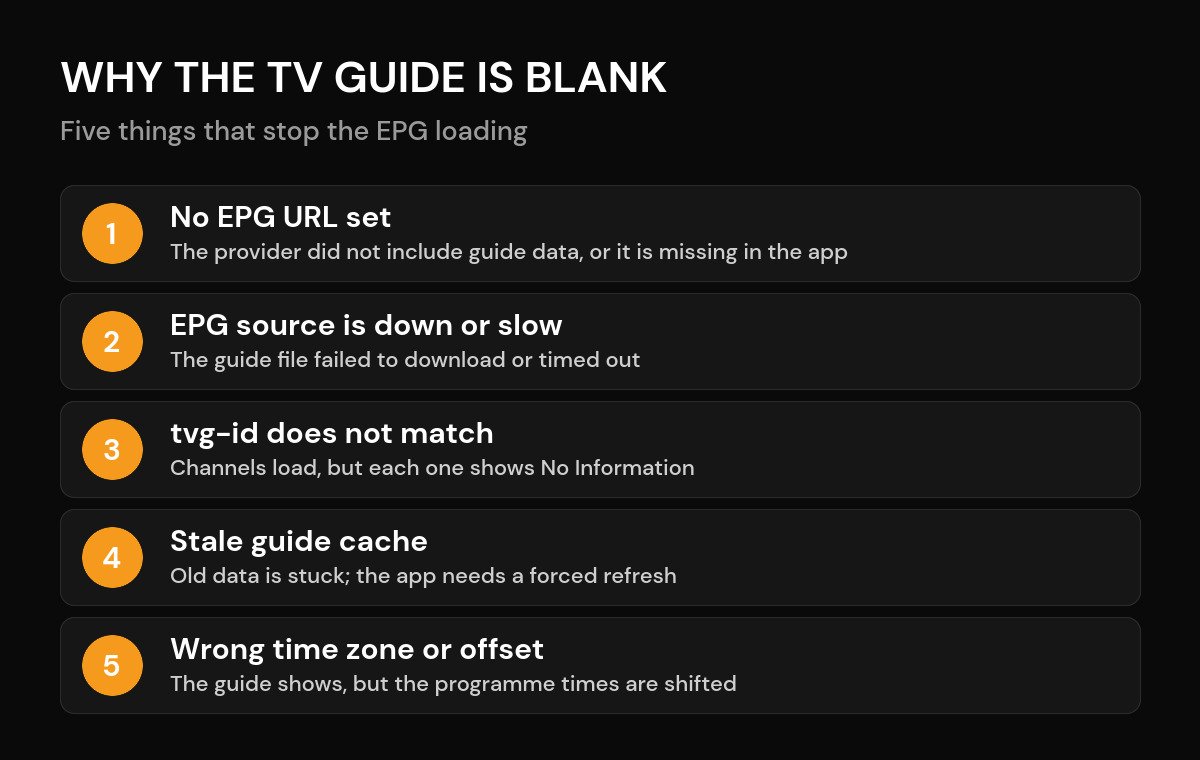
The first two causes, a missing URL and a stale cache, account for most blank guides. Work through them top to bottom and you will usually have the grid back within a couple of minutes.
Fix 1: Check the guide URL and force an update
An empty guide on every channel almost always means the app has no working EPG source. Some providers bundle the guide into the playlist automatically; others hand you a separate guide URL you have to paste in yourself. Open your player’s EPG or program-guide settings and check that a source URL is actually listed. If it is blank, add the guide link your provider gave you. Copy and paste it rather than typing it, because a single wrong character breaks the whole download.
Once the URL is in place, look for an “Update EPG” or “Refresh guide” button and run it manually instead of waiting for the next scheduled refresh. If the app reports a download error, the source itself may be temporarily down. Give it an hour and try again before assuming anything is broken on your end. It is also worth confirming that nothing on your network is blocking the guide host: if changing your DNS or briefly toggling a VPN lets the guide through, the download was being blocked, not missing.
Fix 2: Clear the EPG cache and reload the playlist
If the guide was fine yesterday and is blank today, the culprit is usually a stale cache. Most guide data refreshes on a daily cycle, so a player holding onto yesterday’s file will show an empty grid once that data expires. In your app’s EPG settings, choose “Clear EPG” (or “Clear cache”) to wipe the old file, then run an update to pull a fresh copy. In some players you also need to reload or re-add the playlist so the channels and the new guide get re-linked.
While you are there, check how often the app is set to refresh the guide. Once or twice a day is the sweet spot. Setting it to update constantly on a big channel list just makes the app re-download a large file over and over, which can cause the timeouts described in Fix 5.
Fix 3: Times are wrong? Set the EPG timeshift
A guide that loads fine but shows every programme at the wrong hour is not broken at all. It is a time-zone problem. Guide data is stored against a reference time, and if your device’s time zone or the app’s EPG offset does not match your real location, everything is shifted by a fixed number of hours. This is the single most common “wrong times” complaint, and it has nothing to do with the stream.
Fix it in two places. First, make sure your device clock and time zone are correct in the system settings, ideally set to update automatically. Then, in the player, find the EPG timeshift or time-offset option and adjust it until “on now” lines up with what is really broadcasting. If a programme currently shows two hours early, set the offset to move it two hours later. Daylight-saving changes can knock this out twice a year, so it is worth remembering where the setting lives.
Fix 4: Some channels say “No Information”? Fix the tvg-id
When most of your channels have a guide but a handful stubbornly say “No Information,” you have a matching problem, not a download problem. Every channel in your playlist carries a tvg-id, and the guide file lists its programmes against those same IDs. If a channel’s tvg-id does not exactly match an ID inside the guide, the player has nothing to attach, so it shows a blank. The match is character-sensitive, so a small typo or a slightly different ID is enough to break it.
If you manage your own list, open the M3U playlist and correct the tvg-id on the affected lines so it matches the guide’s channel ID exactly. If your provider supplies the playlist, the cleanest fix is to send them the channel names and ask them to align the tvg-id values, since they control both files. Some players also offer a manual “match EPG to channel” option that lets you point a channel at the right guide entry by hand.
Fix 5: App-specific EPG settings
Every player hides its guide controls in a slightly different place. Here is where to look in the most common ones, and the setting that usually solves a blank or wrong guide.
| Player | Where the EPG lives | Setting that usually fixes it |
|---|---|---|
| TiviMate | Settings, then EPG | “Clear EPG,” then “Update EPG”; adjust “EPG timeshift” for wrong times |
| IPTV Smarters | Settings, then EPG / auto-update | Toggle EPG on, then log out and back in to force a fresh pull |
| XCIPTV | Settings, then EPG settings | Re-add the EPG URL and set the correct GMT offset |
| Kodi (with an IPTV add-on) | Add-on settings, then EPG settings | Point it at the XMLTV URL and clear the guide data cache |
When it is the provider, not your setup
If you have checked the URL, cleared the cache, matched the tvg-id and set the right offset and the guide is still empty, the problem may be upstream. Some services simply do not supply full guide data, or their guide server is unreliable. A quick way to tell: if a second device using the same subscription shows the same gap, the issue is on the provider’s side, not your app. In that case, contact them and ask specifically whether they provide an XMLTV EPG source and what the URL is. A good provider will have a clear answer. While you are troubleshooting, it is also worth ruling out unrelated issues like audio drifting out of sync or one of the standard IPTV error codes, which can look like a guide fault but are not.
Frequently asked questions
Why is my IPTV EPG suddenly not showing when it worked before?
Usually a stale cache or a guide source that briefly went down. Most guide data refreshes on a daily cycle, so if the source has a bad night or your app is holding yesterday’s file, the grid goes blank. Clear the EPG cache, then force an update. If it comes back, set the app to refresh the guide once or twice a day so it does not expire again.
How do I fix IPTV EPG times that are wrong or shifted by hours?
That is a time-zone offset, not a broken guide. The guide is stored against a reference time, and if your device time zone or the app’s EPG timeshift does not match, every programme lands early or late by a fixed number of hours. Set your device to the correct time zone, then adjust the EPG timeshift in the player until “on now” lines up with what is really broadcasting.
Why do some channels show “No Information” while others have a full guide?
Those channels have a tvg-id that does not match any ID in the guide file, so the player has nothing to attach and shows a blank. Correct the tvg-id in your playlist, or ask your provider to align it, so it matches the guide’s channel ID exactly. The match is character-sensitive, so even a small difference breaks it.
Can my DNS or VPN stop the EPG from loading?
Yes. If the guide is hosted on a server your network or DNS is blocking, the download fails and the grid stays empty even though channels play fine. Try a different DNS, or if you use a VPN, test the guide with it turned on and off to see which one lets the download through.
How often should the IPTV guide update?
Once or twice a day is enough for most setups. Updating too often on a large channel list just makes the app download a big file repeatedly, which can cause timeouts and a half-loaded guide. If your guide is always slightly behind, trim unused channels or raise the update frequency one step at a time.






