 Skip to content
Best IPTV Player for Your Smart TV: Samsung & LG Apps (2026)
The best IPTV player for a Smart TV is usually a native app you install straight from your TV’s own store — Smart IPTV or SS IPTV on both Samsung (Tizen) and LG (webOS) — because they read your M3U playlist or Xtream login without any extra hardware. If your set is older or the built-in apps feel sluggish, plugging a small streaming stick into a spare HDMI port gives you a faster, more flexible player. This guide walks through both paths so you can pick the one that fits your TV.
We set up IPTV on Samsung and LG panels often, so the picks below are based on what actually installs cleanly, plays a live stream smoothly, and loads the EPG guide data — not just what happens to sit at the top of an app store listing.
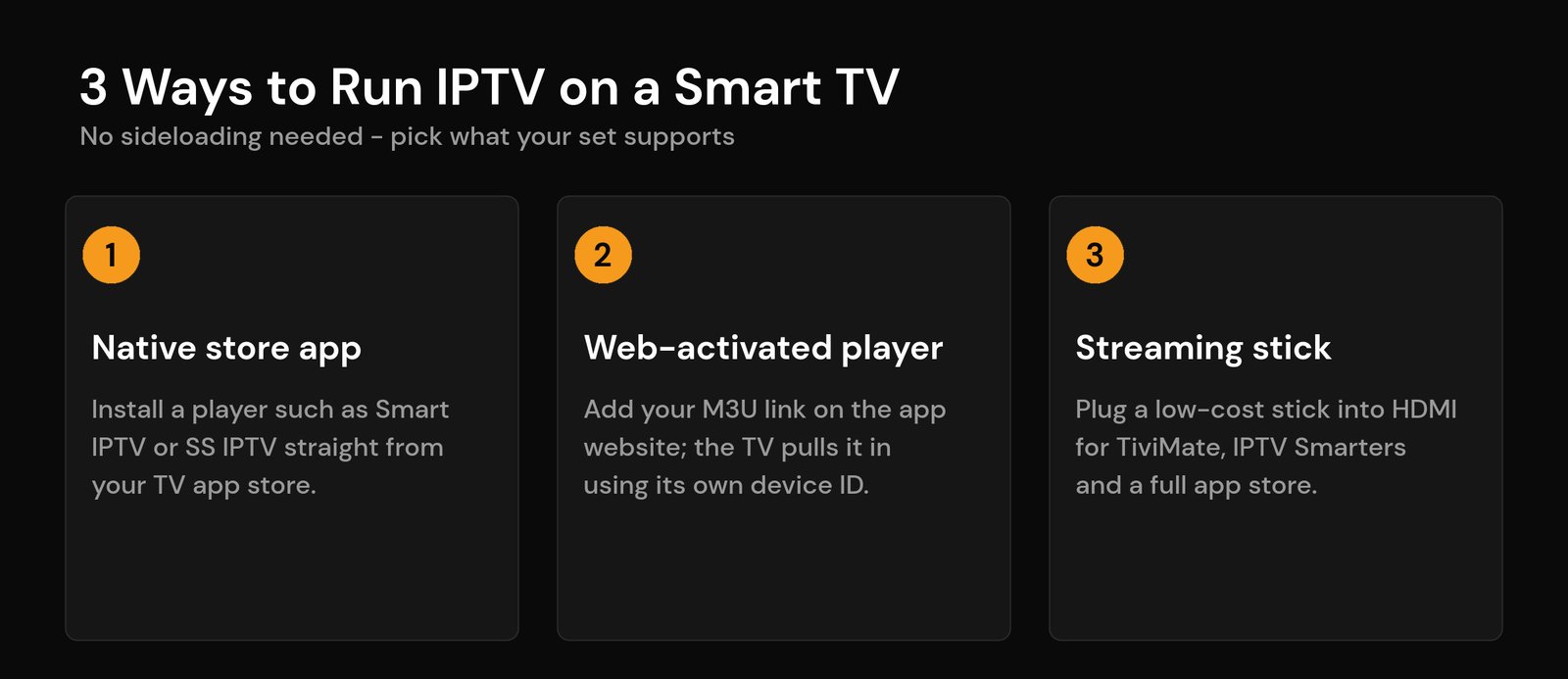
The three ways to run IPTV on a Smart TV
A Smart TV is a locked platform. You can’t freely sideload apps the way you can on a stick or box, so you really have three realistic options:
- A native store app. Install a player such as Smart IPTV or SS IPTV from the Samsung App Store or the LG Content Store, then paste in your playlist. This is the no-extra-hardware route.
- A web-activated player. Some apps don’t take the M3U link on the TV itself. Instead you paste it on the app’s website, tied to your TV’s unique device ID (usually its MAC address), and the TV pulls the list in on next launch.
- A plug-in streaming stick. A low-cost stick runs full Android players like TiviMate or IPTV Smarters and sidesteps the TV’s limits completely.
Best IPTV player apps for Samsung Smart TV (Tizen)
Samsung TVs run Tizen, a Linux-based operating system with its own curated store. You can’t install Android APKs on it, so you’re choosing from the handful of dedicated IPTV players that Samsung allows.
Smart IPTV (SIPTV) is the long-standing default. It’s a lightweight M3U player: you enter your playlist URL through its activation website, and the app loads your channels and guide. It’s reliable and fast, though it typically asks for a small one-time activation fee after a trial period.
SS IPTV is the best free option. It supports M3U links, an on-screen playlist code for quick loading, and XMLTV guide data, with no subscription. The interface is dated, but it just works for basic live viewing.
Newer paid players such as Ibo Player Pro and similar Tizen-native apps have appeared, promising smoother navigation, catch-up and a cleaner layout. They can be worth a one-time fee if the free apps feel clunky on your set — but check current availability in your region’s Samsung store before paying, since these listings change often.
Best IPTV player apps for LG Smart TV (webOS)
LG panels run webOS, and the story is almost identical to Samsung: the same two workhorses, Smart IPTV and SS IPTV, are both in the LG Content Store and both load your playlist the same way.
One important limit to know on webOS: it only plays standard web streams. Multicast (UDP), RTSP and RTMP feeds will not open. Your playlist needs to use HTTP or HLS (HTTP Live Streaming) links, which is what most modern providers already supply. If a specific channel refuses to play while others are fine, an unsupported stream type is the usual culprit.
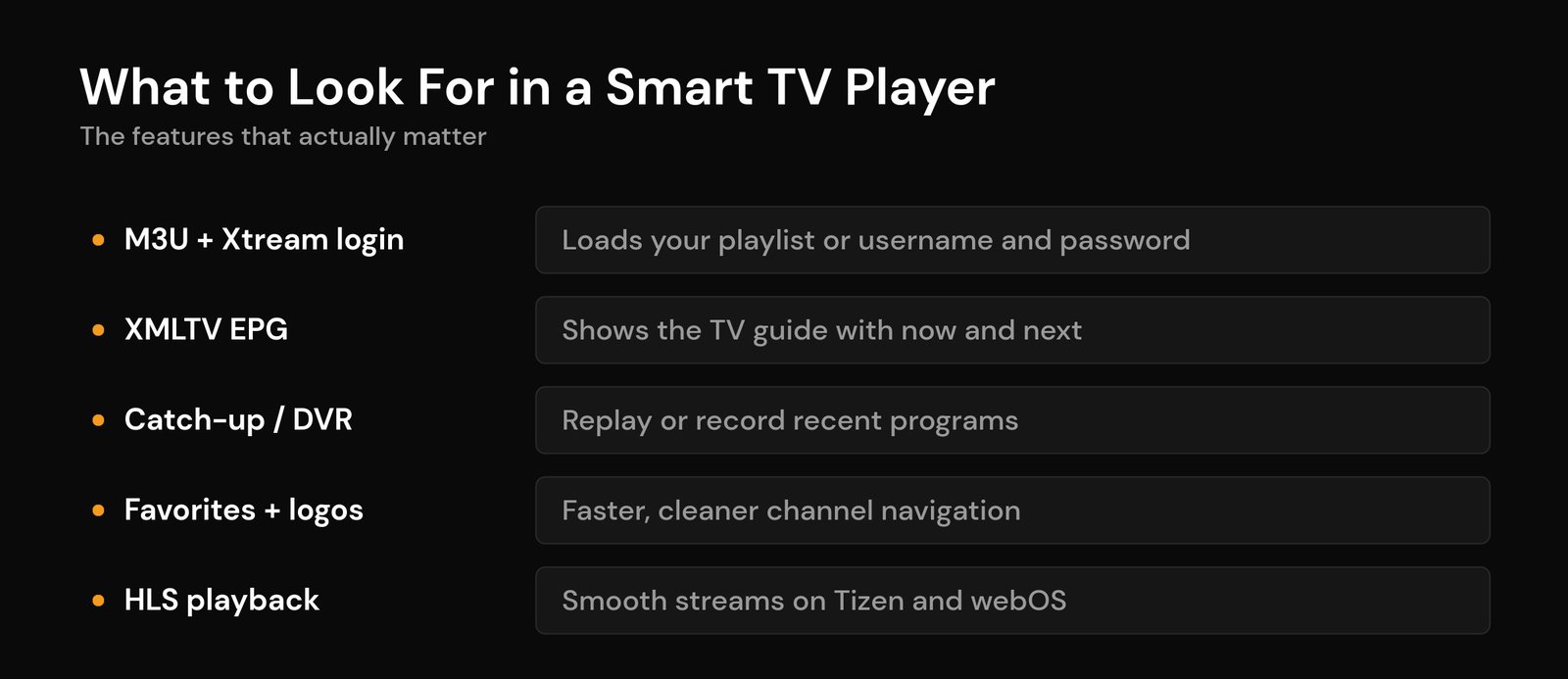
What to look for in a Smart TV IPTV player
Most of these apps look similar at a glance. These are the features that actually separate a good one from a frustrating one:
| Feature | Why it matters |
|---|---|
| M3U + Xtream login | Lets you load either a playlist URL or a username/password. See M3U vs Xtream Codes if you’re unsure which you have. |
| XMLTV EPG | Shows a proper on-screen guide with now-and-next, based on the XMLTV standard. |
| Catch-up / DVR | Replays recent programs when your provider offers it — a big quality-of-life feature. |
| Favorites & logos | Keeps navigation fast and tidy instead of scrolling a giant list. |
| HLS support | Ensures smooth playback on Tizen and webOS, which reject older stream types. |
How to set up an IPTV player on your Smart TV
The exact taps vary by app, but the flow is the same on Samsung and LG:
- Open your TV’s app store (Samsung App Store or LG Content Store) and install Smart IPTV or SS IPTV.
- Open the app once and note the device ID or MAC address it shows — some players need it.
- Go to the app’s activation website on your phone or laptop and paste in your M3U playlist link (your provider gives you this).
- Reload the app on the TV. Your channels and guide should populate within a minute.
- Add an XMLTV guide URL if the app asks for one separately, then set your favorites.
If this is your first time, our full walkthrough on how to set up IPTV on a Smart TV covers the on-screen steps in more detail, and the M3U playlist primer explains what that link actually is.
When a streaming stick beats the built-in app
Honestly, if your Samsung or LG TV is more than a few years old, the single best upgrade is a cheap streaming stick. The built-in players are fine for casual live viewing, but they can’t match a dedicated app on real hardware.
A stick gives you the full Android player ecosystem — smoother scrolling, better catch-up, quicker channel zapping and far more frequent updates. Our picks for the best Fire TV stick for IPTV and the top IPTV player apps for Android TV are a good next step if you go this route.
Fixing common Smart TV IPTV problems
Two issues cover most Smart TV complaints. If the guide is empty, you either didn’t add an XMLTV EPG URL or the app’s guide server is down — re-enter the EPG link and reload. If streams stutter or freeze, that’s usually your network or the app’s buffer, not the playlist; our guide to fixing IPTV buffering lists the quick wins. And if one channel won’t open while the rest play, it’s almost always an unsupported stream type on webOS.
Frequently asked questions
What is the best IPTV player app for a Samsung Smart TV?
For most people it’s Smart IPTV or the free SS IPTV, both in the Samsung App Store. They load an M3U playlist or Xtream login and show a proper EPG. If they feel slow on your set, a paid Tizen-native player or a streaming stick is the upgrade.
Can I install an IPTV player on an LG Smart TV without a box?
Yes. LG’s webOS has Smart IPTV and SS IPTV in the LG Content Store, so no extra hardware is needed. Just make sure your playlist uses HTTP or HLS links, since webOS won’t play UDP, RTSP or RTMP streams.
Why won’t my M3U playlist play on my Smart TV?
The most common reason is an unsupported stream type. Smart TVs only play standard web streams (HTTP/HLS), so multicast or RTMP channels fail. A wrong or expired playlist URL, or a provider connection limit, can also cause it.
Do I need a subscription to use these Smart TV IPTV apps?
The apps are just players — you supply your own M3U or Xtream login from a provider. Some players (like Smart IPTV) charge a small one-time activation fee, while SS IPTV is free. The player fee is separate from any service subscription.
Is a streaming stick better than a Smart TV’s built-in IPTV app?
Usually, yes. A stick runs full Android players with smoother navigation, better catch-up and more frequent updates. Built-in apps are fine for basic live viewing, but a stick is the better experience on older TVs.
Related guides
- How to set up IPTV on a Smart TV
- Best IPTV player apps for Android TV
- M3U vs Xtream Codes: which should you use
- How to fix IPTV buffering
Written by the Nviewx team — we set up and test IPTV across Firestick, Android TV, Apple TV, smart TVs and mobile every day. Last updated for 2026.






