 Skip to content
Ethernet vs Wi-Fi for IPTV: Which Gives You Smoother Streams? (2026)
If you are weighing Ethernet vs Wi-Fi for IPTV, the honest answer is that a wired Ethernet connection almost always streams smoother than Wi-Fi. IPTV does not just need a fast connection — it needs a steady one, and a cable delivers steady far better than radio waves ever can. That said, Wi-Fi is fine for plenty of setups, and not everyone can run a cable to the TV. This guide shows exactly when plugging in is worth the hassle, when Wi-Fi is good enough, and what to do when you are stuck streaming wirelessly.
The short answer
Plug in if you can. For live TV and especially fast-moving content like live sports, a wired Ethernet link to your streaming device removes the single biggest cause of stutter: an unstable signal. If running a cable is impossible, get your Wi-Fi as close to wired as you can — use the 5 GHz or 6 GHz band, a modern router, and a spot with a clear line to the router. Everything below is the detail behind that one-line answer.
Why IPTV punishes a shaky connection
People assume buffering is about raw speed, so they run a speed test, see 200 Mbps, and get confused when the picture still freezes. Speed is only half the story. IPTV streams arrive as a constant flow of small packets that your player has to receive in order and on time. Two things wreck that flow:
- Jitter — the variation in how long packets take to arrive. A little is normal; a lot empties your player’s buffer and freezes the picture. See jitter for the underlying concept.
- Packet loss — packets that never show up. Even 1–2% loss on a live stream shows up as pixelation, audio drops, or a spinning wheel.
A wired connection using Ethernet keeps jitter and packet loss extremely low because the signal travels down a shielded cable with nothing to interfere with it. Wi-Fi shares the air with your neighbours’ networks, microwaves, walls, and every other device in your home, so its timing wobbles — and IPTV feels every wobble. If your streams are fine most of the day but fall apart at night, that is a classic congestion pattern; our guide to IPTV buffering at peak hours digs into it.
Ethernet vs Wi-Fi for IPTV, side by side
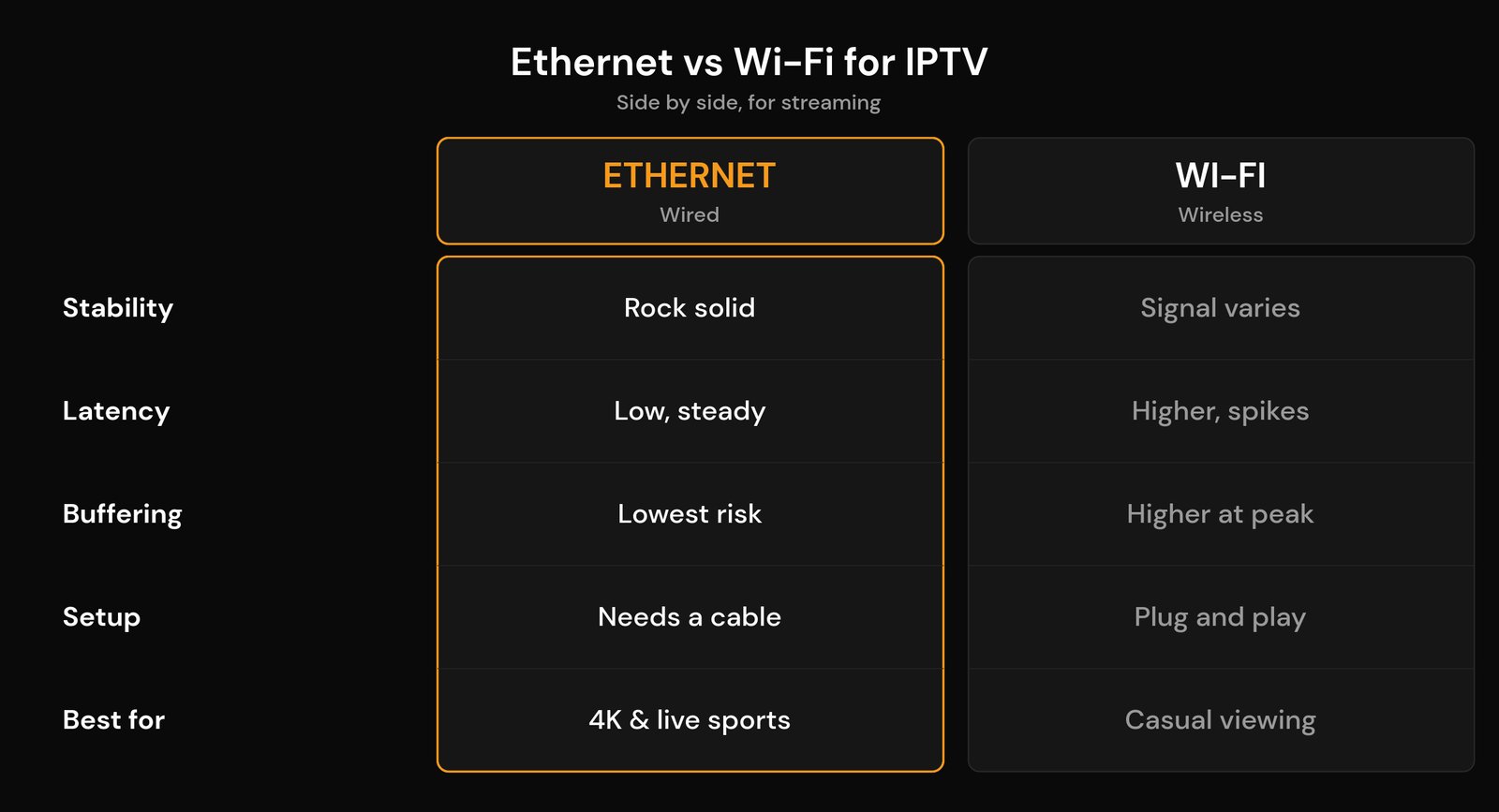
Here is how the two connection types stack up for the things that actually matter when you are streaming live TV.
| What matters | Ethernet (wired) | Wi-Fi (wireless) |
|---|---|---|
| Stability | Rock solid; the signal does not drop or vary | Varies with distance, walls, and interference |
| Latency and jitter | Low and consistent | Higher, with occasional spikes |
| Buffering risk | Lowest — the flow stays even | Higher, especially at busy times |
| Setup effort | Needs a cable run to the device | Plug and play; nothing to route |
| Best for | 4K, live sports, the main TV | Casual viewing, far-off or spare rooms |
When Ethernet is worth it (and when Wi-Fi is fine)
Wired is not automatically the right call for every device in the house. Reach for Ethernet when:
- The TV is your main screen and you watch a lot of live sports or 4K content.
- Your streaming box sits far from the router, or several walls and floors away.
- You already get buffering on Wi-Fi that no amount of tweaking fully fixes.
- You live in a flat or dense area where dozens of nearby networks crowd the airwaves.
Wi-Fi is perfectly fine when the device is close to a decent router, you are on the 5 GHz band, and your streams already play cleanly. There is no prize for running a cable to a bedroom TV that never stutters. If you are optimising a wireless setup, our guide to the best Wi-Fi settings for IPTV covers the exact router options to change.
Can’t run a cable? Your next-best options
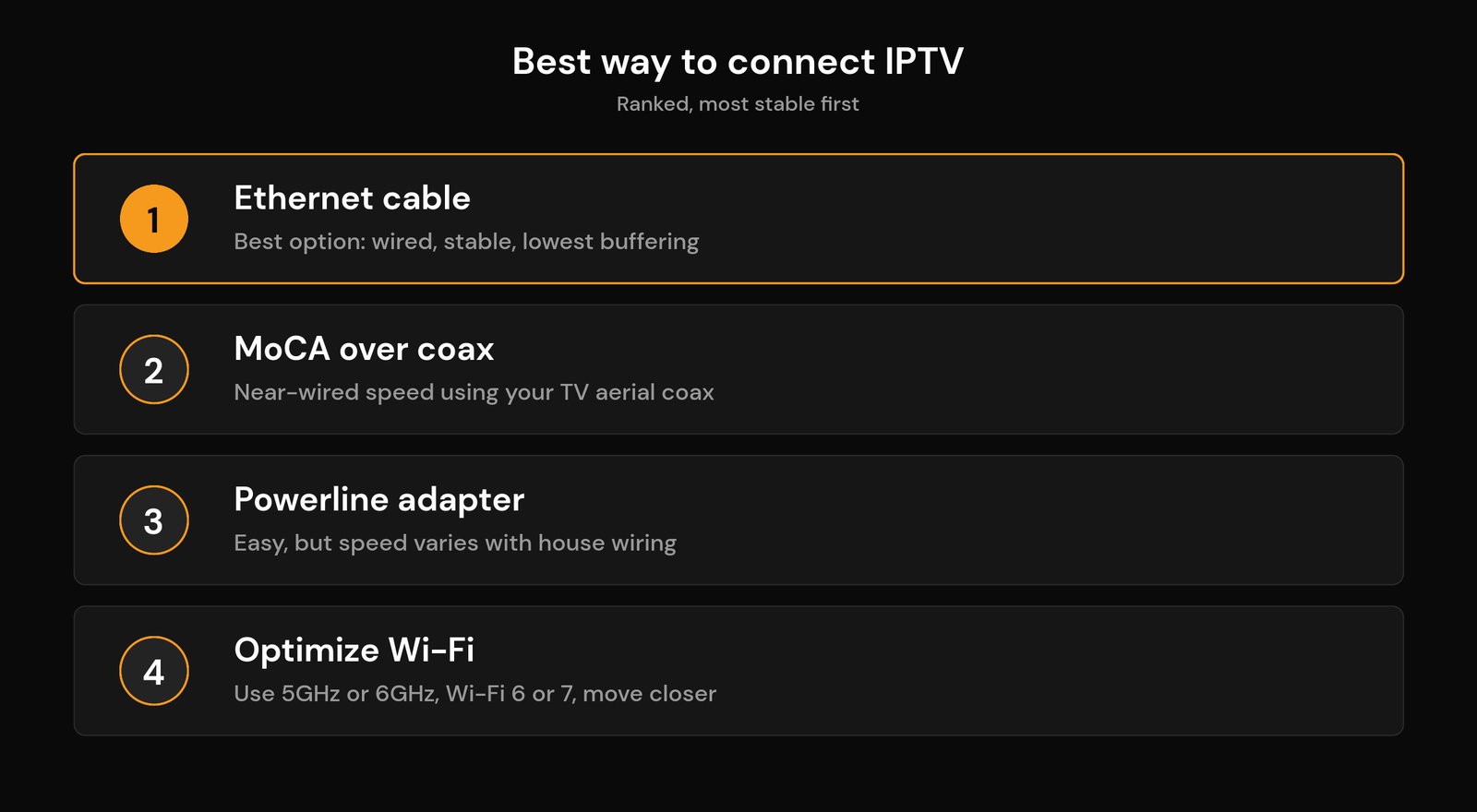
Plenty of homes cannot run a long Ethernet cable across the living room without it looking terrible. Before you give up and stay on Wi-Fi, there are two ways to get a near-wired connection using wiring your house already has.
MoCA over your coax (the strong option)
If your walls have TV aerial or cable-TV coax sockets, a pair of MoCA adapters turns that coax into a wired network link. Current MoCA 2.5 gear delivers up to 2.5 Gbps with latency under about 5 milliseconds under load — close enough to real Ethernet that IPTV cannot tell the difference. You plug one adapter in near the router and another by the TV, and run a short Ethernet cable from the adapter to your streaming device. It is the most reliable wireless-free upgrade for most homes.
Powerline adapters (the easy but variable option)
A powerline adapter sends your network signal over the electrical wiring in your walls. It is dead simple — plug one unit into a socket near the router, another near the TV, connect Ethernet at each end — but the results depend heavily on your home’s wiring. Powerline typically adds roughly 10–20 milliseconds of latency and can be thrown off by old wiring, separate circuits, or noisy appliances. It often still beats a weak Wi-Fi signal, but treat it as the backup to MoCA, not the first choice.
How to get the smoothest Wi-Fi for IPTV
If Wi-Fi is your only realistic option, you can get most of the way to wired stability by dialling it in:
- Use 5 GHz or 6 GHz, not 2.4 GHz. The 2.4 GHz band reaches further but is slow and crowded; 5 GHz and 6 GHz are much cleaner and faster over shorter distances.
- Get on a modern router. Wi-Fi 6, 6E, and now Wi-Fi 7 handle busy homes far better than older gear, with lower lag and less packet loss even when many devices are connected.
- Shorten the path. Move the router into the open (not inside a cabinet), reduce the number of walls between it and the TV, or add a mesh node in the same room.
- Cut the crowd. Pause big downloads and game updates on other devices while you watch, since they compete for the same airtime.
Changing your DNS can also help streams start faster and fail over more cleanly — see the best DNS for IPTV. And if you are not sure how much bandwidth you actually need, check our guide on internet speed for IPTV before blaming the connection type.
How to switch your IPTV device to Ethernet
Moving to wired is usually a five-minute job:
- Streaming stick or box: most need a small USB Ethernet adapter (many Firestick and Android TV boxes do not have a built-in port). Plug the adapter into the device, run a cable to your router or a MoCA/powerline unit, and the device switches to wired automatically.
- Smart TV: almost every smart TV has an Ethernet port on the back — plug in, then set the network to wired in the TV’s settings. Our walkthrough on why IPTV works on a hotspot but not Wi-Fi is handy if your home network is the thing blocking streams.
- Confirm it took: open your device’s network settings and check it says “wired” or “Ethernet,” then play a live channel for a few minutes to confirm the stutter is gone.
If buffering continues even on a cable, the bottleneck is upstream — your provider’s server or your overall internet line — not your home connection. Our guide to fixing IPTV buffering and cloud errors covers what to try next.
Related guides
- IPTV Buffering at Peak Hours: Causes and Real Fixes
- The Best Wi-Fi Settings for IPTV
- Best DNS for IPTV: Does Changing It Stop Buffering?
- Internet Speed for IPTV: How Much Do You Need?
Frequently asked questions
Is Ethernet really better than Wi-Fi for IPTV?
Yes, for stability. A wired Ethernet connection keeps jitter and packet loss very low, which is exactly what a live IPTV stream needs to play without freezing. Wi-Fi can be perfectly good when the device is close to a modern router on the 5 GHz band, but a cable removes the guesswork. For a main TV that streams a lot of live sports or 4K, Ethernet is the safer choice.
Do I need Ethernet if my internet is already fast?
Not always. Fast internet does not guarantee a steady one. If your Wi-Fi already plays streams cleanly with no stutter, there is no need to run a cable. But if you get buffering despite a high speed-test result, the problem is usually connection stability, and switching that device to Ethernet often fixes it.
My streaming stick has no Ethernet port. What do I do?
Use a USB Ethernet adapter made for your stick or box. Most Firestick and Android TV devices support one: plug the adapter into the device, connect a network cable, and it switches to wired automatically. It is an inexpensive add-on and the most effective single upgrade for a stick that keeps buffering.
Are MoCA or powerline adapters as good as Ethernet?
MoCA over your coax gets very close — up to about 2.5 Gbps with very low latency — and is an excellent substitute when you cannot run a cable. Powerline adapters are easier but less predictable because they rely on your home’s electrical wiring, adding more latency and varying with the circuit. Both usually beat a weak Wi-Fi signal for IPTV.
Will Ethernet fix my IPTV buffering for sure?
It fixes buffering caused by an unstable home connection, which is a large share of cases. If your streams still stutter on a wired connection, the cause is elsewhere — your overall internet line, the time of day, or your provider’s servers under load — and you will need to troubleshoot upstream rather than at the TV.






