 Skip to content
IPTV Connection Limit Reached? Fix Max Connections (2026)
If you just got an IPTV connection limit reached message — or “max connections”, “too many connections”, or “device limit exceeded” — it almost always means the same thing: your subscription is being used on more streams at once than your plan allows. The quick fix is to close the app on every device, wait a minute for the old stream to drop, then reopen it on just one. Below is exactly what the error means, the real reasons it keeps happening, and how to clear it for good.
What “connection limit reached” actually means
Here is the part most guides get wrong. In IPTV, a “connection” is not a device and it is not a login. A connection is one active stream playing at one moment. Your plan allows a fixed number of those at the same time — often one or two on a standard subscription. The moment you try to start one more stream than you are allowed, the server refuses it and you see the error.
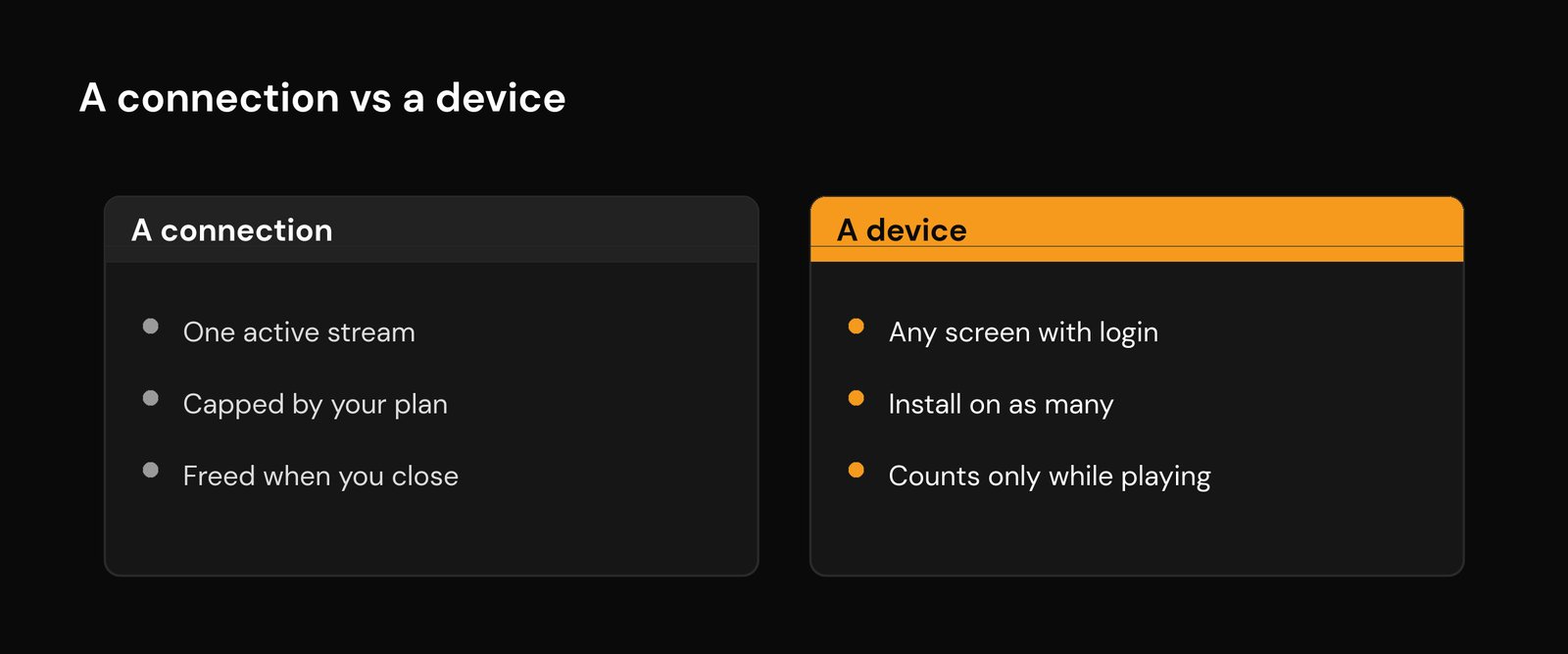
That distinction matters because it explains the confusing part: you can install your subscription on as many devices as you like — the TV, a phone, a tablet, a streaming stick — and nothing breaks until too many of them play at the same time. Five devices logged in but switched off use zero connections. Two devices both playing on a one-connection plan is one too many.
| A connection | A device |
|---|---|
| One active stream playing right now | Any TV, phone or box with your login on it |
| Strictly capped by your plan (often 1–2) | You can usually install it on as many as you want |
| Freed the instant you close the app or stop the stream | Only counts against you while it is actively streaming |
The error messages you might see
Different player apps word it differently, but they all point at the same wall. You may run into any of these:
- “Connection limit reached” or “maximum connections reached”
- “Too many connections”
- “Device limit exceeded” or “account in use on another device”
- A stream that loads on one screen and instantly fails on the second
- An authentication or login error that only appears when a second device is already playing
If the message instead mentions a wrong URL, expired account, or a numeric error code, that is a different problem — our guide to IPTV error codes and DNS issues covers those.
Why you keep hitting the limit
Going over your plan is the obvious cause, but it is rarely the only one. These are the usual culprits, in rough order of how often they bite:
- More simultaneous streams than your plan allows. Two TVs both playing on a single-connection plan, or the kids watching on tablets while the main TV is on. This is the simple case — stop one stream and the other plays.
- A “ghost” session that never closed. This is the sneaky one. If an app crashed, the device lost power, or you closed the lid instead of quitting the app, the server can still think that stream is alive. A session like that holds a connection slot hostage until it times out, so you hit the limit even though nothing is actually playing.
- A device you forgot about. You tested the service at a friend’s place, on a hotel TV, or on an old phone in a drawer, and it is quietly still logged in and streaming.
- One app opening two streams at once. Picture-in-picture, a recording or catch-up task running in the background, or a multi-view layout can each open a second connection without you realising it — so a single device uses two slots.
- Shared credentials. If you handed your login to family or friends, every place they watch eats into your connection count. It is also a security risk worth reading about in our piece on unauthorized IPTV charges and account misuse.
How to fix the max connections error
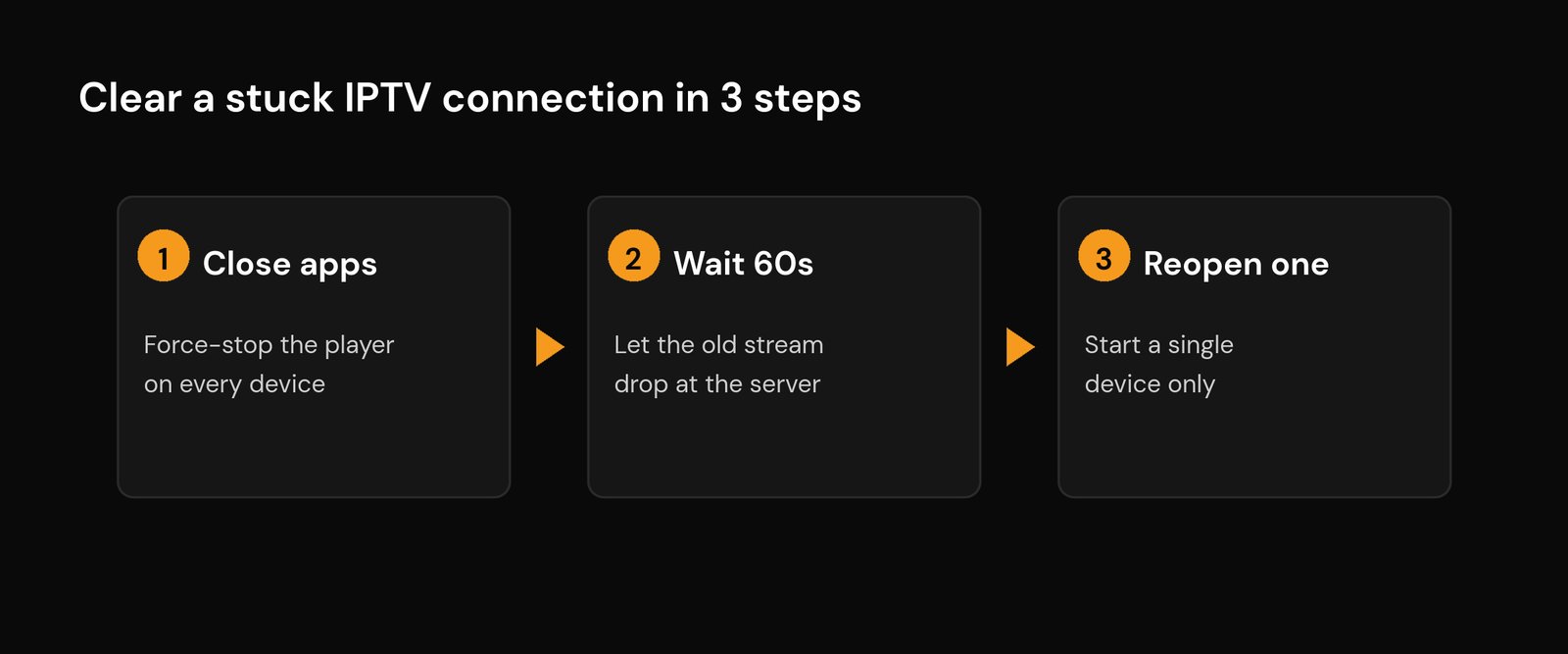
Work down this list in order. The first three clear the problem in under two minutes most of the time.
- Close the app on every device. Do not just press Home — fully quit or force-stop the player. On a streaming stick or Smart TV, go to Settings, Apps, your IPTV player, then Force Stop. A backgrounded app can keep its stream — and its connection — alive.
- Wait sixty seconds, then open one device. A dropped stream is not always released instantly; the server needs a moment to register that it is gone. Give it about a minute, then start a single device. If it plays, you were simply over the limit.
- Power-cycle a stubborn device. If a stream refuses to let go, unplug the device for a full minute. Cutting the power forces the connection closed at the server’s end far faster than waiting for the connection timeout.
- Use your provider’s “reset connections” option. Many reputable services give you a button in the account dashboard to clear all active sessions at once. That instantly kills any ghost session from a crashed app or a device you no longer have.
- Track down the forgotten device. Think back to anywhere you have ever signed in — a second home, a relative’s TV, an old phone — and log out or uninstall there.
- Turn off background streams in your app. Disable picture-in-picture, stop any scheduled recording or catch-up task, and exit multi-view so a single device is not quietly holding two connections. Our overview of how IPTV player apps work shows where those settings usually live.
- Upgrade if you genuinely need more. If your household really does watch on two or three screens at once, the fix is not a workaround — it is a plan with more connections. Most services offer a multi-connection or family tier for a small extra cost.
How many devices can you actually use at once?
The honest answer is: as many as your plan’s connection count, regardless of how many devices have the app installed. Limits vary by provider, but the common tiers look like this:
| Plan type | Typical simultaneous streams | Good for |
|---|---|---|
| Standard / single | 1 connection | One person, one screen at a time |
| Dual | 2 connections | A couple, or main TV plus a bedroom |
| Family / multi | 3–4+ connections | A busy household with several rooms in use |
When you are choosing or upgrading a service, the connection count belongs right at the top of your checklist next to stability and support. A cheap-looking single-connection plan can turn into a nightly argument over who gets to watch. Our guide on choosing a good IPTV provider walks through what to weigh, and if you are setting the service up fresh, how to set up IPTV on any device covers getting your login onto each screen cleanly.
How to stop it happening again
A few habits keep the error from coming back. Always fully close the player when you finish watching rather than leaving it paused or backgrounded — that releases the connection straight away. Keep your login to yourself; sharing it is the fastest way to lose slots you paid for, and it undermines your account security. If you regularly stream on more than one screen, match your plan to reality instead of fighting the limit every evening. And if a stream ever drops mid-watch and will not restart, give it the sixty-second pause before assuming something is broken — nine times out of ten it is just a slot that has not been released yet. For broader playback problems that are not about connections, our walkthrough on fixing IPTV buffering is the next stop.
Frequently asked questions
What does “IPTV connection limit reached” mean?
It means you are trying to run more simultaneous streams than your subscription allows. A connection is one active stream, not one device, so the error appears the moment one too many screens start playing at the same time. Closing the app on another device and waiting a minute usually clears it.
How many devices can I use with one IPTV subscription?
You can install the service on as many devices as you like. What is limited is how many can stream at the same time — that is your connection count, often one or two on a standard plan and three or more on a family tier. Devices that are logged in but not playing do not use a connection.
Why do I get the max connections error when only one device is on?
Usually a ghost session. If an app crashed or a device lost power without quitting cleanly, the server can still count that old stream as active, so it holds a connection slot until it times out. Force-stop the app everywhere, power-cycle the device, or use your provider’s reset-connections button to clear it.
How do I clear a stuck or ghost IPTV connection?
Fully close or force-stop the player on every device, then wait about sixty seconds for the server to release the old stream. If it persists, unplug the stubborn device for a minute, or use the “reset connections” option in your provider’s account dashboard to kill all active sessions at once.
Can I just upgrade to get more simultaneous streams?
Yes. If your household genuinely watches on several screens at once, a multi-connection or family plan is the proper fix rather than a workaround. Most providers offer extra connections for a small additional cost, and the connection count is worth checking before you buy.






