 Skip to content
Best Wi-Fi Settings for IPTV: A Jargon-free Setup Guide
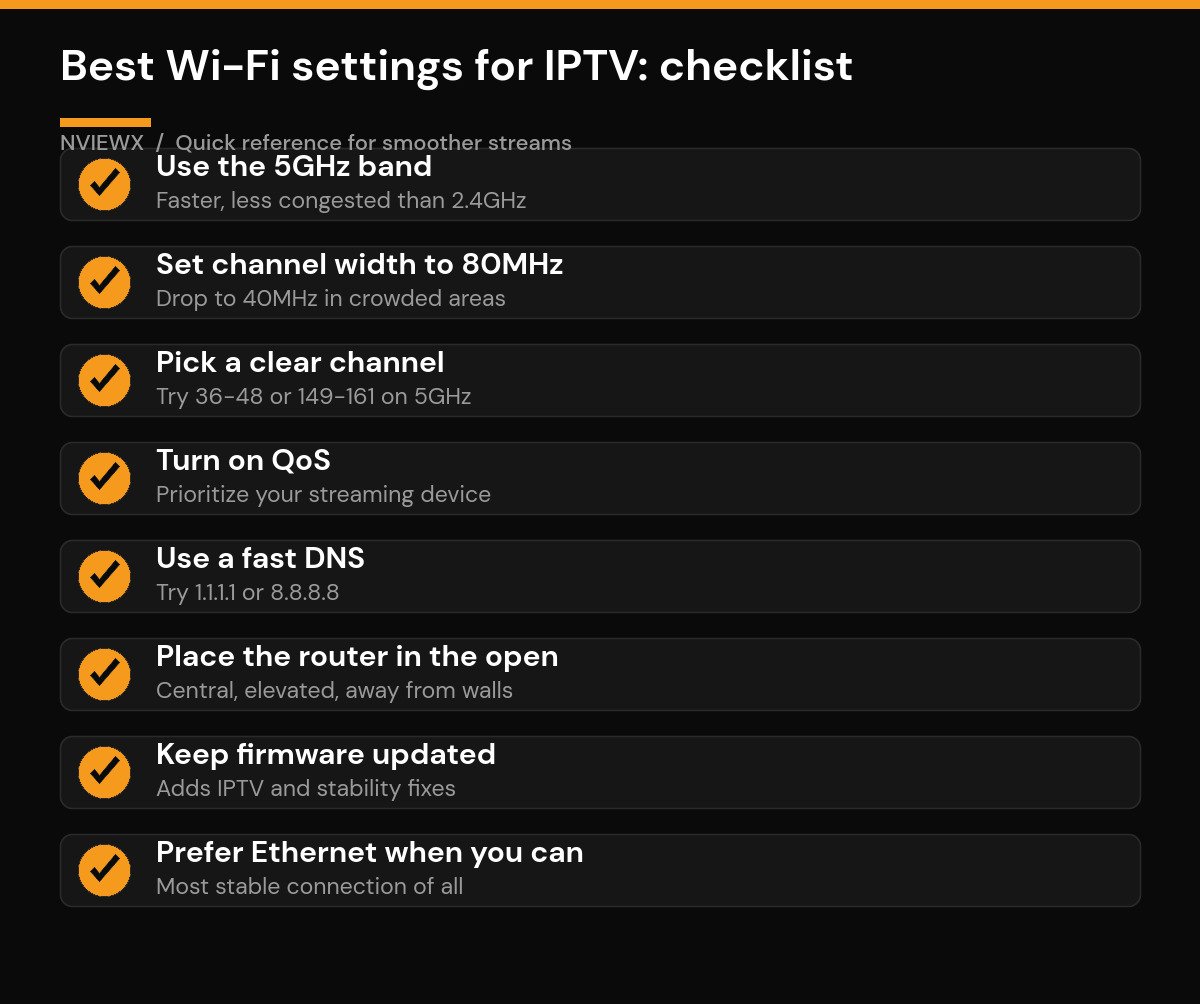
The best Wi-Fi settings for IPTV are: connect on the 5GHz band, set the channel width to 80MHz (40MHz if your area is crowded), pick a clear channel, turn on QoS to prioritize your streaming device, switch to a fast DNS, and place the router out in the open. Do those six things and most stutter and buffering quietly disappears. If you can run an Ethernet cable to the device, that beats every Wi-Fi tweak combined.
IPTV is unusually sensitive to a shaky connection. A web page can pause for a second and you barely notice; a live stream that drops a few packets freezes, pixelates, or buffers right in the middle of something you wanted to watch. The good news is that the fixes are almost all free, they live in your router and device settings, and you can work through them in about ten minutes. This guide walks through each one in order of impact.
Why your Wi-Fi settings matter so much for IPTV
Streaming live TV over the internet means a steady, continuous flow of data has to reach your device in real time. There is no big head-start buffer the way there is with on-demand video, so any gap in the connection shows up on screen immediately. Your router’s defaults are tuned to be “fine for everything” rather than “great for streaming,” which is exactly why a few targeted changes make such a noticeable difference. If you want the background on how wireless networking works, the Wi-Fi standard on Wikipedia is a solid primer.
Before you change anything, it helps to know what you are working with. Open your router’s admin page (usually a printed address like 192.168.0.1 or 192.168.1.1 on a label on the router) and have your IPTV device handy. Most of the settings below live in that admin page; a few live on the device itself.
Use the 5GHz band, not 2.4GHz
This is the single biggest win for most people. Modern routers broadcast two bands. The 2.4GHz band travels further and through more walls, but it is slow and badly congested, sharing airspace with microwaves, baby monitors, and your neighbors’ networks. The 5GHz band is faster and far less crowded, with many more non-overlapping channels, which makes it ideal for a steady IPTV stream.
If your router shows one combined network name, look for a setting to split the bands or simply connect your streaming device to the network whose name ends in “5G” or “5GHz.” Keep 2.4GHz for devices that are far from the router or only need light internet. The one trade-off: 5GHz has shorter range, so if your device is two rooms and three walls away, test both bands and use whichever actually holds a stronger, more stable signal.
Pick the right channel and channel width
Channels are the lanes your Wi-Fi drives in. If every router nearby is parked in the same lane, everyone slows down. On 5GHz, channels in the 36-48 or 149-161 range are common starting points; many routers also have an “Auto” channel setting that picks the least busy lane for you, which is fine to leave on.
Channel width controls how wide each lane is. Wider means more data at once. For 5GHz, 80MHz is the sweet spot for smooth streaming. If you live in an apartment block or a congested area with lots of competing networks, drop to 40MHz — it carries a little less data but shrugs off interference better, which often translates to fewer freezes than a wider but noisier channel.
Position the router where the signal can actually reach
You can dial in perfect settings and still get buffering if the router is hidden in a cabinet behind the TV. Wi-Fi signal weakens fast through walls, floors, metal, and water (including, oddly, fish tanks and densely packed bookshelves). A few placement rules go a long way:
- Put the router out in the open, not inside a cupboard or media cabinet.
- Raise it off the floor — a shelf or desk height is better than ground level.
- Keep it roughly central to the rooms where you stream most.
- Keep a clear line toward your streaming device and away from microwaves and cordless phone bases.
If the room you watch in is simply too far from the router, a mesh node or a wired access point near the TV usually does more than any single setting change.
Enable QoS to prioritize your streaming device
Quality of Service (QoS) tells the router which traffic matters most when the network gets busy. Without it, a big file download or someone else’s video call can starve your IPTV stream of bandwidth and trigger buffering. With QoS on, you can mark your streaming device (or video traffic generally) as high priority so it keeps flowing smoothly even under load.
Look for “QoS,” “Traffic Priority,” “Bandwidth Control,” or “Gaming/Streaming mode” in your router. Set your IPTV device to the highest priority. If your router supports it, prioritizing video or streaming traffic specifically works well too. For the technical background, see Quality of Service on Wikipedia. This is often the fastest single fix for buffering when multiple people share the connection.
Set a faster, more reliable DNS
DNS is the internet’s address book — it turns names into the numeric addresses your device actually connects to. A slow or flaky DNS server can add delay and cause streams to load sluggishly. Switching to a fast public DNS is free and takes a minute. Popular, reliable choices are 1.1.1.1 and 8.8.8.8.
You can set DNS either in the router (so every device benefits) or directly on your streaming device’s network settings. Enter a primary and a secondary address, save, and reconnect. It will not magically multiply your speed, but it removes one common source of slow loading and the occasional stall.
Other tweaks worth checking: band steering, IGMP, MTU and firmware
Once the big items are sorted, these smaller settings clean up the edge cases:
- Band steering: this auto-moves devices between 2.4GHz and 5GHz. Handy in theory, but if your stream keeps cutting out, band steering may be bouncing your device between bands at the wrong moment. Turning it off and connecting manually to 5GHz can fix intermittent drops.
- IGMP snooping / multicast: some IPTV setups use multicast, and enabling IGMP snooping helps the router send those streams only where they are needed instead of flooding the network. If your router has it and your stream stutters, try turning it on.
- MTU: the maximum packet size. The default (usually 1500) is right for most connections, but a few setups stream more reliably at a slightly lower value such as 1492. Only touch this if you are still troubleshooting after everything else.
- Firmware: router makers ship updates that add stability and IPTV-related fixes. Check the admin page for a firmware update and install the latest stable version. The ISM radio band your Wi-Fi shares is busy, and newer firmware often handles that congestion better.
When you should just use Ethernet
Every tip above is about making Wi-Fi as good as it can be — but if your streaming device sits near the router or you can run a cable, Ethernet wins every time. A wired connection is immune to interference, channel congestion, and signal drop-off, and it delivers the steadiest possible stream. Many streaming boxes and sticks support Ethernet directly or through a small adapter. If you have wrestled with buffering for a while and the device is reachable by cable, this is the most reliable upgrade there is. (If your stream behaves on a phone hotspot but not on home Wi-Fi, that is usually a router setting rather than the connection speed — our guide on why IPTV works on a hotspot but not Wi-Fi walks through it.)
Wi-Fi settings for IPTV: recommended values at a glance
Here is the whole thing in one place. Use it as a quick reference while you work through your router’s admin page.
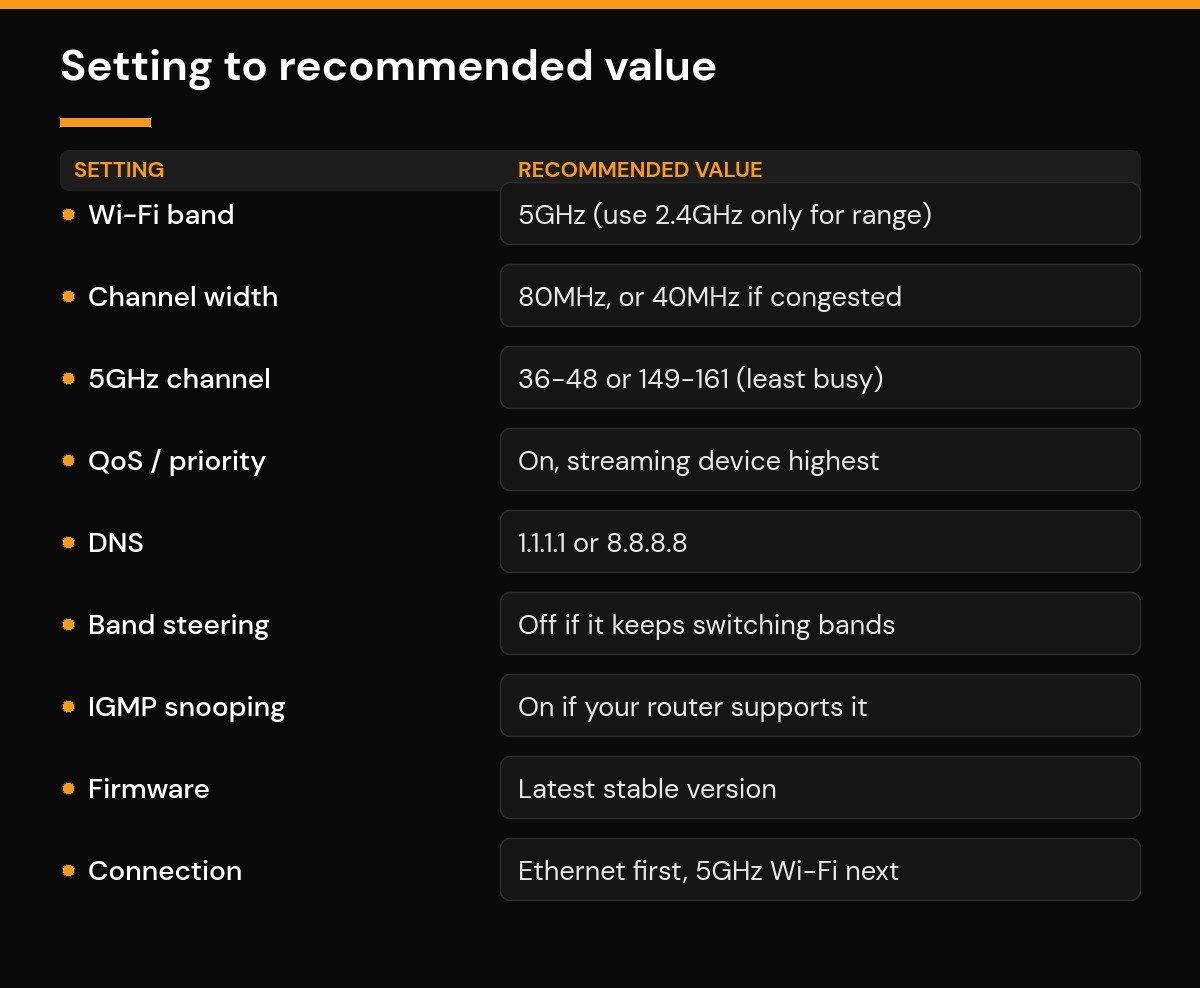
| Setting | Recommended value |
|---|---|
| Wi-Fi band | 5GHz (use 2.4GHz only when range is the problem) |
| Channel width (5GHz) | 80MHz, or 40MHz if your area is congested |
| Channel | 36-48 or 149-161, or Auto |
| QoS / priority | On; streaming device set to highest priority |
| DNS | 1.1.1.1 or 8.8.8.8 |
| Band steering | Off if your stream keeps switching bands |
| IGMP snooping | On if your router supports it |
| MTU | 1500 default; try 1492 only if still troubleshooting |
| Firmware | Latest stable version |
| Best connection | Ethernet first, then 5GHz Wi-Fi |
Putting it together
Start at the top: get on 5GHz, set 80MHz width, move the router into the open, and switch QoS on. Most people see smoother streams right there. If you still hit the occasional freeze, add a fast DNS, check band steering and IGMP, and as a last resort run a cable. New to all of this? Our guides on what IPTV service is and how to set up IPTV cover the basics, and if buffering persists, how to fix IPTV buffering and cloud errors goes deeper. Setting up a streaming stick? See how to install IPTV on a Firestick.
At Nviewx we keep these guides plain-spoken and practical, so you can fix the problem and get back to watching.
Frequently asked questions
What is the single best Wi-Fi setting for IPTV?
Connecting on the 5GHz band. It is faster and far less congested than 2.4GHz, so for a device within range it usually gives the biggest, most immediate improvement in stream stability.
Should I use 2.4GHz or 5GHz for IPTV?
Use 5GHz whenever your device is close enough to hold a strong signal. Only fall back to 2.4GHz when the device is far from the router or behind several walls and 5GHz keeps dropping.
What channel width should I use for IPTV on 5GHz?
Start with 80MHz for maximum throughput. If you are in a crowded building with lots of nearby networks and still see freezing, switch to 40MHz, which handles interference better.
Does QoS really stop IPTV buffering?
It helps a lot when several devices share your connection. By giving your streaming device top priority, QoS keeps the stream flowing even while others download or video call, which is a common buffering trigger.
What DNS should I use for IPTV?
Fast public DNS servers such as 1.1.1.1 or 8.8.8.8 are reliable choices. They will not boost raw speed, but they cut out a common source of slow loading and occasional stalls.
Is Ethernet better than Wi-Fi for IPTV?
Yes. A wired connection avoids interference, congestion, and signal drop-off entirely, giving the steadiest possible stream. If your device is near the router, Ethernet is the most reliable choice you can make.
Why does my IPTV still buffer after changing these settings?
If buffering continues, check router placement, update firmware, and test with Ethernet to rule out Wi-Fi. Persistent issues can also come from the connection itself or the source rather than your settings.
Should I turn off band steering for IPTV?
If your stream cuts out intermittently, yes — band steering can move your device between bands at a bad moment. Turning it off and connecting manually to 5GHz often resolves those random drops.






