Skip to content
IPTV Works on Hotspot but Not WiFi? Here’s the Real Reason (and the Fix)
IPTV not working on Wi-Fi but fine on a hotspot almost always means your home network is the problem, not your subscription.
If your IPTV app streams fine on your phone’s mobile hotspot but stalls, buffers, or shows a blank screen on your home Wi-Fi, the problem is almost never the app or your playlist. It’s your home internet provider. The most common cause is that your ISP is blocking, throttling, or DNS-filtering IPTV traffic on the home network it controls — something it simply can’t do to your phone’s separate carrier connection. Switch the same device to a hotspot and the interference disappears, which is exactly why the stream springs back to life.
That single difference — same device, same app, two different networks — is the biggest diagnostic clue you have. Below I’ll explain what the symptom is telling you, why the ISP is usually the culprit, how to confirm it in a couple of minutes, and the three fixes that actually work, in the order worth trying.
IPTV Not Working on Wi-Fi? What the Symptom Tells You
When the only thing you change is the network and the result flips completely, you’ve ruled out most of the usual suspects. Your device hardware is fine. The IPTV app is fine. Your subscription and playlist are fine. Even your raw internet speed is probably fine — mobile hotspots are usually slower than home broadband, so if a slow hotspot plays smoothly while fast home Wi-Fi won’t, speed isn’t the issue.
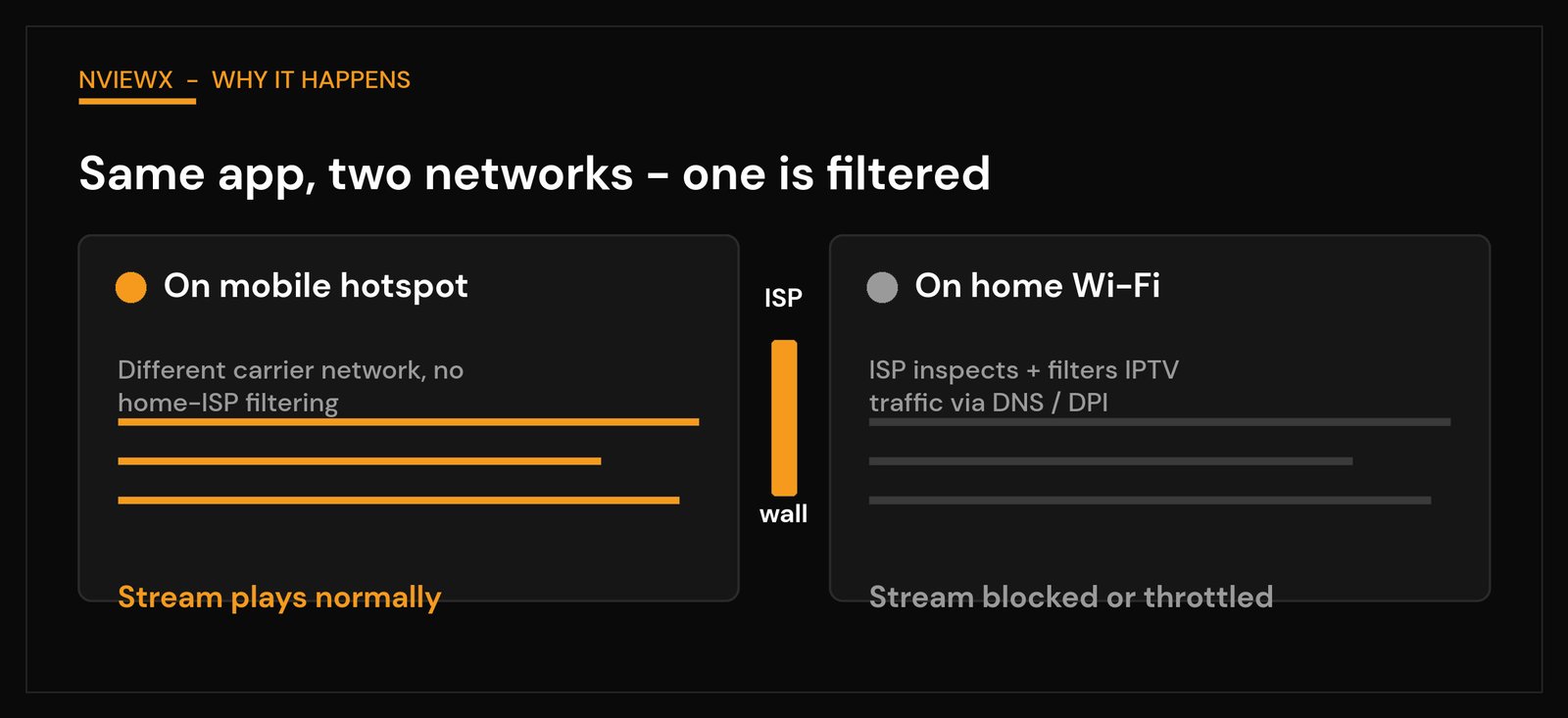
What has changed is who controls the pipe. On a hotspot you’re riding your mobile carrier’s network. On home Wi-Fi you’re going through your fixed-line ISP and its router. The two run on completely separate infrastructure with different filtering policies. So when streaming works on one and dies on the other, the network operator that’s failing you is the one to look at — and at home, that’s your ISP plus the router sitting in your living room.
Why your home ISP is usually the culprit
Fixed-line ISPs have far more incentive and ability to police continuous video streams than mobile carriers do. They typically lean on a handful of techniques, often invisibly:
- DNS filtering. Every time your player loads a channel, your device asks a DNS server to translate a domain into an IP address. If your ISP runs that DNS server, it can quietly refuse to resolve addresses it has blacklisted — so the stream never connects. This is the cheapest, most common block, and the easiest to defeat.
- Bandwidth throttling. Using bandwidth throttling, an ISP can slow down one type of traffic without touching the rest. That’s why a regular speed test looks perfectly healthy while your stream buffers every few seconds — the test traffic isn’t being throttled, but the long-running video stream is.
- Deep packet inspection (DPI). More aggressive networks inspect the shape and pattern of your traffic to identify continuous streaming and then deprioritize or drop it. DPI is harder to spot because it doesn’t look like a clean on/off block.
- Router and firewall settings. Sometimes it isn’t the ISP’s policy at all — it’s the router. Strict firewall rules, SPI (stateful packet inspection) set too tight, or built-in DNS-rebind protection can break the same connections that a plain hotspot allows.
Mobile data sidesteps all of this because it’s a different operator with different rules, which is the whole reason the hotspot test is so useful.
How to confirm it’s the network in two minutes
Before you change anything, prove what you’re dealing with. Keep it simple:
- You’ve already done the key test. Hotspot works, Wi-Fi doesn’t — that alone points hard at the home network.
- Run a speed test on the home Wi-Fi. If it comes back fast but the stream still won’t play, you’re looking at selective throttling or filtering, not a slow line.
- Try a different DNS temporarily on one device. Set the device’s DNS to a public resolver (more on this below). If the stream suddenly works, your ISP was DNS-filtering it — case closed.
- Reboot the router once. Rare, but it clears a stuck state and rules out a one-off glitch so you don’t chase a ghost.
If you want to dig into specific on-screen errors while you test, our guide to IPTV error codes and DNS issues maps the common messages to their causes.
Fix 1: Change your DNS
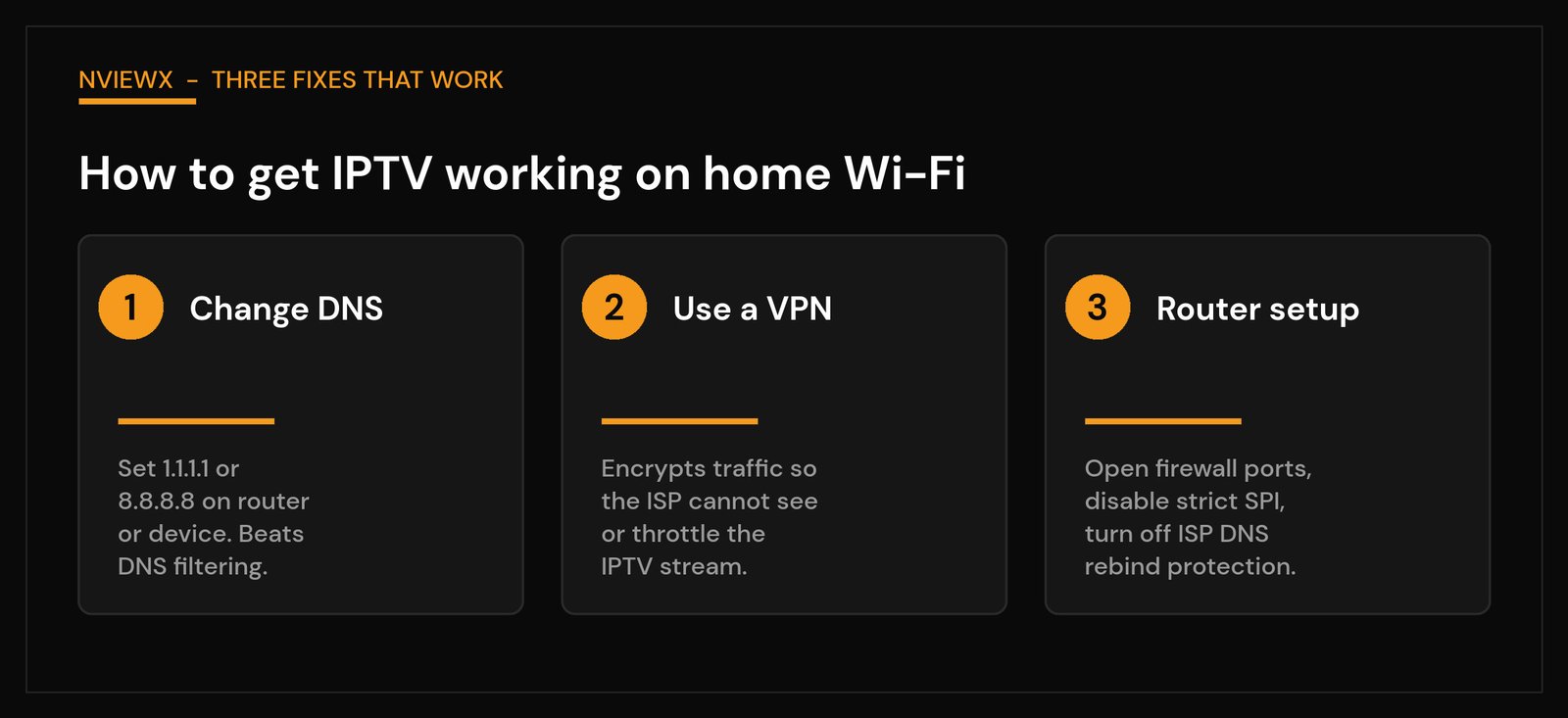
This is the first thing to try because it’s free, fast, and beats the single most common block. Instead of using your ISP’s DNS, point your device or router at a public resolver such as Cloudflare (1.1.1.1 and 1.0.0.1) or Google (8.8.8.8 and 8.8.4.4). When the lookup no longer goes through your ISP, simple DNS-based blocking stops working — and public resolvers are often faster than an ISP’s anyway.
You can change DNS in two places. On a single device, set it in the network/Wi-Fi settings of your Firestick, Android TV box, or phone. To cover everything on the network at once, log into your router’s admin page (usually 192.168.0.1 or 192.168.1.1) and set the DNS servers there. The router approach is cleaner because every player benefits without per-device tweaking. The catch: DNS only defeats DNS-level blocks. If your ISP is throttling or using DPI, you’ll need fix 2.
Fix 2: Use a reputable VPN
A VPN is the most complete fix because it encrypts your traffic end to end. Once it’s on, your ISP can’t see what kind of traffic you’re sending, so it can’t single out a video stream to block, throttle, or inspect. DNS filtering, port filtering, throttling, and DPI all stop mattering at once — which is why a VPN so often turns a dead home connection into a working one.
Two honest caveats. First, choose a reputable, paid VPN. Free VPNs are usually the wrong tool for live video: data caps, throttled speeds, and overloaded servers can make buffering worse than the problem you started with. Second, encryption adds a little overhead, so pick a nearby server to keep latency low. We cover the wider toolkit, including VPN setup, in our walkthrough on how to bypass IPTV restrictions.
Fix 3: Sort out your router and firewall settings
If DNS and a VPN both leave you stuck, the problem may be the router itself. Worth checking, roughly in order of likelihood:
- Firewall / SPI level. If your router has a security level set to High or Strict, drop it to Medium and retest. Over-tight stateful inspection can kill long-lived streaming connections.
- DNS-rebind protection. Some routers block responses that point to private or unusual addresses. If it’s on, temporarily disabling it can unstick a player.
- Force public DNS at the router. Even after fix 1, make sure the router isn’t quietly overriding you and re-injecting the ISP’s DNS.
- QoS rules. A misconfigured Quality-of-Service profile can deprioritize the very traffic you care about. Turn it off as a test.
- Firmware. An out-of-date router can mishandle modern streaming connections; a firmware update sometimes resolves it outright.
If you’re rebuilding the player from scratch while you’re in there, our IPTV setup guide and the Firestick install walkthrough cover clean configurations that avoid common pitfalls.
When it’s something else entirely
The ISP is the usual answer, but not the only one. A few alternatives worth ruling out:
- Weak Wi-Fi signal. If the device sits far from the router, the link may be too weak for steady live video even though browsing feels fine. Move closer or wire it with Ethernet to test.
- Router overload. An ageing or cheap router juggling many devices can choke on a continuous stream. A reboot or a better router helps.
- Provider-side issues. If a specific service is down, no network change will fix it — though that would usually fail on the hotspot too, which is why the hotspot test is so clarifying.
- DNS set wrong on the device. A bad manual DNS entry left over from earlier tinkering can break resolution. Reset to automatic, then apply fix 1 deliberately.
New to all of this and want the fundamentals first? Start with what an IPTV service actually is, then come back to troubleshooting.
Quick cause-to-fix reference
| What you’re seeing | Likely cause | First fix to try |
|---|---|---|
| Channel won’t load at all on Wi-Fi, fine on hotspot | ISP DNS filtering | Change DNS to 1.1.1.1 / 8.8.8.8 |
| Plays but buffers constantly, speed test looks fine | Selective throttling or DPI | Use a reputable VPN |
| DNS and VPN both fail to help | Router firewall / SPI / rebind | Lower firewall level, disable rebind protection |
| Stutters only when far from the router | Weak Wi-Fi signal | Move closer or use Ethernet |
| Fails on hotspot too | App, playlist, or provider issue | Recheck the setup and source |
Want streaming that just works without fighting your network every week? Nviewx is built for stable, straightforward playback — see how it compares to wrestling with ISP filters.
Frequently asked questions
Why does IPTV work on my hotspot but not my Wi-Fi?
Because your home ISP controls your Wi-Fi connection and is most likely blocking, throttling, or DNS-filtering the stream. Your phone’s hotspot runs on a separate carrier network without those restrictions, so the same app plays fine there.
Is my ISP allowed to block IPTV?
Many ISPs filter or throttle certain traffic types under their network-management policies. Whether and how they do it varies by provider and region. Practically speaking, the fixes above (DNS change, VPN, router tweaks) are about restoring a connection you’re paying for, for legitimate, licensed content.
Will changing my DNS really fix it?
It fixes the most common case — DNS-level blocking — and it’s free, so it’s the first thing to try. If the issue is throttling or deep packet inspection instead, DNS alone won’t be enough and you’ll want a VPN.
Do I need a VPN, or is DNS enough?
Try DNS first. If the stream still buffers or won’t connect after switching DNS, a reputable VPN is the more complete fix because it hides the traffic type from your ISP entirely.
Why does a speed test look fine while IPTV still buffers?
Throttling usually targets a specific traffic type, not your whole connection. A speed test measures general throughput, which the ISP leaves alone, so it reads as fast even while the long-running video stream is being slowed.
Should I use a free VPN to fix this?
It’s not recommended for live video. Free VPNs commonly have data caps, slow servers, and congestion that make buffering worse. A reputable paid VPN with a nearby server gives you the stability live streaming needs.
Could it be my router and not my ISP?
Yes. A too-strict firewall, tight SPI, DNS-rebind protection, or a misconfigured QoS rule can break streams that a plain hotspot allows. If DNS and a VPN both fail, work through your router settings next.
Does using Ethernet instead of Wi-Fi help?
It removes weak-signal and Wi-Fi-congestion problems, which can be the cause if the stream only stutters far from the router. It won’t bypass ISP-level filtering, though — for that you still need a DNS change or VPN.