Skip to content
IPTV Parental Controls: How to Lock Channels and Set a PIN (2026)
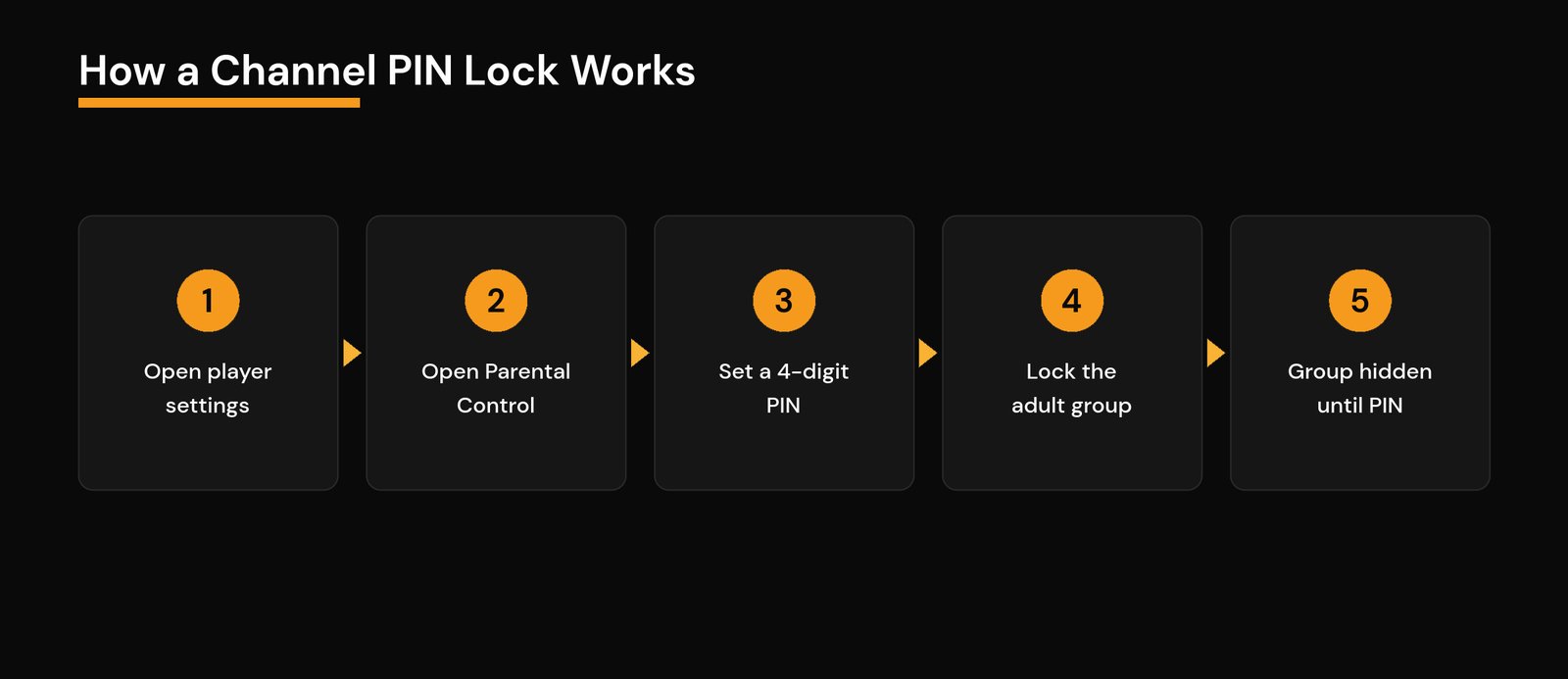
IPTV parental controls let you hide adult channels behind a PIN so kids only see what you allow. The fastest way is inside your player: open the app’s Parental Control settings, set a 4-digit PIN, then lock the adult group so it disappears from the channel list until the code is entered. Most of the popular players — TiviMate, IPTV Smarters, and XCIPTV — can do this in under two minutes. For younger kids, you can add a second layer on the device itself and a third on your home network, so a curious child can’t simply reinstall an app to get around the lock.
This guide walks through all three layers, with the exact menu steps for each major player, plus the mistakes that quietly leave the lock wide open (the default 0000 PIN being the big one).
The three places you can lock IPTV
Think of it in layers. Each one covers a gap the others leave open, and you don’t need all three — but the more careful you want to be, the further down the list you go.
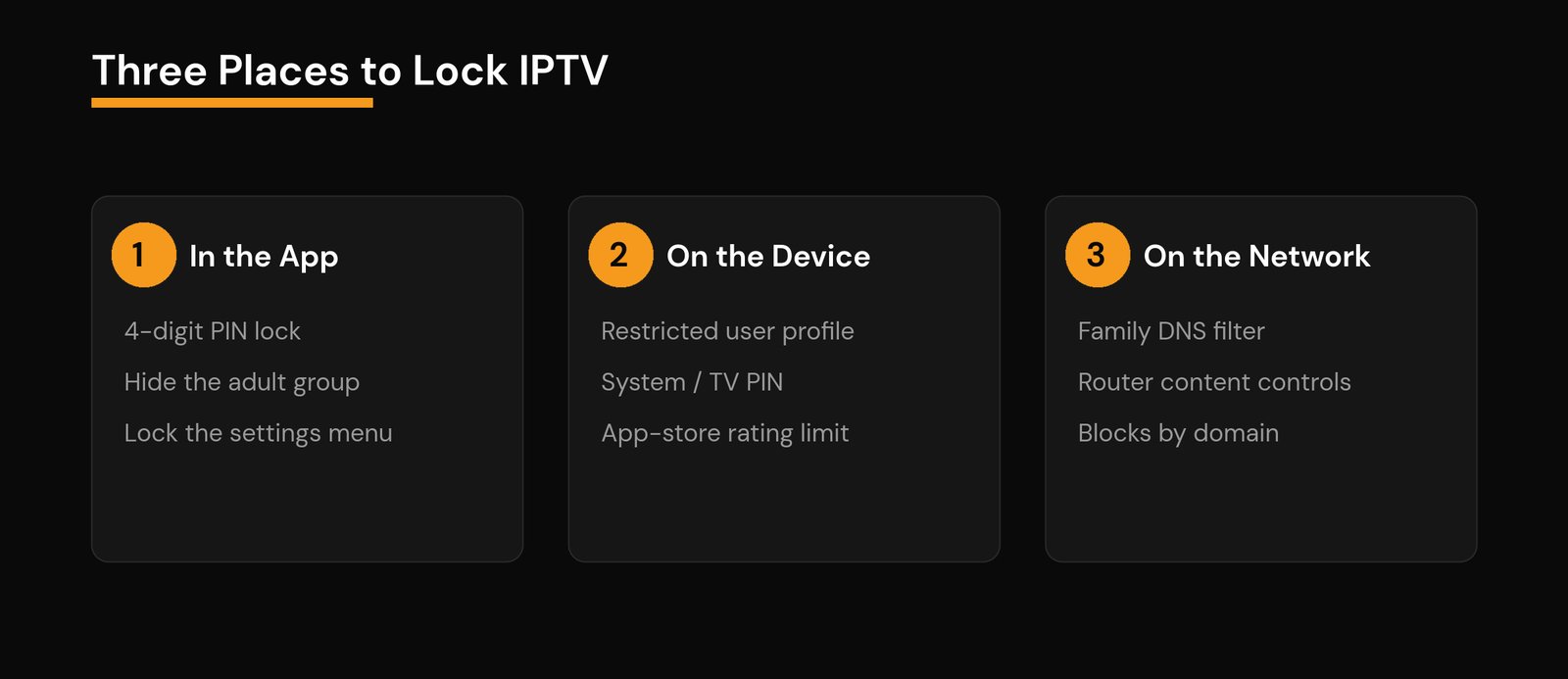
In the app is where nearly everyone starts. A PIN hides an entire group (like an “Adult” or “XXX” category) and can also block the settings menu so the lock itself can’t be changed. On the device means a restricted profile or a system-level PIN on the TV or streaming stick, which stops a child from opening a different app or installing a new one. On the network means a family-filtering DNS service or your router’s built-in controls, which block adult domains for every device on your Wi-Fi at once. Parental controls work best when the app-level lock is backed by at least one of the deeper layers.
How a channel PIN lock actually works
Every player handles this the same way under the hood. You set a secret code, attach it to a channel or group, and the player then refuses to show that content — or hides it from the list entirely — until someone types the code. A personal identification number is only as strong as its secrecy, so the whole system falls apart if you leave it on a factory default or write it on the remote.
TiviMate: the most complete parental controls
TiviMate has the deepest options of any common player, which is why it’s worth the extra minute. Here’s the setup I use:
- Open Settings → Parental Control and turn on Enable Lock, then set a 4-digit PIN.
- To lock a whole category, go to Settings → Channels → Groups (or Lock Group), enter your PIN, and select the adult group. It vanishes from the guide until unlocked.
- To lock a single channel, highlight it in the list, long-press, and choose Lock. A small padlock appears next to it.
- Turn on Lock Settings in the Parental Control menu so a child can’t just open settings and switch everything back off.
That last step is the one most people skip. Without it, the PIN only guards the channels, not the switch that controls the PIN.
IPTV Smarters Pro: quick, but change the default first
IPTV Smarters is fast to lock, with one important catch: it ships with a default parental PIN of 0000. Anyone who has used the app before will try that first, so change it immediately.
- Open the app, go to Settings, then Parental Control (on some builds it sits under your account or profile).
- Toggle Enable Parental Control on and set a new PIN — not 0000, and not 1234.
- Under Lock Channels or Channel Restrictions, pick the categories or individual channels to hide, and toggle the lock on.
Once set, those categories ask for the PIN before they’ll open. If you ever forget the code, you usually have to clear the app’s data and set everything up again, so store it somewhere safe.
XCIPTV and other players
XCIPTV follows the same pattern: a Parental Control section in settings where you enable a PIN and then pick categories to hide. Most other M3U and Xtream Codes players you’ll meet have an equivalent — look for “Parental,” “Lock,” or “Hide category.” If a player has no lock at all, that’s a good reason to switch to one that does, because the app layer is your first and easiest line of defense.
Locking on the device and the network
App locks are great until a child figures out they can install a second player. That’s where the other two layers earn their place. On the device, create a restricted or kids profile and set a system PIN, and turn on your app store’s rating limit so new apps can’t be installed without approval. On the network, point your router at a family-filtering DNS service (for example, OpenDNS FamilyShield) or use the router’s own content controls — that blocks adult domains for every device on the Wi-Fi, not just the one app. If you already use a VPN with IPTV, remember it can override your DNS filter, so set the family DNS inside the VPN or the router instead.
Parental control options at a glance
| Layer | What it locks | Best for | Weak spot |
|---|---|---|---|
| App PIN (TiviMate, IPTV Smarters, XCIPTV) | Channels, groups, settings menu | Everyday use, older kids | Beaten by a second app |
| Device profile + system PIN | App launching and installing | Younger kids, shared TVs | Needs setup per device |
| Family DNS or router controls | Adult domains, whole network | Covering every device at once | A VPN can bypass it |
Common mistakes that leave the lock open
A few small things quietly undo all your work. Leaving the default PIN (0000 or 1234) is the biggest one. Locking the channels but not the settings menu is the second, because the settings menu is where the lock lives. Using the same PIN as your phone or door code makes it easy to guess. And relying on the app alone on a device where a child can install anything means the lock is one download away from useless. Fix those four and your setup is genuinely solid. It’s the same careful mindset that helps you avoid the common risks of using IPTV in the first place.
Frequently asked questions
Can I hide adult channels completely instead of just locking them?
Yes. In TiviMate, IPTV Smarters, and XCIPTV, locking a group also removes it from the visible channel list and guide until the PIN is entered, so kids don’t even see that the category exists. This is better than a visible-but-locked channel, which can invite guessing.
What is the default IPTV parental control PIN?
Many players, including IPTV Smarters, default to 0000, and some use 1234. Always change it the moment you enable the lock. A default PIN offers no real protection because it’s the first thing anyone tries.
I forgot my parental control PIN — how do I reset it?
Most players don’t have a “recover PIN” option for security reasons. The usual fix is to clear the app’s data or reinstall it, which resets the parental settings so you can set a new PIN. You’ll need to re-add your playlist afterward, so keep your login details handy.
Do parental controls slow down streaming or affect quality?
No. A PIN lock is just a gate in the app or a filter at the network level. It doesn’t touch the stream itself, so picture quality and buffering are unaffected once a channel is unlocked.
Is an app PIN enough on its own?
For older children, usually yes. For younger kids or a shared family TV, add a device profile or a family DNS filter, because an app-only lock can be sidestepped by installing a different player. Layering is what makes it reliable.