Skip to content
IPTV Audio Out of Sync? How to Fix Lip-Sync Delay (2026)
When your IPTV audio is out of sync, the fix is almost always in the player app, not your subscription. The fastest cure: open your player’s playback settings and switch the audio decoder from Hardware to Software. That alone clears the lip-sync delay for most people on a Firestick, Android TV box, or Smart TV. If it doesn’t, turning off audio passthrough or dialling in a manual audio offset will. Below are the fixes in the order that actually works, from the 10-second toggle to the few cases where the problem is the stream itself.
Why IPTV audio drifts out of sync
Lip-sync delay (the technical name is audio-to-video synchronization) happens when the sound and picture are decoded or delivered at slightly different speeds, so they slowly pull apart. On IPTV it usually comes down to one of four things:
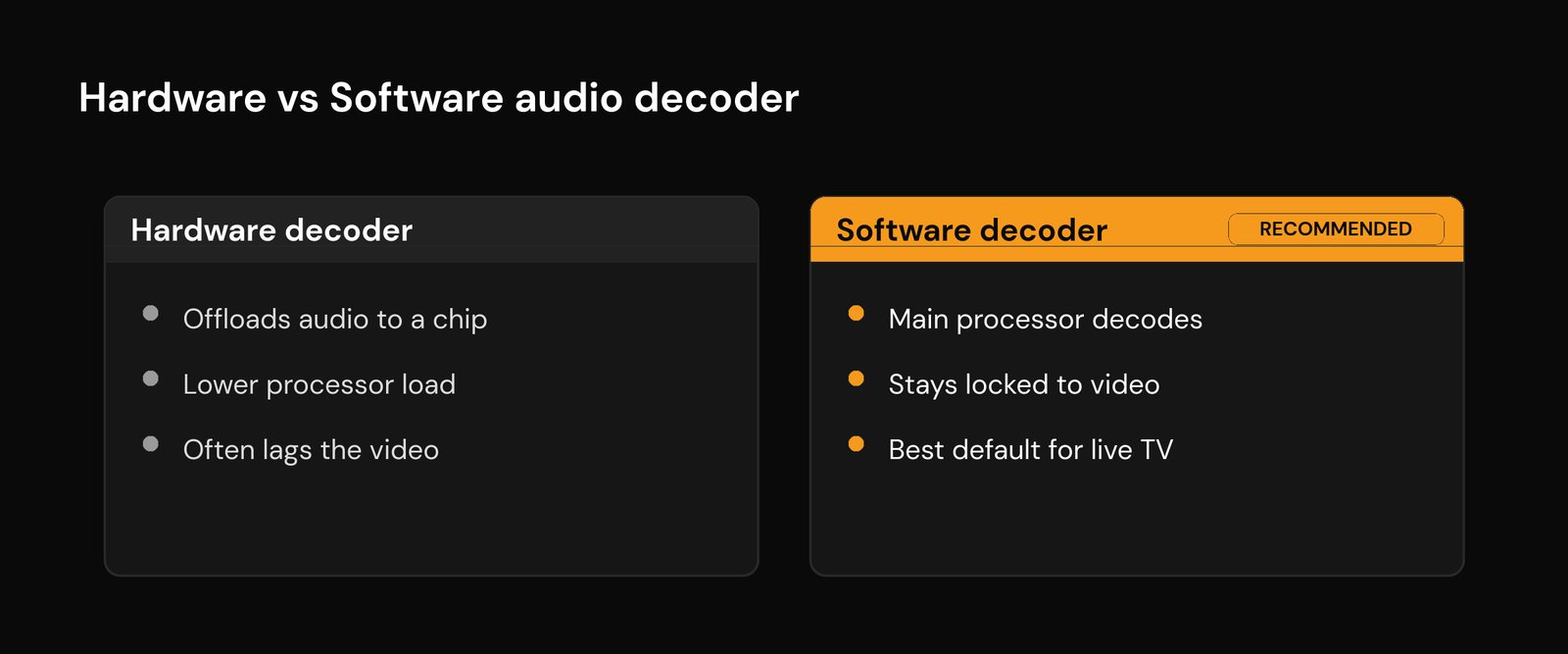
- Hardware decoding on a chip that can’t keep up. Cheaper sticks and older boxes offload audio to hardware that lags the video by a few hundred milliseconds. This is the single most common cause.
- Audio passthrough to a TV or soundbar. Sending raw surround sound out over HDMI adds processing time at the other end, and that extra delay shows up as drift.
- A wireless audio chain. Bluetooth headphones or speakers add real latency on top of everything else.
- A weak or congested connection. If the stream is buffering under the hood, the player can resync the video but let the audio slip.
The giveaway: if restarting the channel fixes it for a minute and then it drifts again, it’s a decoder or passthrough problem. If it’s only ever off during busy evening hours, look at your network instead.
Fix 1: Switch the audio decoder from hardware to software
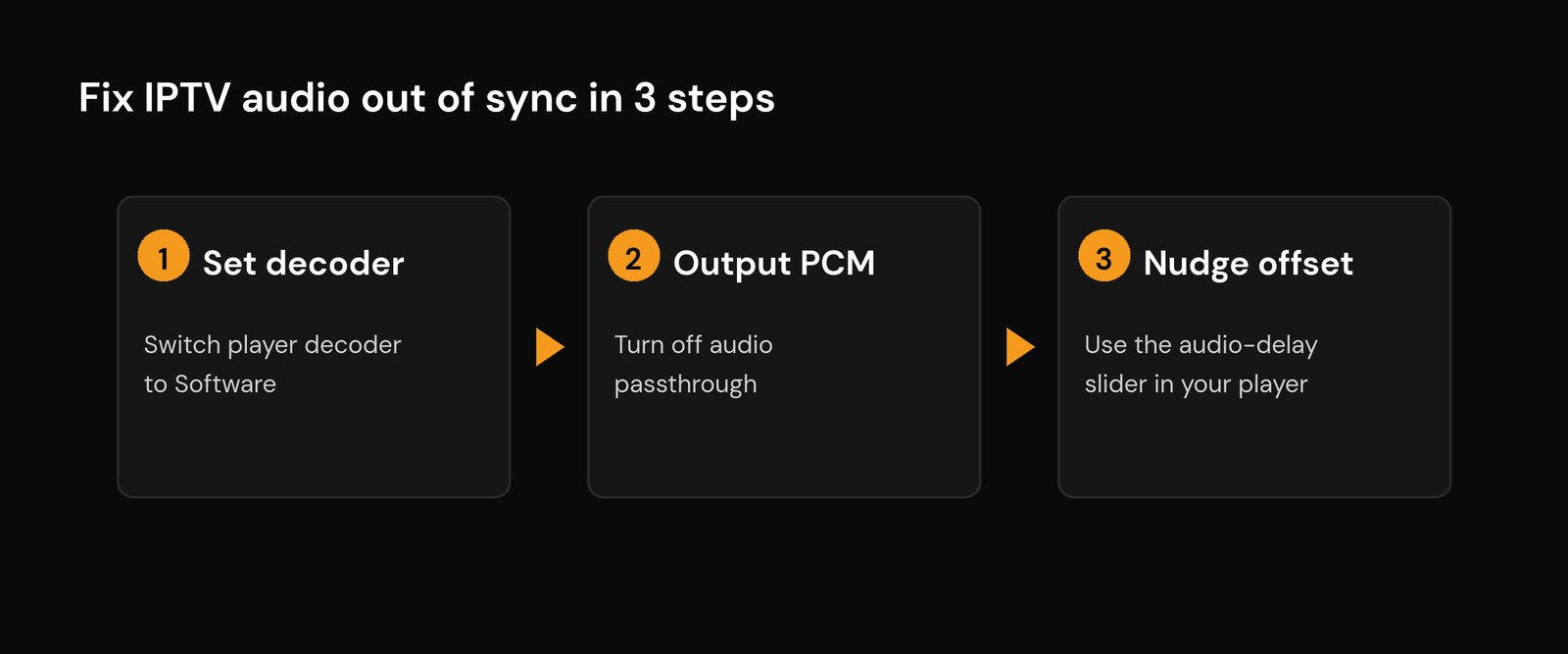
This resolves the majority of lip-sync complaints, and it takes about ten seconds. In TiviMate, go to Settings → Playback → Decoder and set it to Software (or “SW”). In IPTV Smarters / Smarters Pro, open a channel, bring up the player menu, and switch the decoder there from Hardware to Software. In XCIPTV it lives under the playback/decoder settings too.
Software decoding asks the device’s main processor to handle the audio instead of a dedicated chip, which keeps it locked to the video. The trade-off is a touch more processing load — on a very old first-gen stick you might see the opposite problem (slight stutter), in which case switch it back and move to Fix 2. On any 4K-class Firestick or a modern Android TV box, software decoding is the better default for live streams.
Fix 2: Turn off audio passthrough
If your player is set to pass surround sound straight to your TV or soundbar, the device on the other end re-decodes it, and that handoff is a classic source of delay. The fix is to make the player decode the audio itself and send simple stereo.
Look for an audio output or “passthrough” setting in your player and set it to PCM or Stereo rather than “Auto”, “Passthrough”, or a surround format. PCM is uncompressed stereo that almost every TV and speaker handles instantly, so there’s nothing left to re-process and nothing to drift. You lose surround sound on the few channels that carry it, but for live TV that’s a fair trade for audio that stays glued to the picture.
Fix 3: Set a manual audio delay offset
When the drift is small and steady — the same fraction of a second off, all the time — you can simply nudge the audio back into place. Most serious players have an audio sync slider measured in milliseconds.
While a channel plays, open the player menu and find Audio delay or Audio sync. If the sound arrives before the lips move, add a positive delay (start around +150 ms and adjust). If the sound lags behind the picture, use a negative offset. Change it in small steps and watch a talking head until it locks. The catch: this is a manual patch, not a cure. It works beautifully for a constant offset but won’t help if the gap keeps changing — that points back to Fix 1 or a network issue.
Fix 4: Go wired — wireless audio adds lag
If you’re listening through Bluetooth headphones or a wireless speaker, that link alone can add a noticeable delay regardless of your player settings. Bluetooth buffers audio before it plays, and standard profiles can run anywhere from a fraction of a second up. Switch to a wired connection to test — if the sync snaps right, the wireless chain was the culprit. Some headphones and the better players offer a low-latency mode or a Bluetooth-specific audio offset; use those if you must stay wireless.
Fix 5: Check your TV and soundbar settings
Sometimes the player is fine and the TV is the one adding delay. A few things to check on the display side:
- Picture processing. Game mode or a “low latency” picture setting cuts the TV’s own processing time, which can pull audio and video back together.
- The TV’s AV sync slider. Most TVs have their own audio-delay control in the sound settings — handy if every app is slightly off, not just IPTV.
- Soundbar lip-sync. Soundbars and AV receivers have their own sync offset; if the drift only appears when the soundbar is on, adjust it there.
A quick test tells you where the problem lives: if other apps and inputs on the same TV are also out of sync, it’s the TV or soundbar. If only your IPTV player drifts, stay in the player settings.
Fix 6: Switch the player or clear its cache
Players handle audio differently, so when one stubbornly drifts, another often just works. VLC is the reliable fallback — it has a robust software decoder and an instant audio-sync shortcut, which makes it the go-to for testing whether a stream itself is fine. If you’d rather stay in your main app, clear its cache first (on Fire TV: Settings → Applications → Manage Installed Applications → your player → Clear cache); a bloated cache on a low-RAM device causes the kind of micro-stutters that knock audio out of step. Clearing cache won’t delete your playlist or login. For a refresher on how these apps differ, see our guide to how IPTV player apps work.
When it’s the stream, not your settings
If you’ve tried the decoder switch, killed passthrough, and the audio still wanders — especially during peak evening hours or big live events — the problem has moved off your device and onto the network or the server. Under-the-hood buffering lets the player keep the video moving while the audio falls behind, so it looks like a sync bug when it’s really a bandwidth one.
Work through these in order:
- Wire the device with Ethernet or, on Wi-Fi, move to the 5GHz band and get closer to the router. Our best Wi-Fi settings for IPTV guide covers the exact router tweaks.
- Rule out hidden buffering with the full fix IPTV buffering walkthrough — the same congestion that causes freezing causes audio drift.
- Check it isn’t your network blocking traffic. If streams behave on mobile data but not home Wi-Fi, read why IPTV works on hotspot but not Wi-Fi.
- If errors pop up too, our guide to IPTV error codes and DNS issues helps you read what the player is telling you.
And if drift is constant across every channel, every device, and every player you try, it’s worth confirming you’re with a reliable service in the first place — our checklist on choosing a good IPTV provider and the basics in how to set up IPTV are the places to start.
Frequently asked questions
Why is my IPTV audio out of sync only on some channels?
Different channels are encoded with different audio formats, so a decoder that copes with most streams can lag on a few. Switching the player’s decoder to Software, or setting audio output to PCM/Stereo instead of passthrough, normally evens them all out. If only one channel is ever affected, it’s that channel’s feed, not your setup.
How do I fix lip-sync delay on a Firestick?
Open your IPTV player’s playback settings and set the decoder to Software, then set audio output to PCM or Stereo rather than passthrough. If a small, steady offset remains, use the player’s audio-delay slider to nudge it back. Clearing the app cache (Settings → Applications → Manage Installed Applications) helps on low-storage sticks.
What is the audio delay setting and which way do I move it?
It’s a manual offset, usually in milliseconds, that shifts the sound earlier or later. If the sound arrives before the lips move, add a positive delay; if it lags behind the picture, use a negative one. Adjust in small steps while watching someone speak until it locks. It only fixes a constant offset, not drift that keeps changing.
Does a soundbar or Bluetooth speaker cause IPTV audio sync problems?
Yes. Both add processing or transmission delay on top of the player. Bluetooth in particular buffers audio before playing it. Test with the TV’s own speakers over a wired connection; if the sync is correct that way, adjust the soundbar’s lip-sync offset or switch off Bluetooth for streaming.
Will a VPN or my provider fix audio out of sync?
A VPN won’t fix true lip-sync delay, which is a decoding or hardware issue on your end. The exception is when drift is caused by network throttling or congestion — then improving the connection (wired, 5GHz, or in some cases a VPN that bypasses throttling) helps. Most of the time the cure is in the player settings, not the provider.