 Skip to content
IPTV No Sound? How to Fix Missing Audio on Any Player (2026)
If your IPTV video plays but there is no sound, the cause is almost always one of three things: the player is locked to the wrong audio track, your device is sending passthrough audio the TV can’t decode, or one channel is streaming in a format your app doesn’t support. The good news is that IPTV no sound is usually a two-minute settings fix, not a hardware fault — you rarely need to touch a cable.
Below I walk the whole audio path, from the provider’s stream to your TV speakers, so you can spot exactly where the sound drops and stop it there. Work through the checks in order and you’ll fix the vast majority of silent-video problems on Firestick, Android TV, Apple TV, a smart TV, or a phone.
First question: is it every channel, or just one?
This single check saves you a lot of poking around. Open three or four different channels. If every one is silent, the problem is on your side — a setting in the app, the device, or the TV. If just one channel has no audio while the rest are fine, the stream itself is the issue and there’s nothing to fix on your end except report it or switch to a working feed.
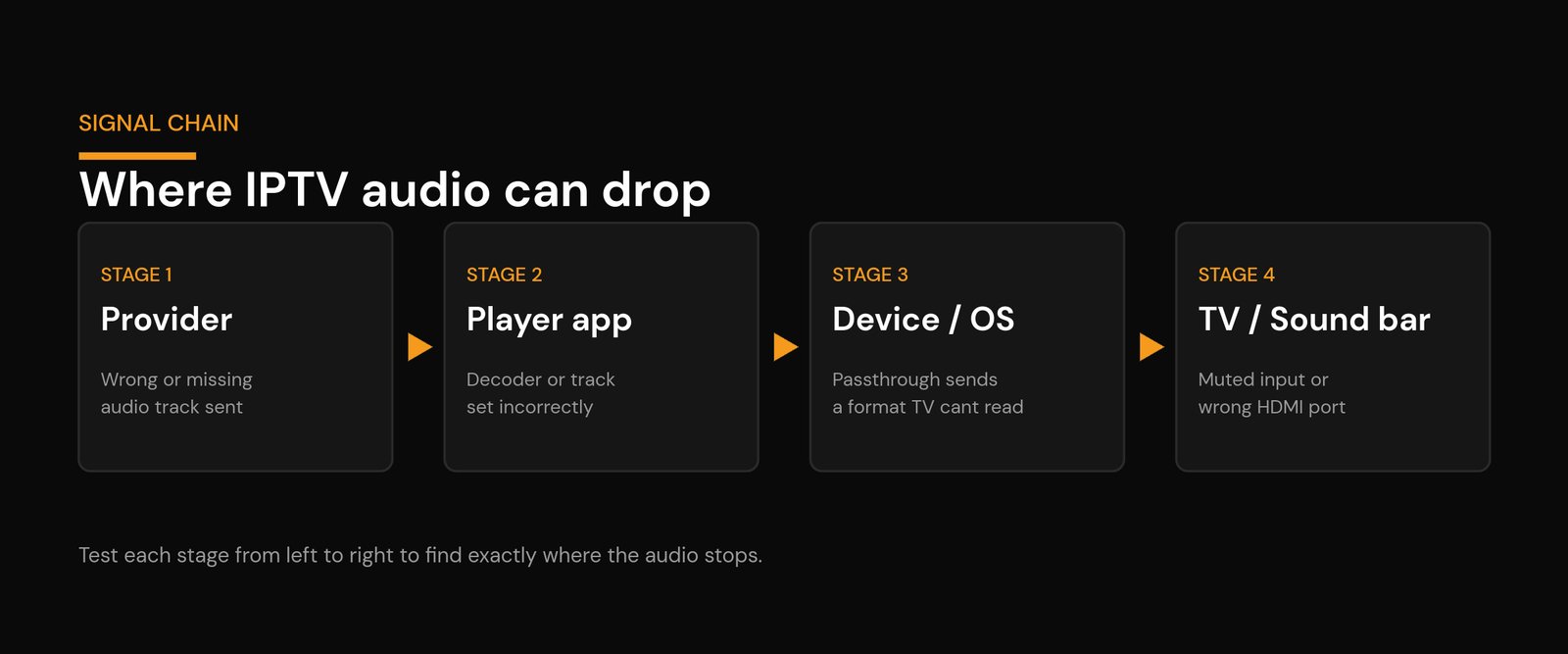
Here’s the mental model I use: audio can drop at any of four stages, and testing left to right tells you which one.
Fix 1: Rule out the silent-but-obvious traps
Before changing anything technical, clear the easy stuff — this catches more cases than people admit. Check that the player itself isn’t muted (many apps have their own mute separate from the TV volume). Make sure the TV is on the right HDMI input and that the volume isn’t routed to a Bluetooth speaker or headphones that walked out of the room. If you use a soundbar, confirm it’s powered on and set to the correct input. On a phone, flip the silent switch and turn the media volume up, not just the ringer volume.
Silly? Sometimes. But I’ve “fixed” no-audio complaints three times by turning off a paired Bluetooth speaker the person forgot was connected.
Fix 2: Switch the audio track (the most common real fix)
This is the one that solves most cases. Plenty of streams carry more than one audio track — an original-language track plus one or two extras — and the player sometimes defaults to a track that is empty, muted, or in a language you didn’t expect. Switching tracks brings the sound straight back.
Where to find it depends on the app:
- TiviMate: while a channel is playing, open the on-screen menu and look for the audio/subtitle panel, then cycle the audio track.
- IPTV Smarters / similar players: tap the screen and use the audio icon (a speaker or “CC/audio” button) to pick another track.
- VLC: Audio menu > Audio Track > choose track 2.
- Kodi: open the playback settings gear during a stream and change the audio stream.
If track 2 has sound and track 1 doesn’t, set the working one and move on. Some apps also let you set a default preferred audio language so you don’t have to do this per channel.
Fix 3: Turn off audio passthrough — the gotcha nobody mentions
If switching tracks didn’t help and every channel is silent, this is very likely your culprit. Many devices default to audio passthrough, which sends the raw surround bitstream (formats like Dolby Digital / AC3 and EAC3) straight to your TV or soundbar and expects that device to decode it. If the TV’s built-in speakers can’t decode that format — and many can’t — you get a perfect picture and total silence.
The fix is to make the device decode the audio itself and output plain stereo PCM instead:
- Firestick / Fire TV: Settings > Display & Sound > Audio > turn Dolby Digital Plus / surround sound off (or set it to Stereo / PCM).
- Android TV / Google TV: Settings > Display & Sound > Advanced sound > set audio output to Auto or PCM rather than a forced passthrough format.
- In the player: some apps have their own audio-output or “digital output” setting — set it to PCM/stereo too.
Use this quick guide to decide which output mode you actually want:
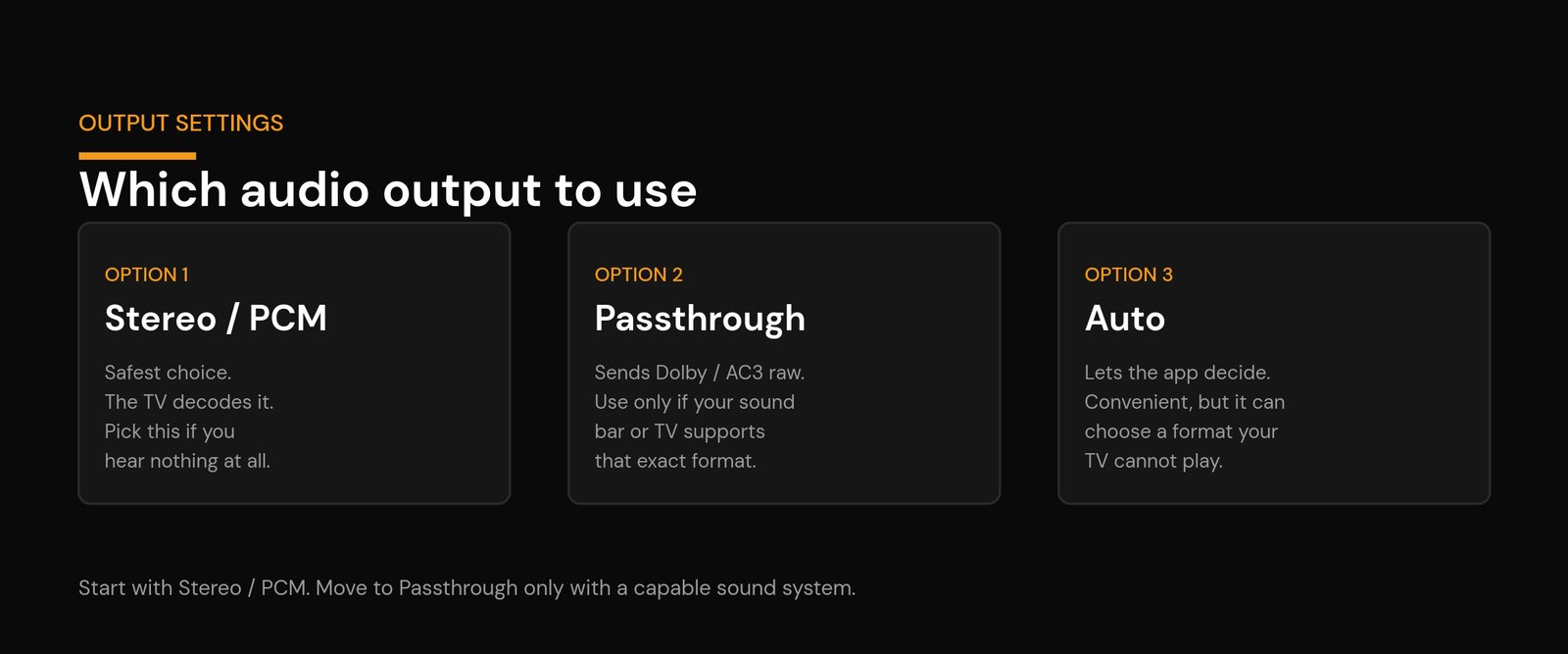
Rule of thumb: if you’re watching through the TV’s own speakers, choose Stereo/PCM. Only use passthrough when a soundbar or receiver in the chain genuinely supports the surround format.
Fix 4: Change the video decoder (hardware vs software)
Cheaper streaming boxes sometimes can’t hardware-decode certain audio codecs, so the video plays but the audio silently fails. Most serious players let you switch the decoder. In TiviMate, IPTV Smarters, or Kodi, look for a “decoder” or “media codec” option and try software decoding (or “auto”) instead of hardware. It uses a little more CPU but often restores audio on channels that were silent.
Fix 5: Only one channel is silent
If it’s a single channel and everything else works, the audio is missing at the source — the provider is sending a broken or empty audio track for that feed. You can’t fix that from your device. Try a backup version of the same channel if your service lists one, use catch-up for the same content, and let your provider know so they can re-point the stream. This is the same principle as an IPTV black or green screen on one channel: when it’s isolated to a single stream, it’s a source problem, not a settings problem.
Fix 6: Soundbars, receivers, and HDMI-ARC
Extra boxes in the chain add extra places for audio to vanish. If your sound runs through a soundbar or receiver over HDMI-ARC/eARC, make sure the TV’s audio output is set to the ARC port and that HDMI-CEC is enabled on both devices — a failed ARC handshake is a classic “video yes, audio no” symptom. Try powering everything off for 30 seconds and back on in order (TV last) to force a fresh handshake. If the soundbar only supports stereo, don’t force a surround format upstream.
Fix 7: When to just switch players
Some apps handle audio codecs better than others. If one player is stubbornly silent on a format that a different app plays fine, that’s your answer — install a second player and test the same channel. Our comparison of TiviMate vs IPTV Smarters covers which handles tricky streams more gracefully, and the best IPTV players for Firestick roundup lists solid alternatives to try. Keeping two players installed is the cheapest insurance against a single app choking on one codec.
Fix 8: When it’s the provider, not you
If the audio is missing across every channel and across more than one device, you’ve already ruled out your settings — the transcoding on the provider’s side is the likely fault. That’s the same logic as a whole-service no-signal outage: when the symptom follows the account rather than the device, it’s upstream. Contact support with the exact channels affected and the devices you tested, so they can check the source. A dependable service fixes audio faults quickly; if yours routinely ships silent channels, that’s a quality signal worth weighing.
One more distinction worth making: if the sound is present but lagging behind the picture, that’s a different problem with a different fix — see how to fix IPTV audio out of sync. This guide is for when there’s no audio at all.
Quick reference: symptom, cause, fix
| Symptom | Most likely cause | First fix to try |
|---|---|---|
| Every channel silent | Passthrough or muted output | Set device audio to Stereo/PCM |
| One channel silent | Broken audio track at source | Switch feed or report it |
| Wrong language audio | Default track is track 2/3 | Change the audio track in the app |
| Silent only on one box | Codec not hardware-decoded | Switch decoder to software/auto |
| Silent through soundbar only | HDMI-ARC/CEC handshake | Re-enable CEC, power-cycle in order |
Frequently asked questions
Why does my IPTV have picture but no sound?
Because video and audio are handled separately. The picture decodes fine while the audio fails — usually because the app is on the wrong audio track or the device is sending a passthrough format (like Dolby Digital/AC3) that your TV can’t decode. Switch the audio track first, then set the device output to Stereo/PCM.
What is audio passthrough and should I turn it off?
Passthrough sends the raw surround audio to your TV or soundbar to decode instead of decoding it on the streaming device. If the device that receives it can’t handle that format, you get silence. If you listen through the TV’s built-in speakers, turn passthrough off (use PCM). Only keep it on when a soundbar or receiver supports the surround format.
How do I change the audio track on IPTV?
During playback, open the player’s on-screen controls and look for an audio or track icon. In TiviMate it’s in the channel menu, in IPTV Smarters it’s the audio button, in VLC it’s Audio > Audio Track, and in Kodi it’s the playback settings gear. Cycle to another track and the sound usually returns.
IPTV audio works on my phone but not my TV box — why?
The phone decodes the audio in software by default, while the TV box may be trying to pass it through or hardware-decode a codec it doesn’t support. Set the box’s audio output to PCM and switch the player’s decoder to software or auto.
Only one channel has no sound. Is that my fault?
No. When a single channel is silent but the rest work, the audio is missing at the source. Try a backup feed if your service offers one and report the channel to your provider — there’s no device setting that fixes a broken source track.






